Jason Hoppe Adobe Certified Expert & Adobe Certified Trainer
  • Home
  • Contact
  • Blog
  • Blog Index
  • Portfolio

Design Points n PixelS


INFOGRAPHIC SERIES - VALENTINES BANNER

2/14/2016

 
Create a banner for any occasion. This looks like a simple set up but it takes several steps to make it look like it curls and curves like you want it to. Have fun! And just in time for Valentines day.
Picture

Picture
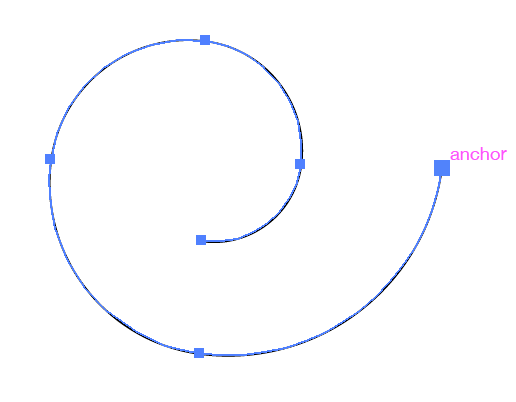
Start your banner with the Spiral tool, and while drawing, use your down arrow to take away the concentric arcs until you end up with the shape you see above. 
Picture
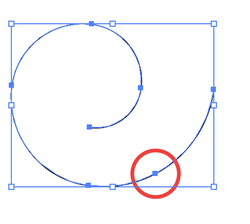
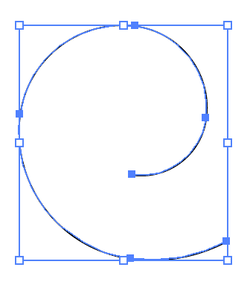
While the Spiral is selected, use the Pen Tool to add a point as show. Then use the Direct Selection Tool to select the last tail of the arc and delete it. 
Picture
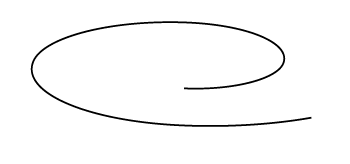
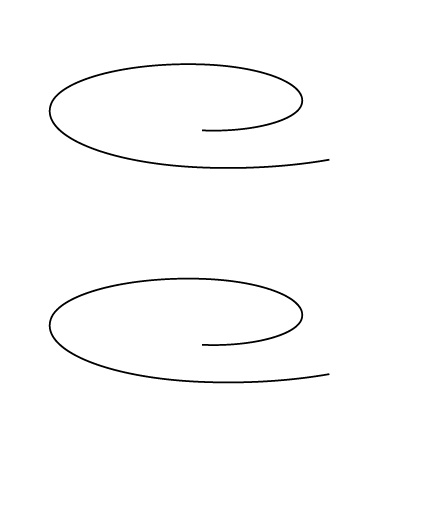
With the tail of the arc deleted. Select the shape with the Selection Tool and make it 1/2 the height.
Picture
With it half he height, it is now ready for duplicating. 
Option CLCIK + DRAG the shape down to create a duplicate.

Picture
With the 2 spiral selected, you need to Join the open ends. Select both shapes and use COMMAND + J to join the shapes on one end.
Picture
With the shapes joined, we now want to fill the shape with a color but we need the shape to be closed.
Picture
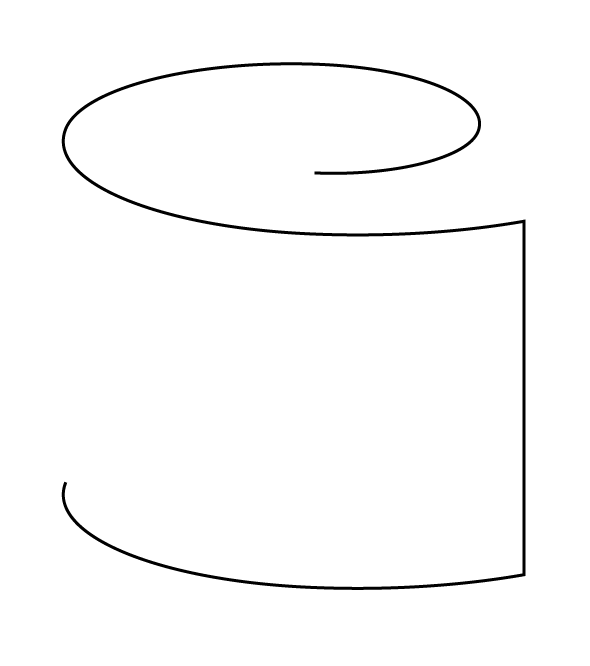
Use the Direct Selection Tool and delete two of the curves on the bottom shape as shown.
Picture
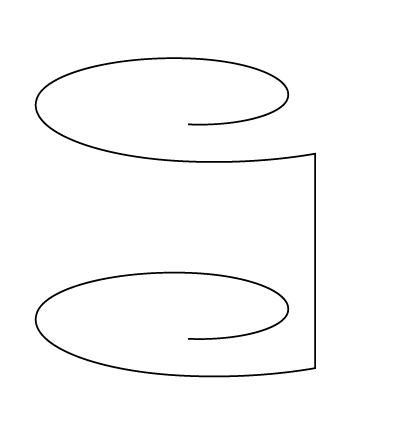
Create a straight, vertical line on each of the 3 ends as shown. They do not need to be joined to the open ends as it won't be possible as some of them are closed. 

Picture
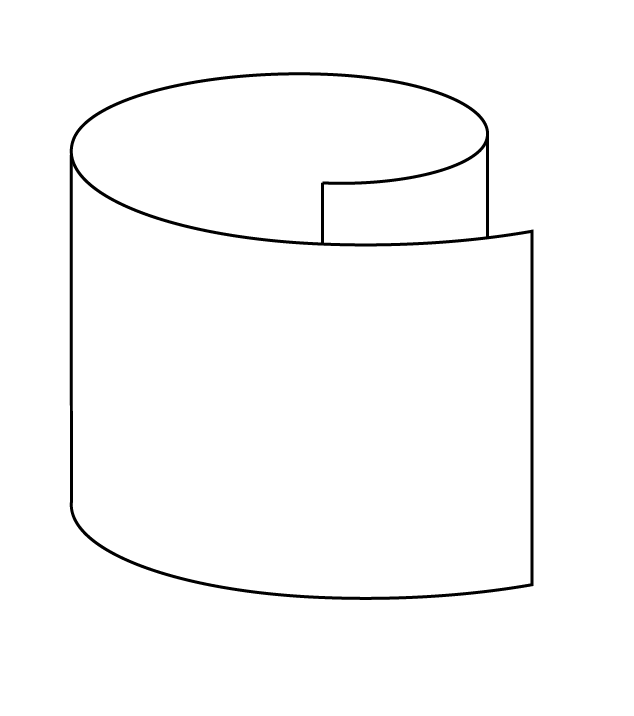
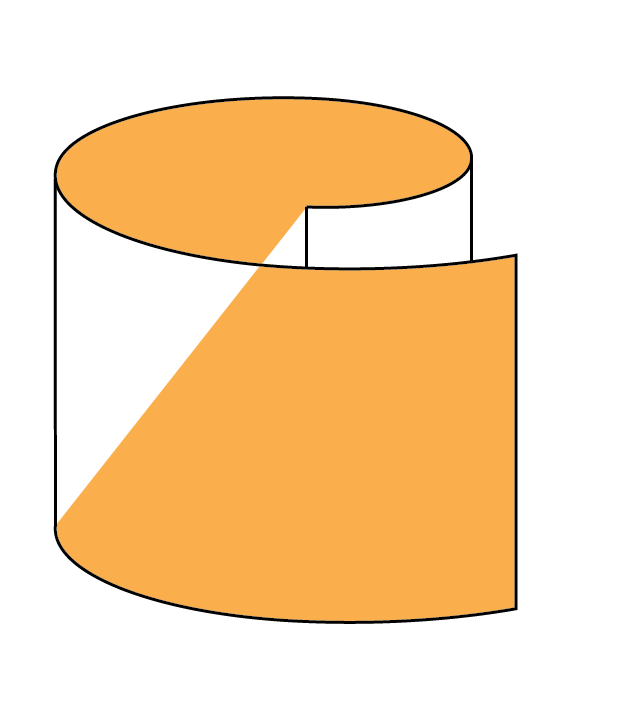
When you fill it with a color, it doesn't fill like you would want. So we need to Live Paint this object.... Undo the Fill before you go into Live Paint.
Picture
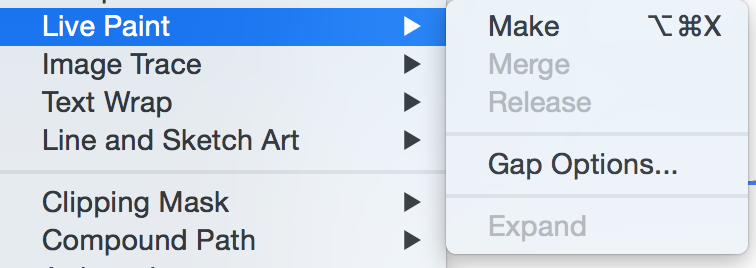
Select the objects and choose Object, Live Paint.
Picture
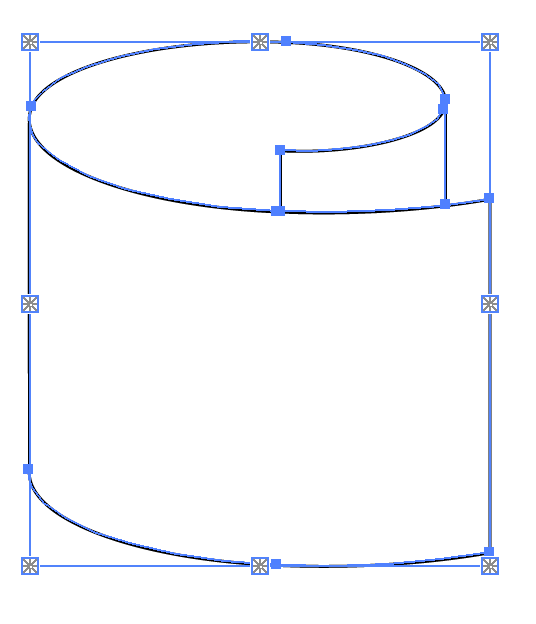
The Object will now be a Live Paint Object, noted by the "snowflakes" around the bounding box of the shape.
Picture
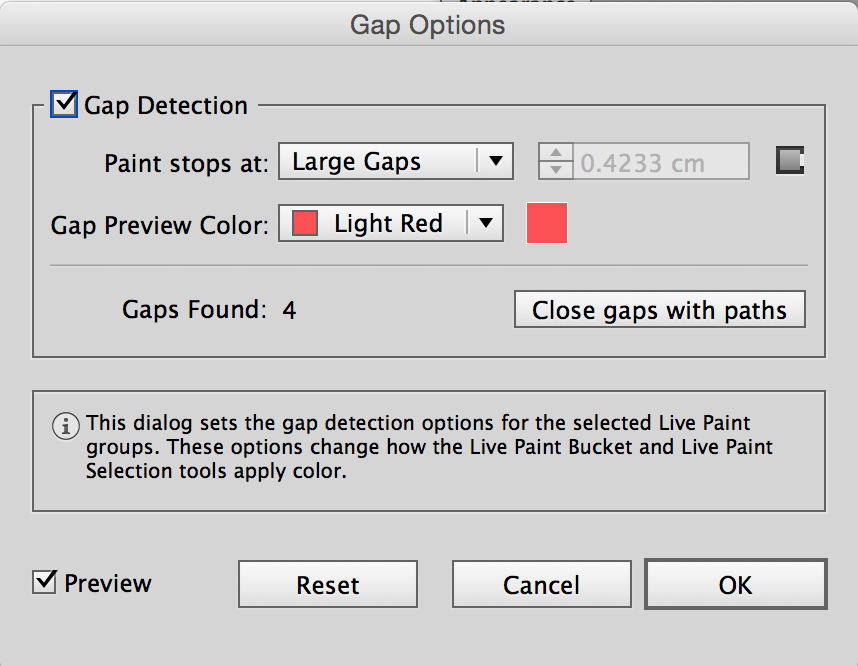
Choose Object, Live Paint, Gap Options to make sure that the lines "create" a closed shape to fill with Live Paint.

Picture
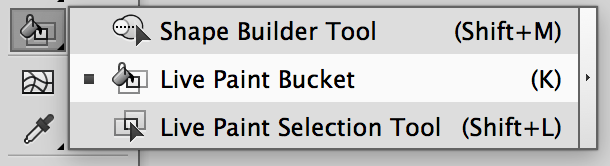
Using the Live Paint Bucket Tool (the only way you can fill a Live Paint Shape) you can now fill the shapes with color
Picture
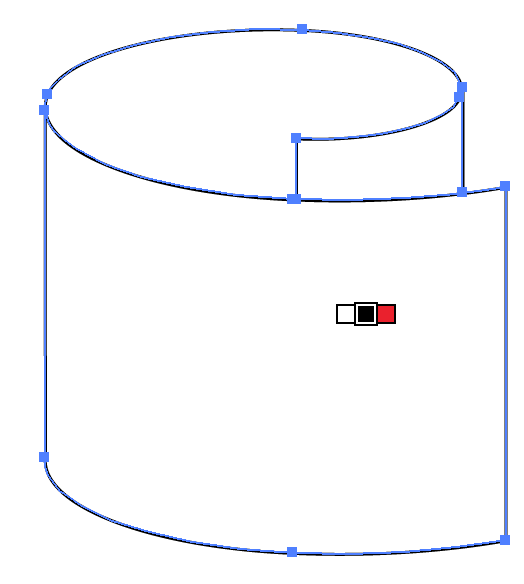
By the Live Paint Tool is a set of 3 boxes filled with color, this is your Swatch palette at hand. Use the left or right arrows to work through the color choices then click on the shape to fill it with the active color.
Picture
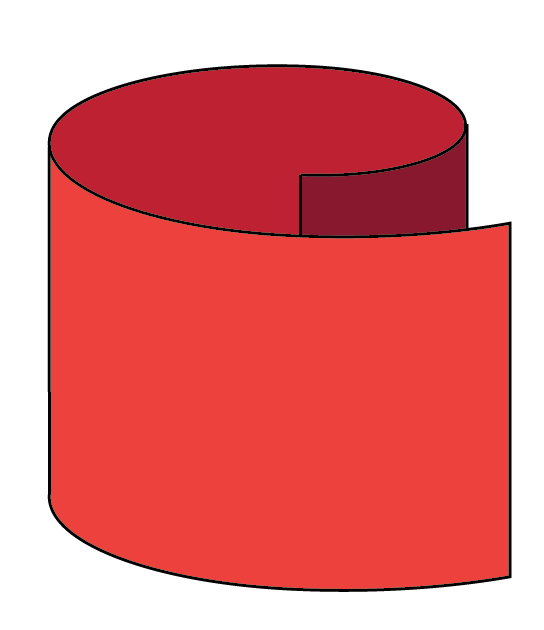
Here is the shape filled with three shades of red to add depth. 
Choose Object>Expand to break the shape up into usable shapes and outlines.
Picture
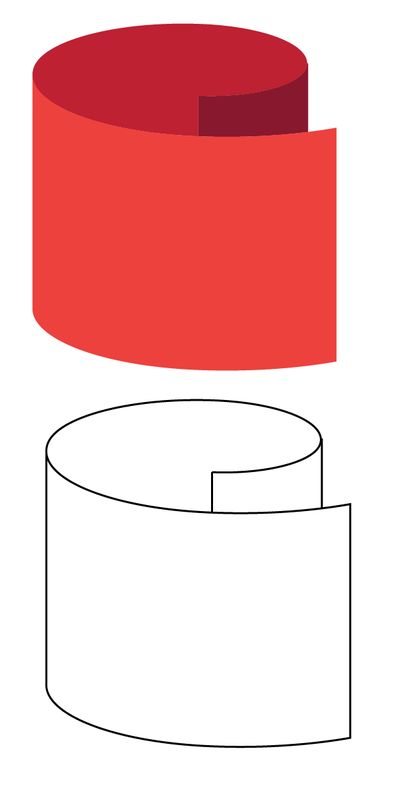
When expanded it will give you filled shapes and a seperate editable outline as well. Ungroup the shapes and delete the separate outline that is overlaying the shapes.

Picture
Duplicate the shapes to Reflect them and get a mirror image of the shape. 
Picture
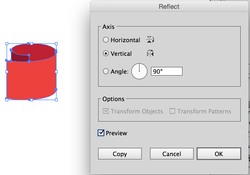
Select the right curl with the Selection Tool and right click, choose Transform>Reflect. 
Picture
D
Picture
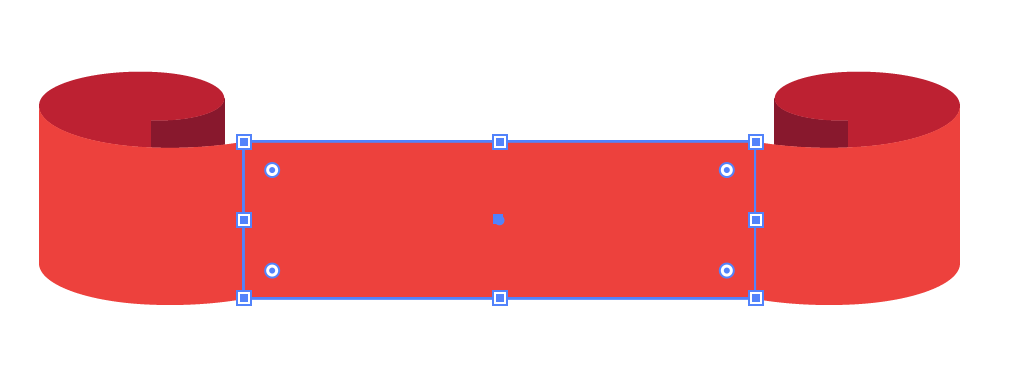
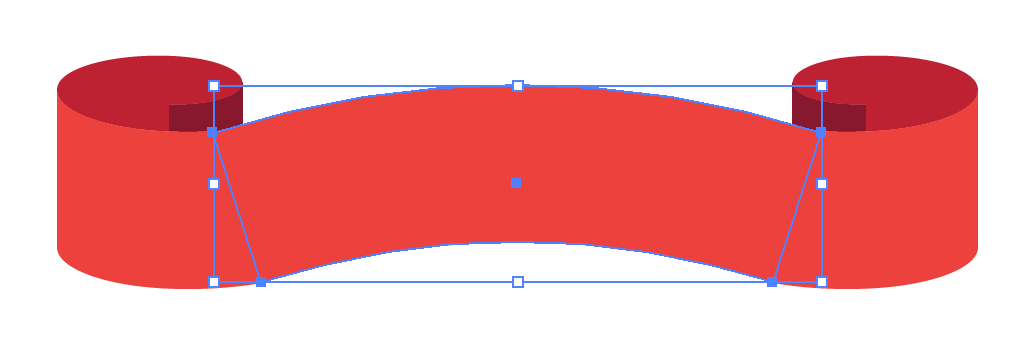
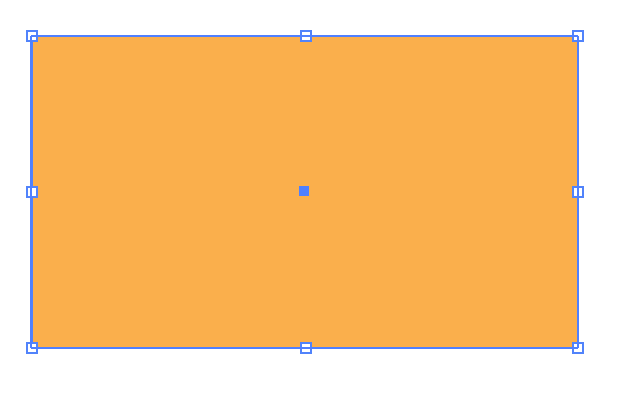
Draw a rectangle in the center of the two set of curls, matching the height to the verticals of the curls. 


Picture
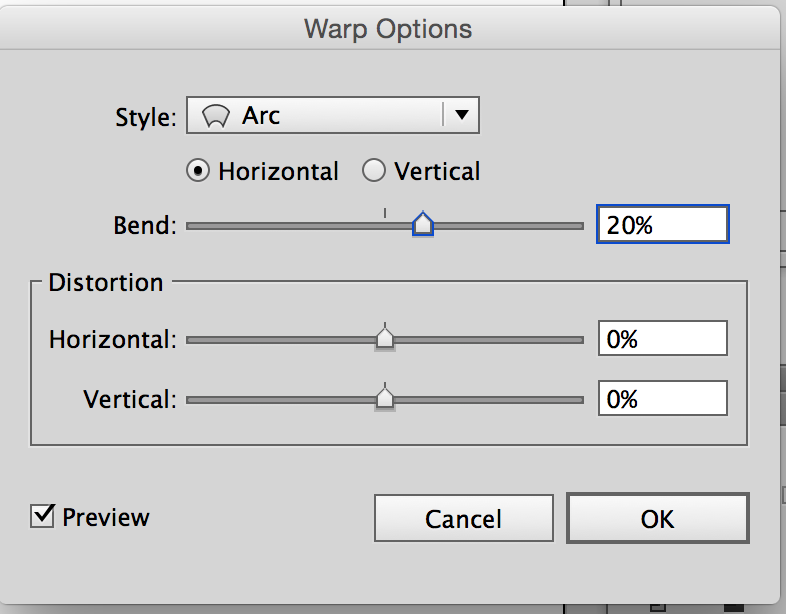
With the rectangle selected, choose Effect>Warp>Arc. 
Picture
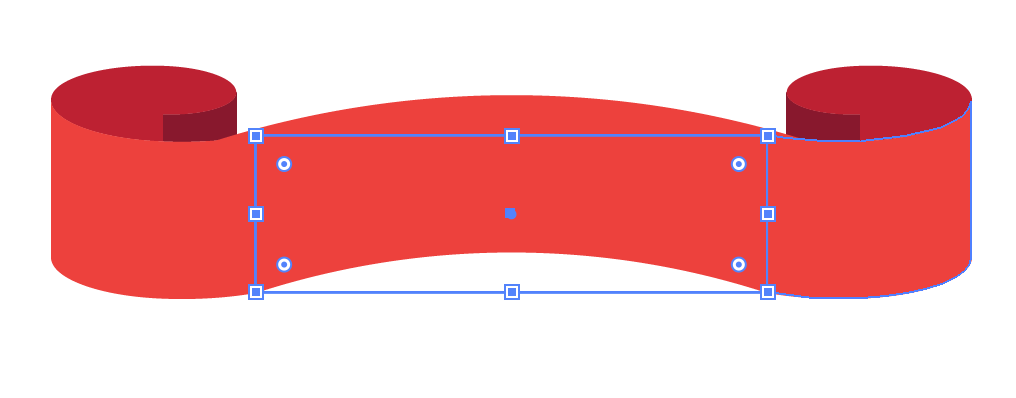
Set the percentage of arc to make the arc effect look like it fits. I set this arc to 20%
Picture
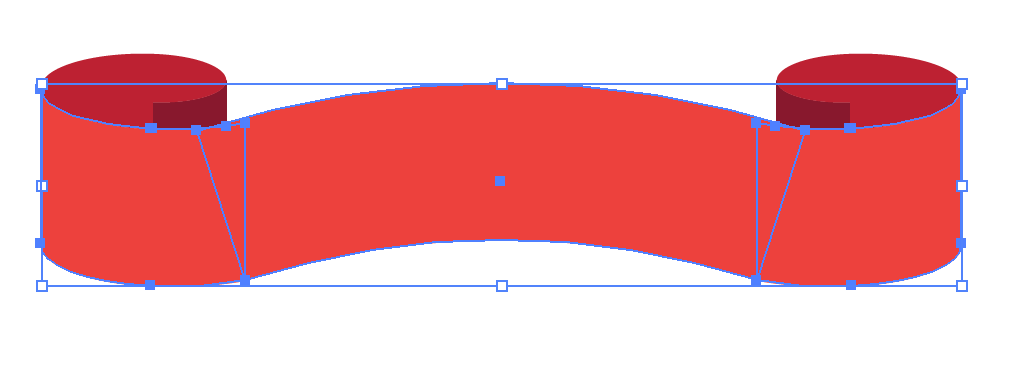
With the center section selected, choose Object>Expand Appearance to make the effect the actual shape. Select all the shapes and Ungroup everything.
Picture
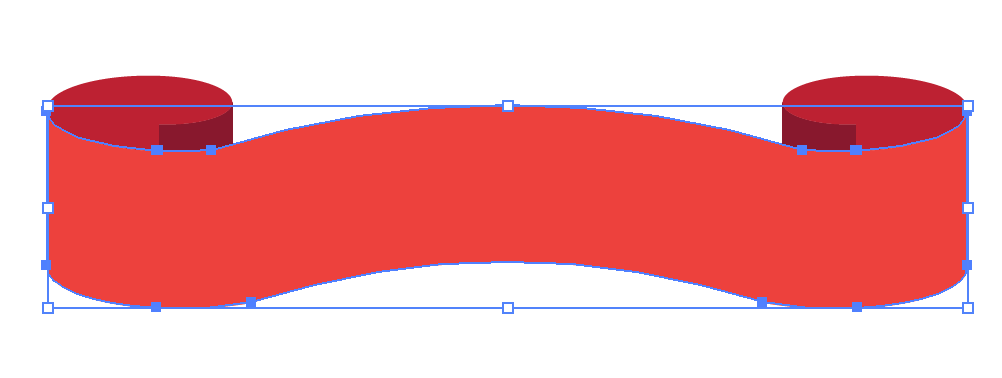
Select just the arc rectangle and the two front sections of the curls and Add them all together using the Pathfinder Panel. You should end up with one solid shape.

Picture
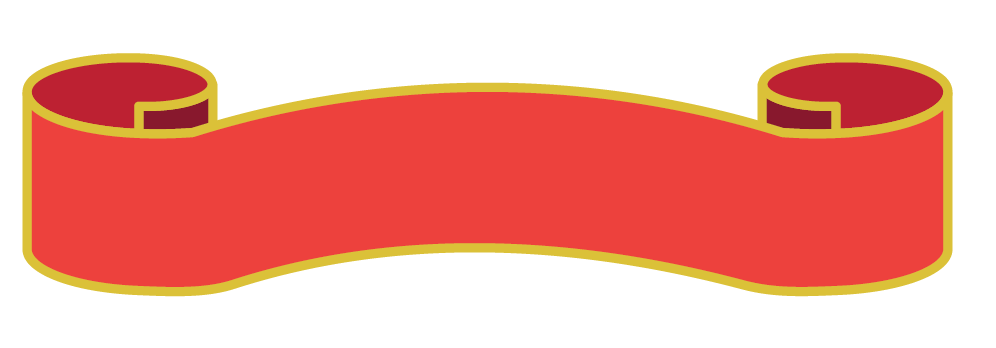
Select all the shapes and add a gold stroke to all the shapes.
Picture
Select all the shapes and Group them all together. 
Picture
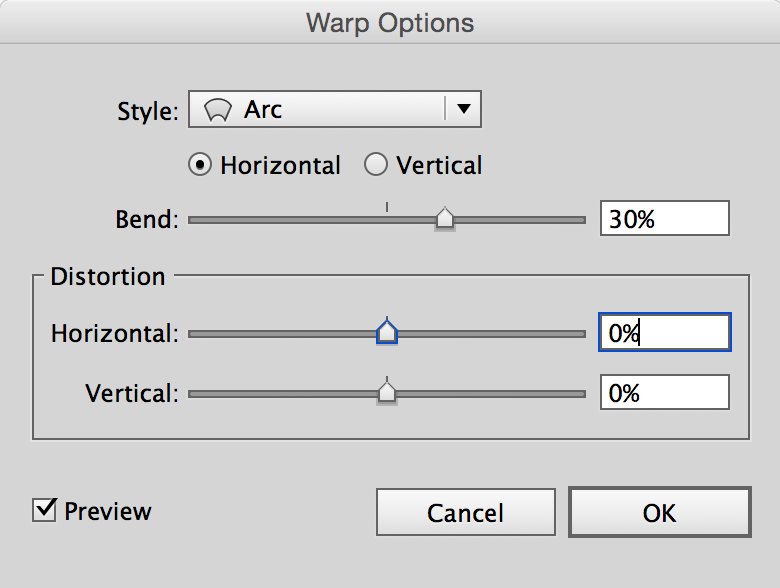
Select the group and choose Effect>Warp>Arc and set the arc to make it curved. I used 30% here. 
Picture
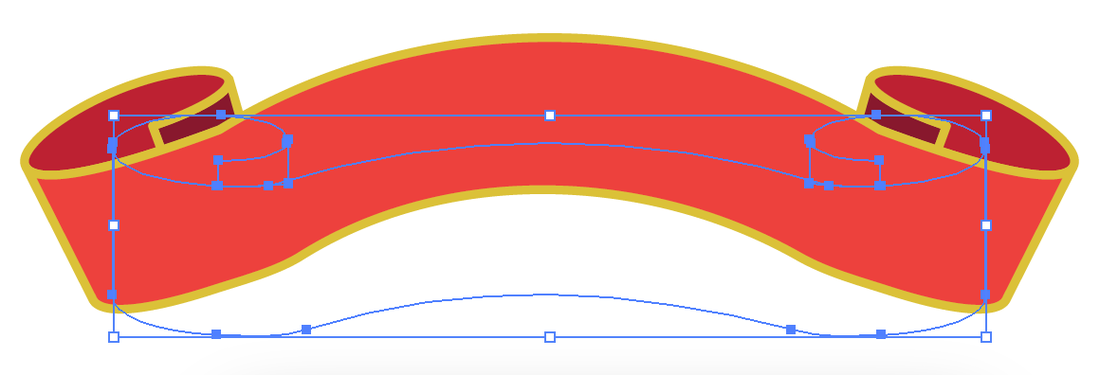
Here is your arc'd banner.

Add some type on a path to personalize your message!

INFOGRAPHIC SERIES - TAG WITH DROP SHADOW

2/7/2016

 
Here is a quick way to create and edit a drop shadow effect in Illustrator. And make it a bit fun as well.
Picture

Picture
Start with a rectangle, fill it with a color, no stroke.
Picture
Using the Pen Tool, add a point on the left side, directly in the middle. Use you Smart Guid to locate the position, and then click to add a point.
Picture
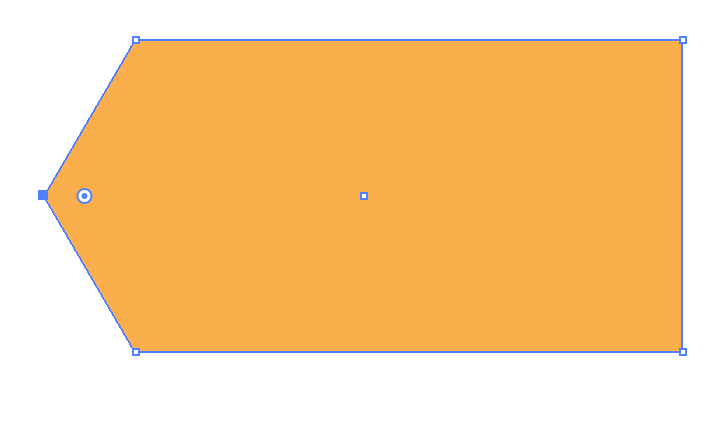
Select the newly added point with the Direct Selection tool, hold SHIFT and use your left arrow to move the point out to the left.
Picture
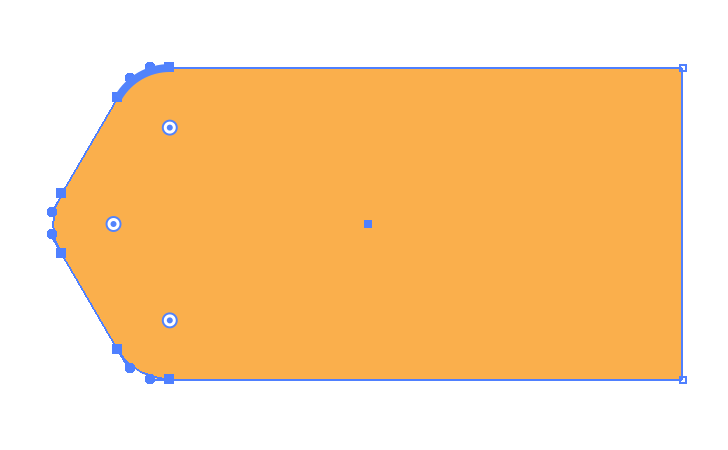
Use the Direct Selection Tool to select the three left points, this will show the Live Corners. Pull the targets in toward the middle of the rectangle slightly to round the edges.

Picture
Draw a circle and place it in the tip on the left. 
Picture
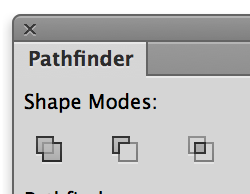
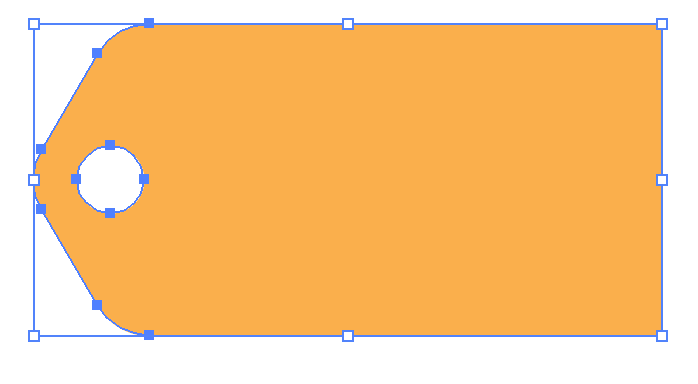
Select both the circle and shapes, use the Pathfinder Mode to Minus Front.
Picture
Result will leave a hole in the tag.
Picture
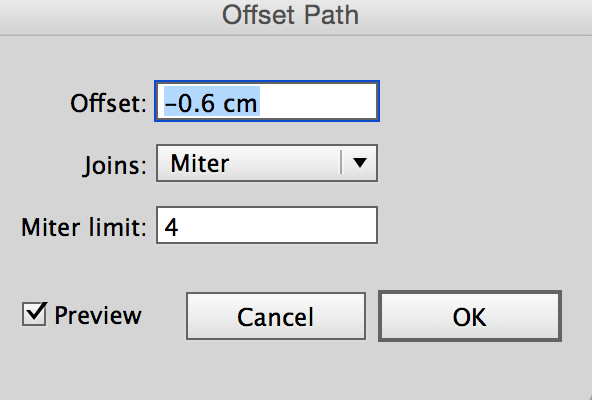
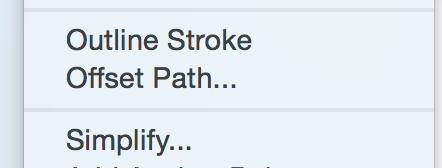
Select the tag and choose object>Path>Offset Path.

Picture
Set the inset to be a negative number to inset the path inside the shape.
Picture
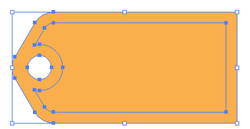
The result will give you a smaller inset shape, inside the tag.
Picture
Fill the inset shape with a contrasting color.
Picture
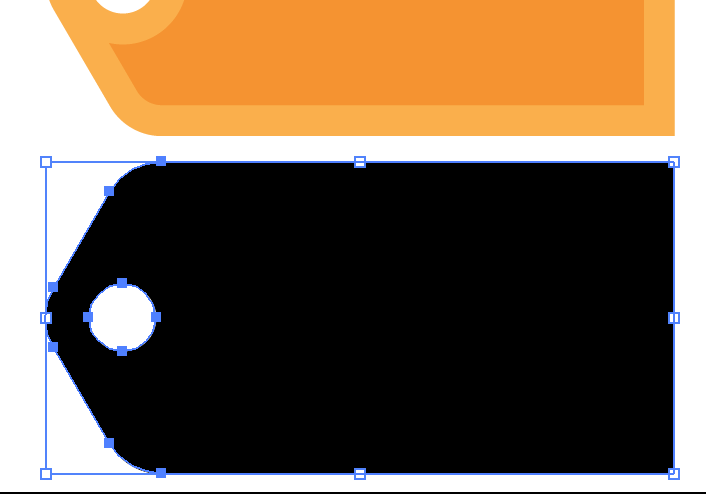
Duplicate the tag and fill it with black, no stroke

Picture
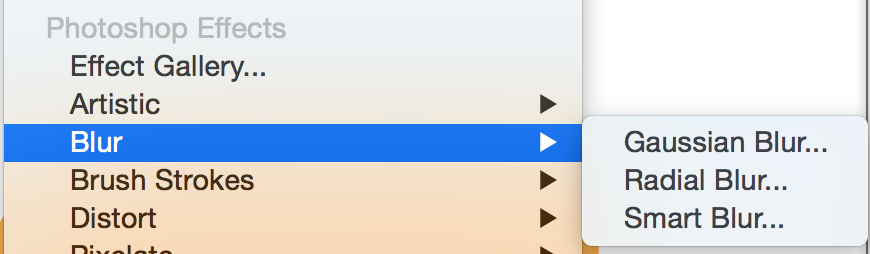
Chose the black shape, under the Effect menu, choose Blur under the Photoshop Effects section, then choose Gaussian Blur.
Picture
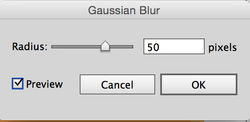
Set the Blur to 50.
Picture
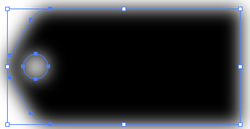
Here is the result.
Picture
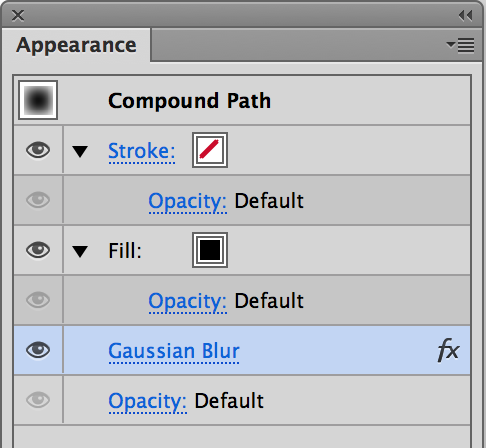
To edit the Blur Effect, open the Appearance panel under the Window Menu. Click on the Gaussian Blur link to edit the blur, don't go under the Effect Menu and choose Gaussian Blur or will add a 2nd blur on top of he first.

Picture
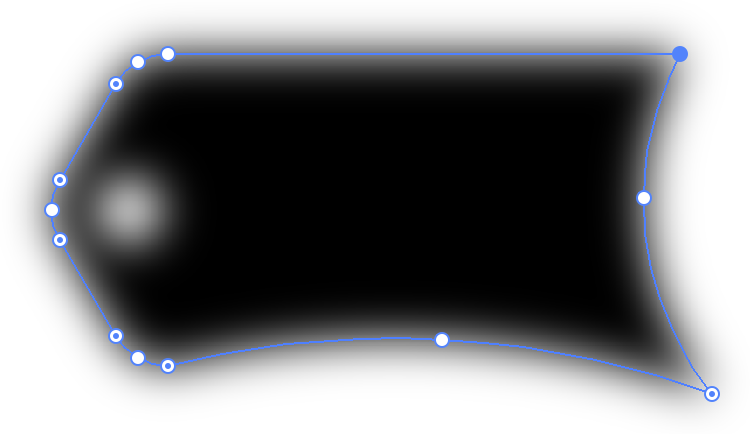
Use the Curvature Tool, select the right edge and push the center in. Choose the bottom and push the center up. Pull the lower right corner down slightly, all with the Curvature Tool.
Picture
Move the drop shadow to the back and position it behind and slight to the right of the tag. Adjust the opacity as needed. 
Picture
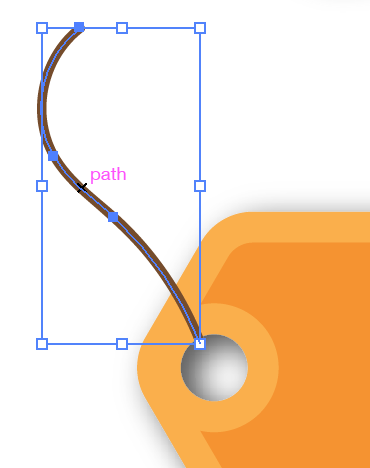
Take the Pencil Tool and draw a bit of string, add a darker stroke to it. 
Picture
And there you have a finished tag. Adjust the shadow to make it look like more of a curl if needed, or lighter or darker.

INFOGRAPHICS SERIES - INTEGRATED OVERLAPS

2/6/2016

 
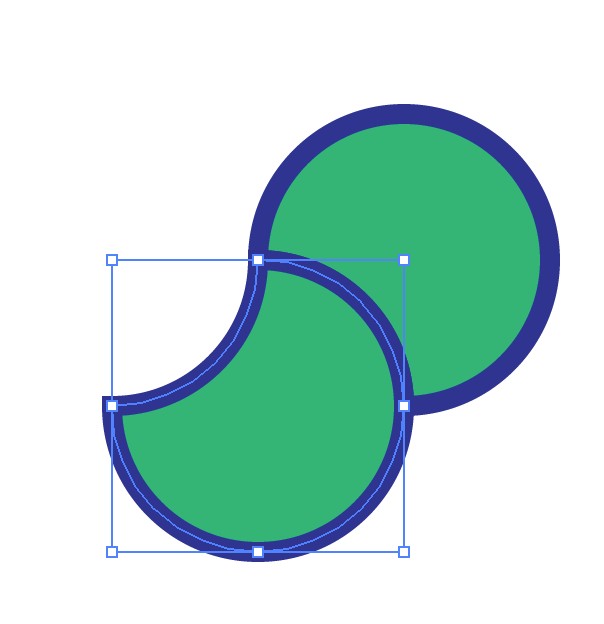
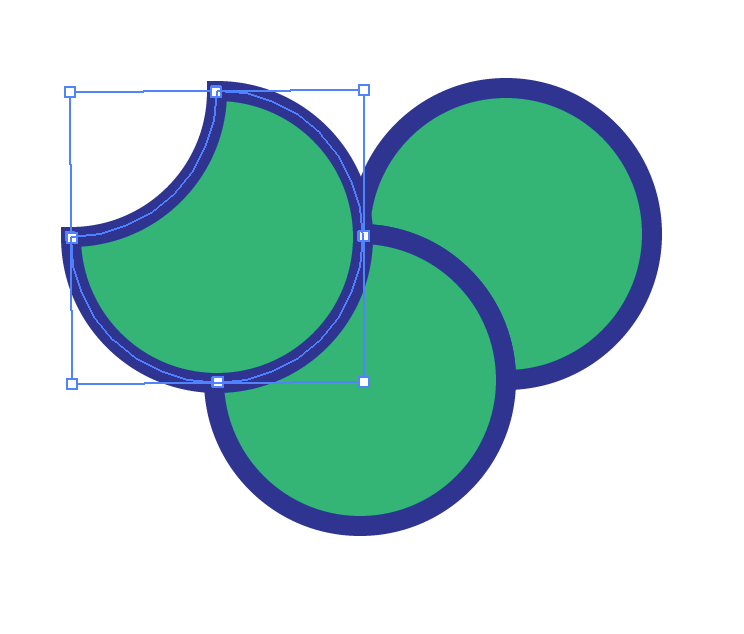
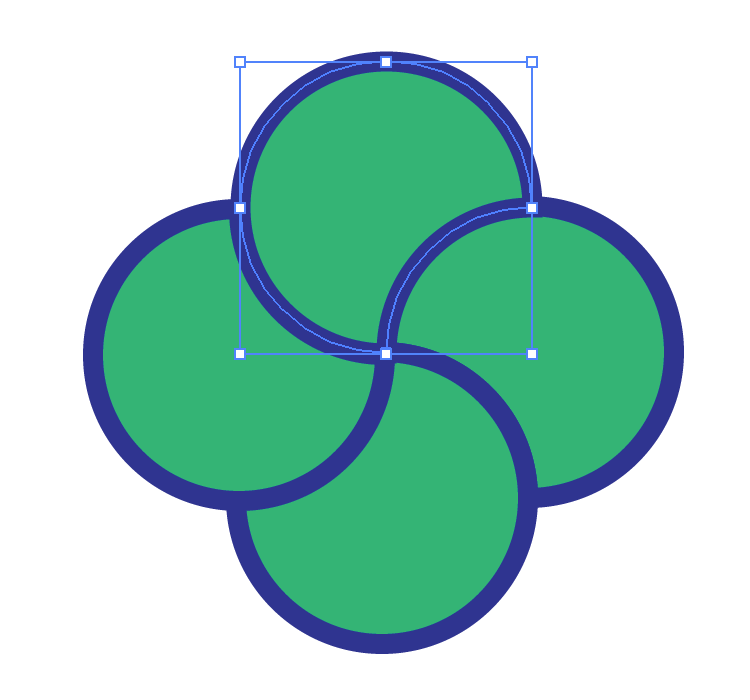
This is a simple way to create what looks like overlapping circles. The problem is with circles, you have to send each circle to the back, and you never get the last overlap set that you want. So here is the trick!!
Picture
Picture
Picture

Picture
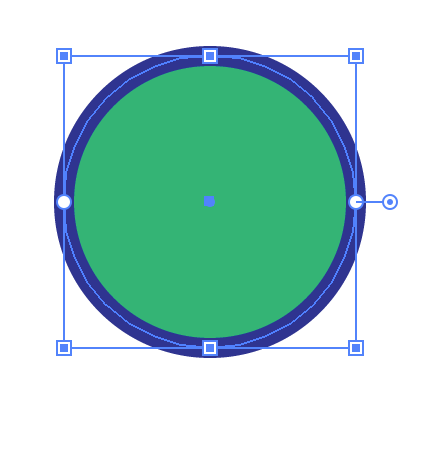
Start with a circle. Draw while holding SHIFT to create a perfect circle. Add a stroke to the shape, 10 pts work well.
Picture
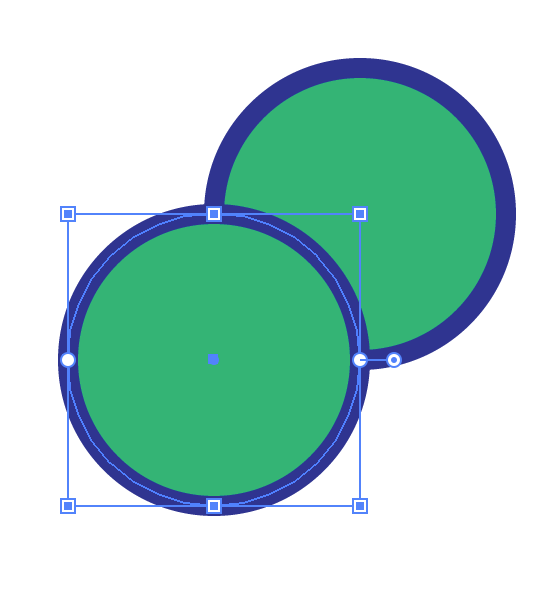
Duplicate the circle, hold OPTION and click and drag, while holding SHIFT, and drag to the lower left. SHIFT will constrain to the left at a 45° angle. 
Picture
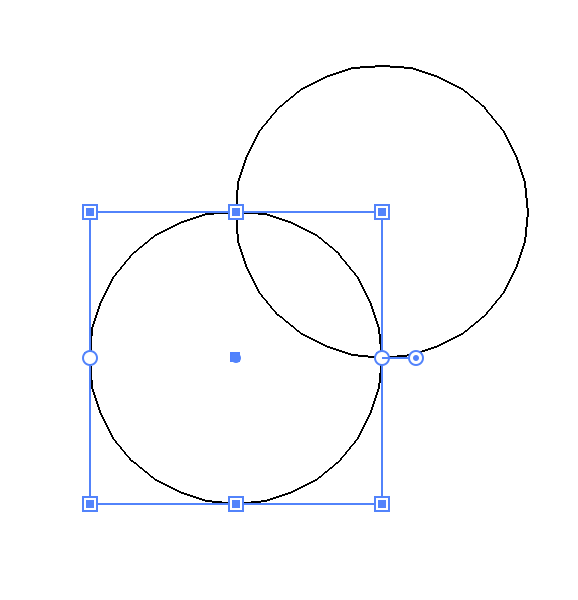
Line up the duplicated circle to the point shown. Smart Guides will help in this alignment. View>Guides>Smart Guides
Picture
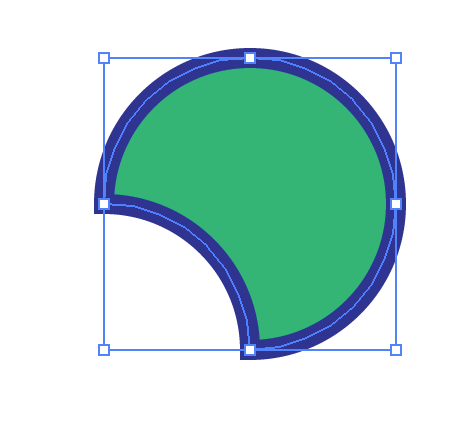
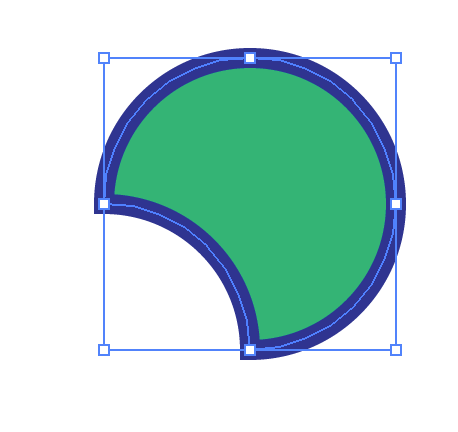
Use the pathfinder panel to Minus Front. This will remove the circle in front and leave the back circle shape.
Picture

Picture
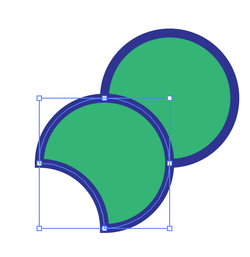
OPTION + CLICK and drag the shape while holding SHIFT and drag at a 45° angle down and to the left. Snap the edges of the duplicated shape to the edges of the original shape. 
Picture
Rotate the duplicated shape 90° clockwise. 
Picture
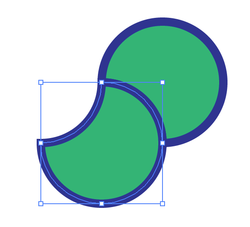
Duplicate that shape and move up and to the left and snap to the second shape.
Picture
Rotate the newly duplicated shape 90° clockwise.
Repeat the duplicate process up and to the right, hold shift and snap it to the existing circle. Rotate that shape 90° clockwise again.

Picture
With the last shape duplicated, this will drop right into final position if you have created perfect circles AND lines the circles up to the existing edges of the circles.
Picture
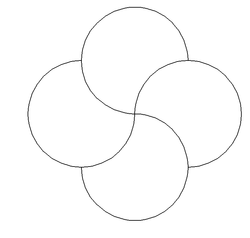
In Outline Mode (View>Outline) you should see all the shapes line up as shown.
Picture
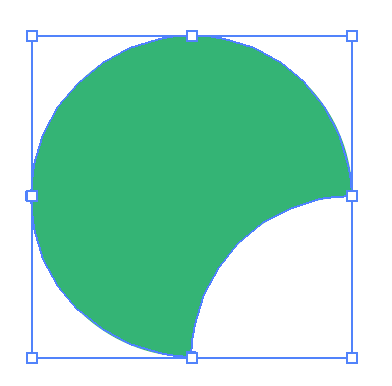
Now you have an overlap composite shape.
Picture
Duplicate the top shape. Remove the stroke on it.

Picture
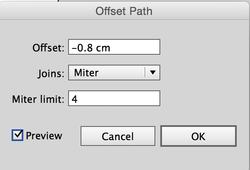
Choose Object>Offset Path and set the Offset to be a negative number. This will create a path inside the shape.
Picture
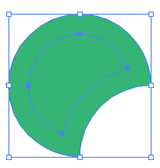
With the Offset Path, remove the OUTER path leaving the smaller, inner shape.
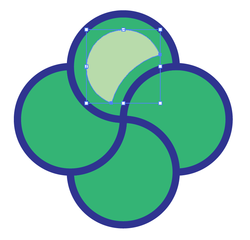
Fill with a lighter color that you used in the original shape.
Picture
Move that smaller shape into position on the overlap shape.
Picture
Duplicate the inner shape, then rotate each 90° clockwise and move into position on the original shapes, aligning the center of the shapes.
Picture
If you change the stroke on the outer shapes to white, it changes the look considerably. 
Picture
If you select everything and use the Pathfinder Minus Front Mode, this is the result.
Picture
If you select everything and use the Pathfinder Divide Mode, this is the result.
Forward>>

    RSS Feed

    Archives

    March 2021
    February 2021
    December 2020
    September 2020
    August 2020
    July 2020
    June 2020
    May 2020
    April 2020
    March 2020
    February 2020
    January 2020
    December 2019
    November 2019
    October 2019
    September 2019
    August 2019
    July 2019
    June 2019
    May 2019
    April 2019
    March 2019
    February 2019
    January 2019
    December 2018
    November 2018
    October 2018
    September 2018
    August 2018
    July 2018
    June 2018
    May 2018
    April 2018
    March 2018
    February 2018
    January 2018
    December 2017
    November 2017
    October 2017
    September 2017
    August 2017
    July 2017
    June 2017
    May 2017
    April 2017
    March 2017
    February 2017
    January 2017
    December 2016
    November 2016
    October 2016
    September 2016
    August 2016
    July 2016
    June 2016
    May 2016
    April 2016
    March 2016
    February 2016
    January 2016
    December 2015
    November 2015
    October 2015
    September 2015

    RSS Feed

Proudly powered by Weebly
  • Home
  • Contact
  • Blog
  • Blog Index
  • Portfolio