Jason Hoppe Adobe Certified Expert & Adobe Certified Trainer
  • Home
  • Contact
  • Blog
  • Blog Index
  • Portfolio

Design Points n PixelS


INFOGRAPHIC SERIES - RAIN WITH CLOUDS

3/13/2016

 
Clouds with rain. Perfect for March weather here in Seattle. This is a tutorial on creating a clouds with some rain. Either light rain or some more moderate rain. 
Picture

Picture
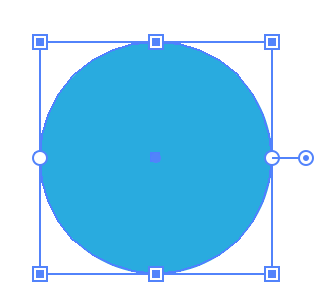
Start with a circle, fill it with a blue suitable for a cloud. 
Picture
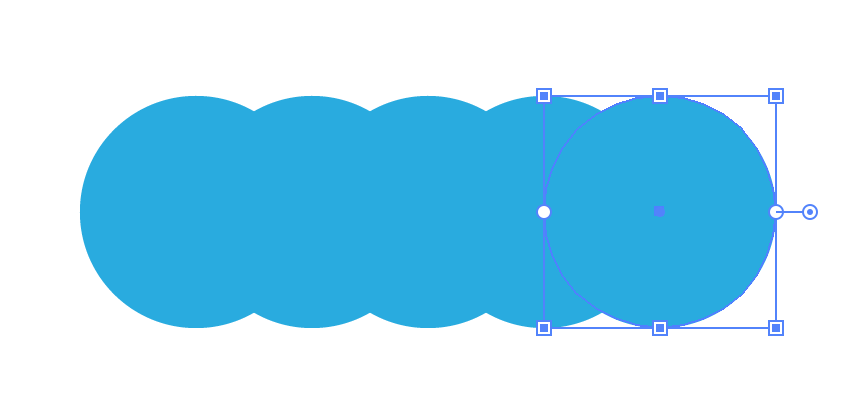
Duplicate the circles several times, overlapping them half-way over each other.
Picture
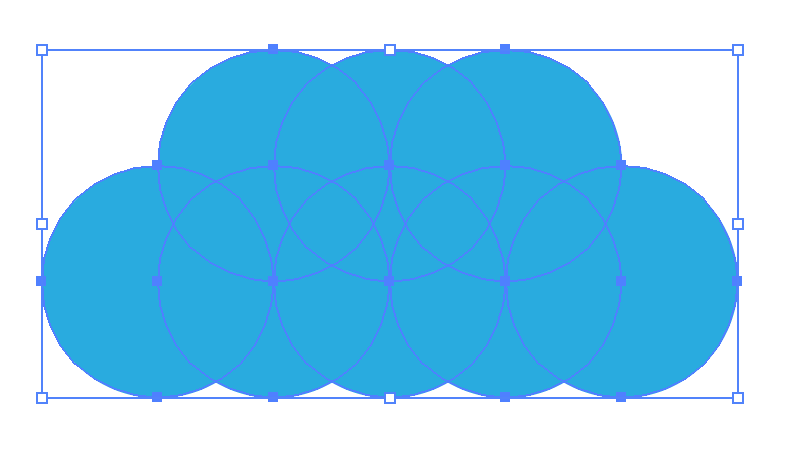
Duplicate 3 of the circle to the top of the "cloud"  
Picture
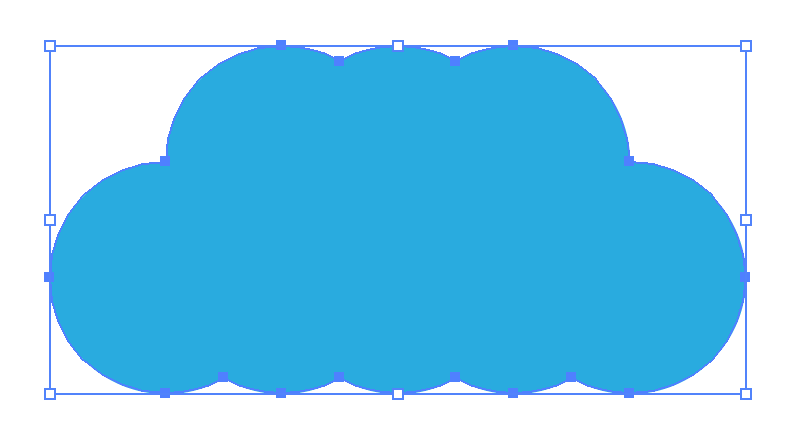
Use the Pathfinder to Unite all the shapes into one shape. 

Picture
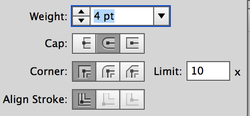
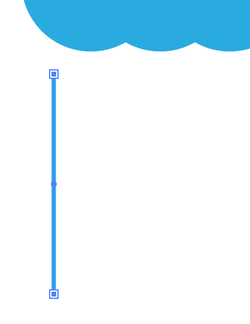
Create a vertical line, using your SHIFT key to draw a straight line. Round the ends, by adding rounded end caps. In this case, it is a 4 pt line.
Picture
With the line drawn, duplicate the line by clicking on the line, the OPTION + DRAG to create a duplicate.
Picture
Once you have duplicated the line once, use COMMAND + D to duplicate the line several times.
Picture
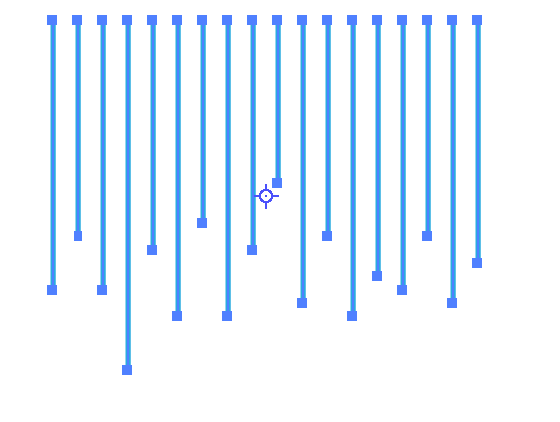
Using the Direct Selection Tool. Select he bottom point of each line, one at a time. Using the UP and DOWN arrows on the key board, move the selected end points up and down to create longer and shorter lines.

Hold SHIFT to move the point up and down at 10X the normal up/down increments.

Picture
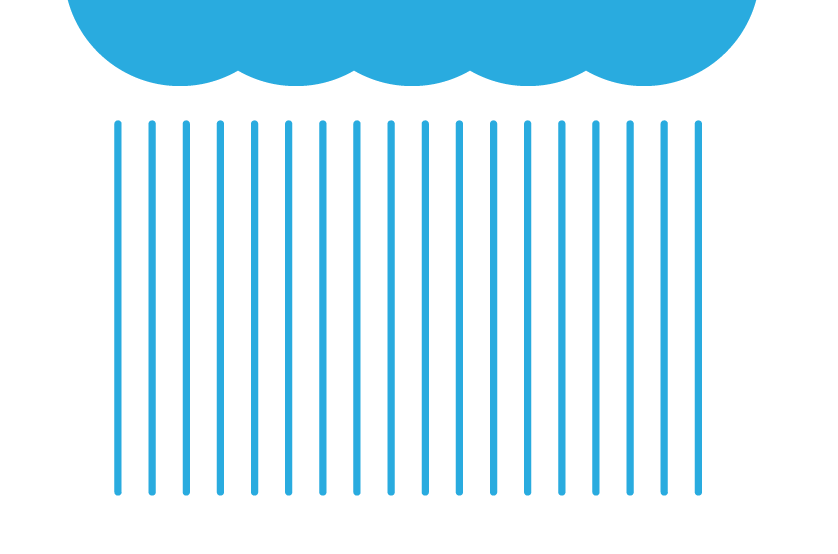
Here is the "rain" drips all done, pulled to different lengths.
Picture
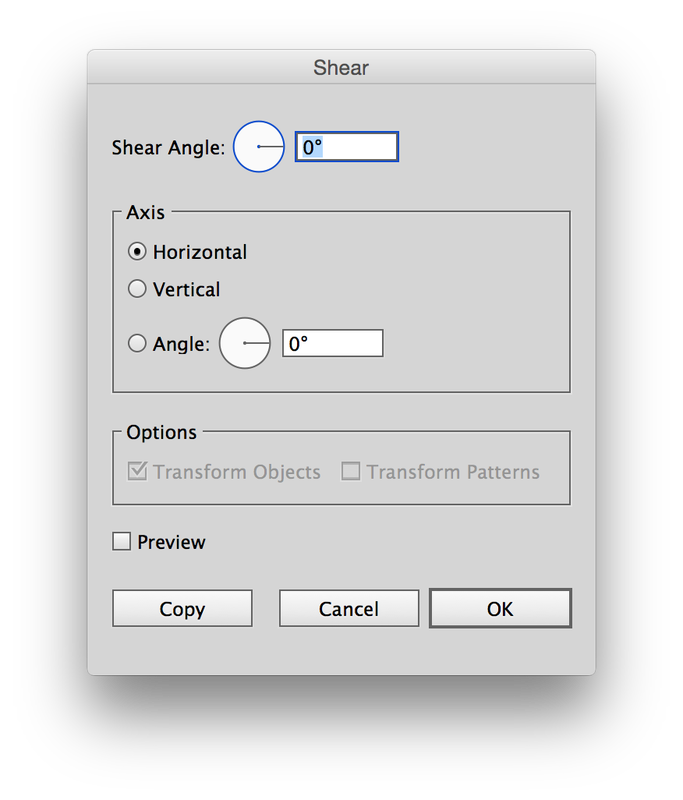
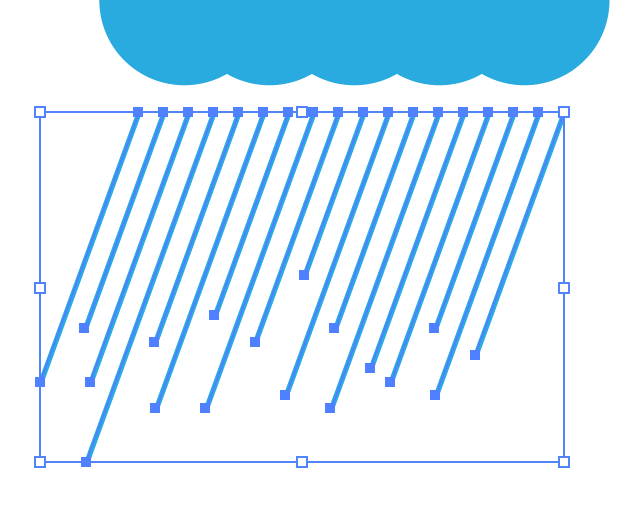
Select all the rain lines, and select the Shear Tool in the Tool Bar. Hold COMMAND and then CLICK on the upper left corner. This will locate the Shear "pivot"  location AND bring up the dialog box.
Picture
Choose the amount of Shear you want to shear the rain to create a slanted rain look.
Picture
This is a 20° shear to create the rain effect.

INFOGRAPHIC SERIES - CREATE A SIMPLE STITCH EFFECT

3/6/2016

 
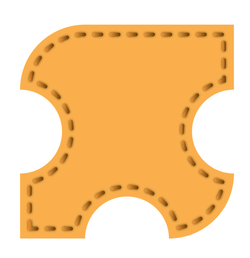
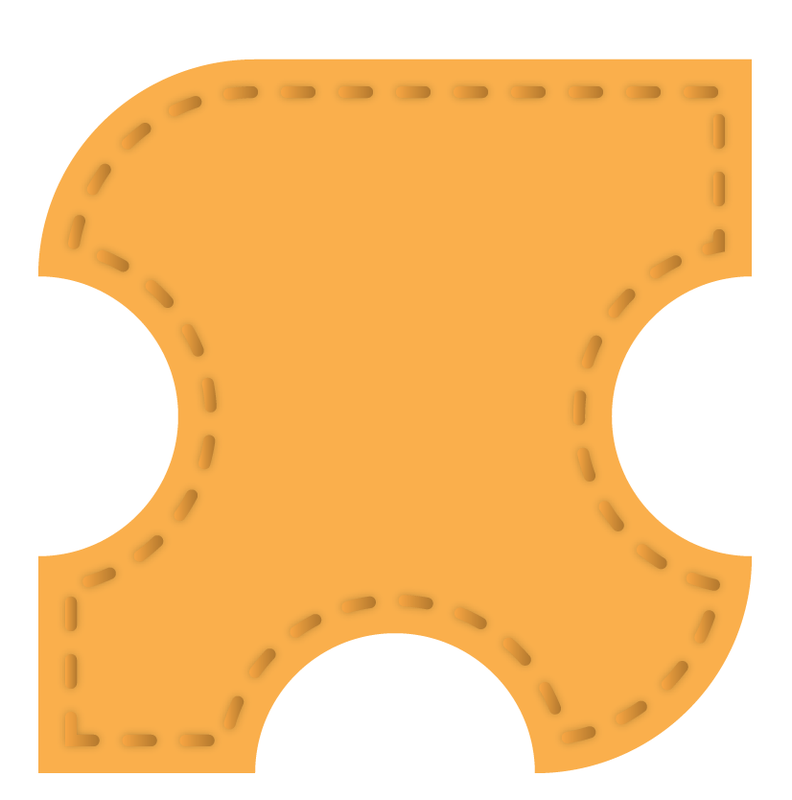
Here is a stitch effect in Illustrator. Simple method by using the dash effect on the stroke and applying some simple effect to make it look real.
Picture

Picture
Start with a shape, any shape and fill it with a color, no stroke.
Picture
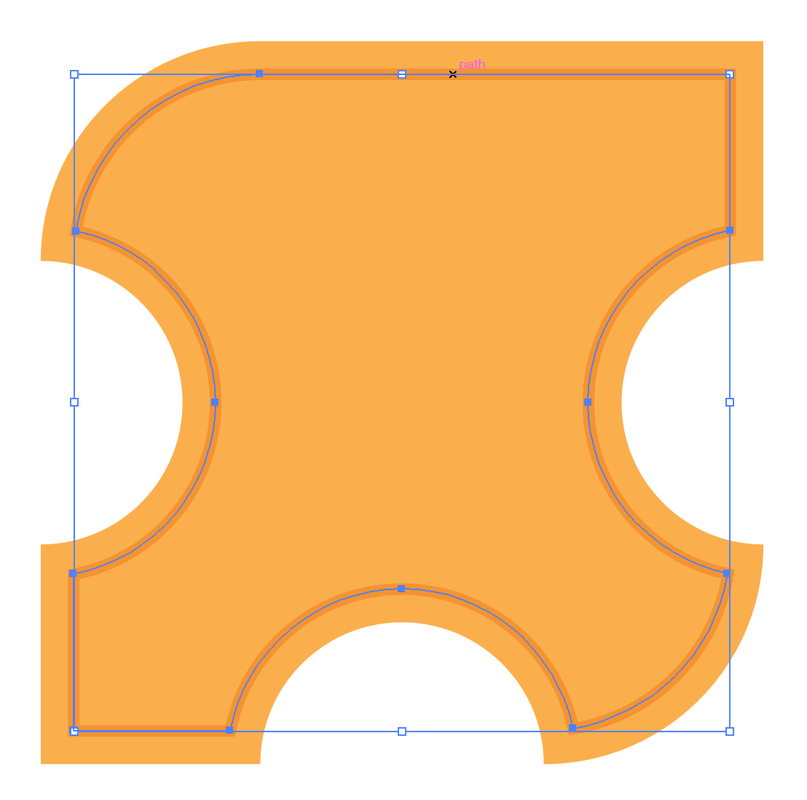
Select the shape and choose Object>Path>Offset Path. Set it to be inside the shape the distance you would want the stitching to appear.
Picture
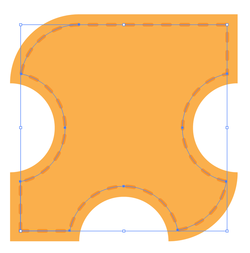
Set the new shape to have no fill, add a slightly darker stroke and set it to 4 pt weight.
Picture
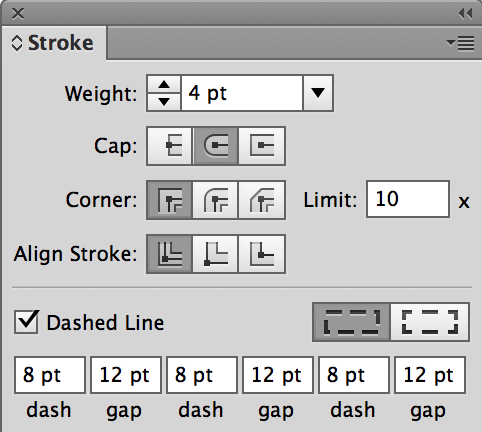
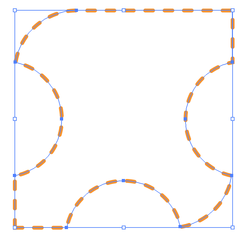
Open the Stroke Panel and set the Cap Ends to Round, click the dashed line box to call up the dashed line options. Set the dashed line to a longer dash and shorter gap setting to create a stitch look.

Picture
With the darker color, the stitching shows up better
Picture
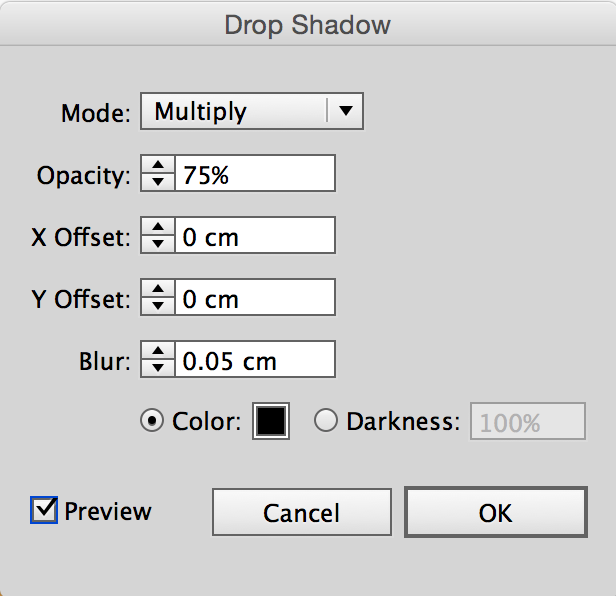
Add a drop shadow effect to the path. Effect>Stylize>Drop Shadow. Set the X & Y offset to 0 so that the shadow isn't cast to the side of the stitch. Add a very slight blur to the shadow.
Picture
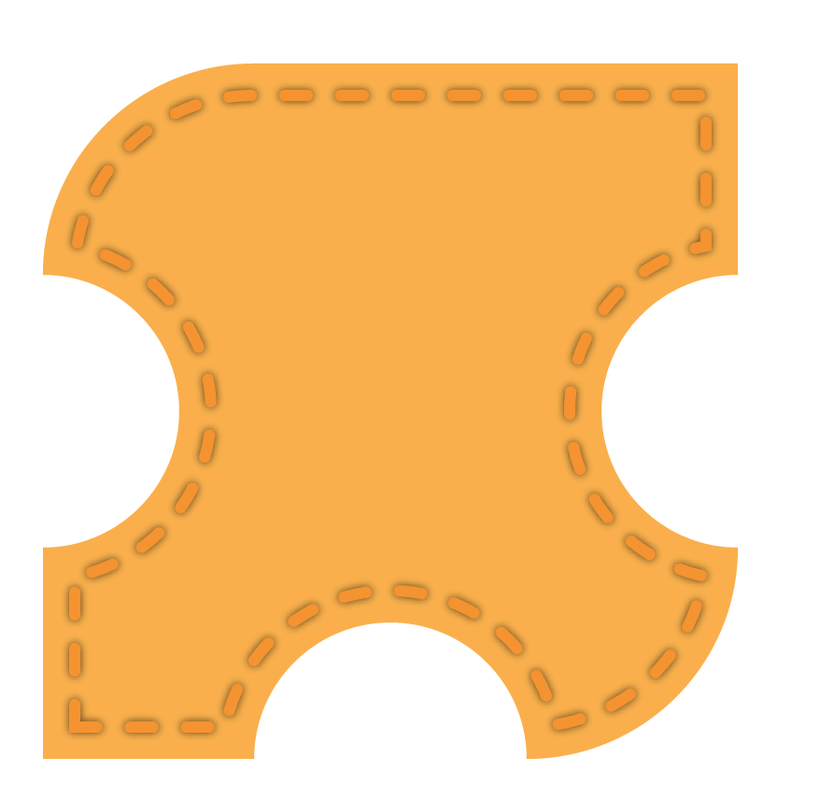
The shadow helps create a bit of depth the the stitch.
Picture
Duplicate the path, turn off the drop shadow on the duplicated path (in the Appearance Panel).

Choose Object>Path>Outline Path.

Picture
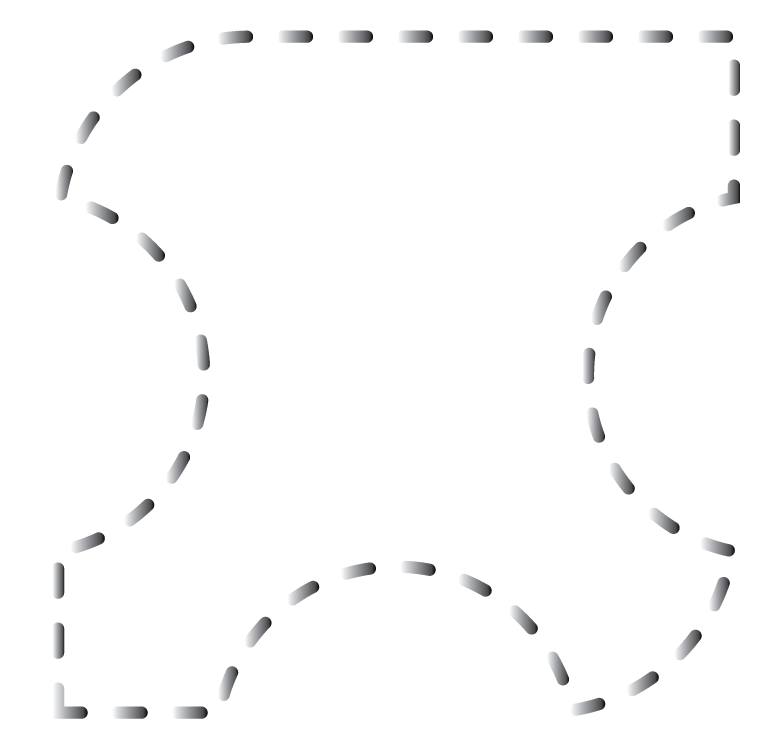
With the outlined path, choose Object>Compound Path>Release. 
Add a fill of a gradient going from black to white.

 If you do not Release the Compound Path, the entire shape will be filled, not each stitch. 
Picture
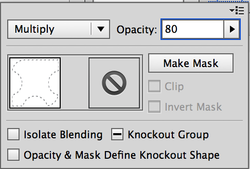
Set the shape to 80% opacity and set the blending mode to Multiply
Picture
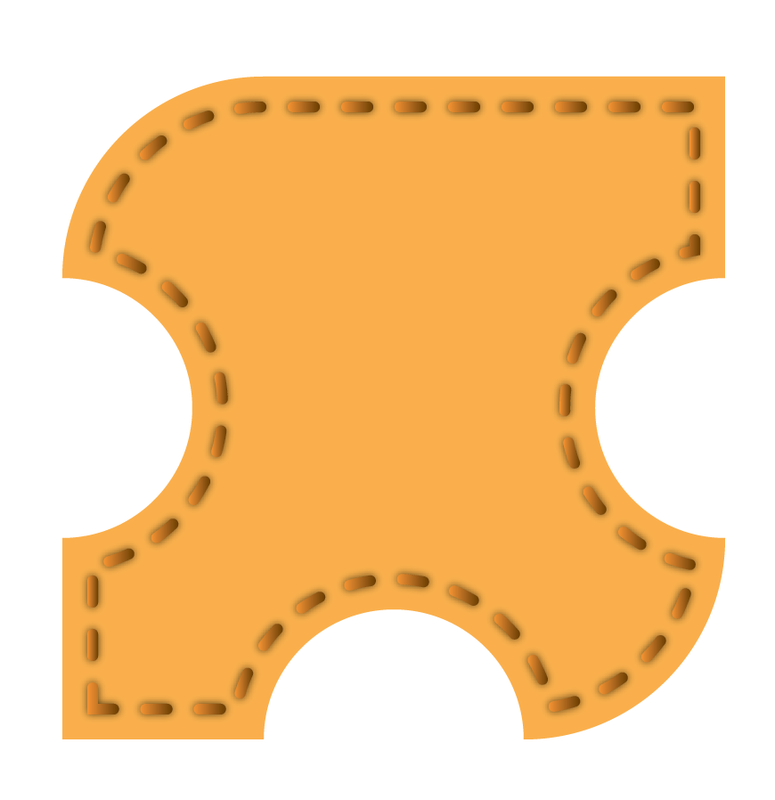
Here is the final stitch effect.
Picture
Setting the opacity of the over and under stitching will make the stitching blend in more if needed.

INFOGRAPHIC SERIES - 3D shield with highlights and bevels

3/1/2016

 
Create a 3D shield with the look of bevels and create a nice highlight arc across the face. This one takes a few extra steps to make it look great, but in the end, it produces a stunning look. Enjoy!

The bevels are just gradients going opposite directions to give the impression of a bevel. Check out how it is done.
Picture

Picture
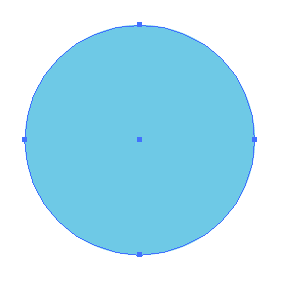
Start with a circle, fill it with a color, no stoke
Picture
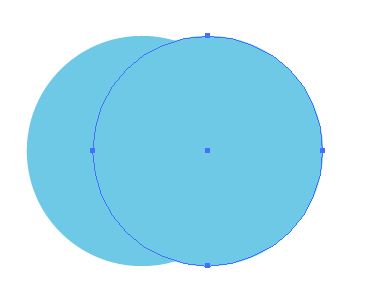
Duplicate the circle to the right, about a 1/4 overlap over the original circle.
Picture
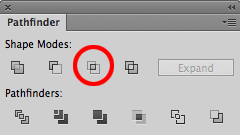
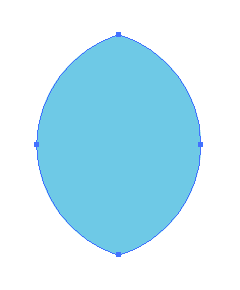
Select both circles, then choose the Intersect Mode in the Pathfinder Panel
Picture
This will leave the 2 circles with the place where the 2 intersect.
Picture
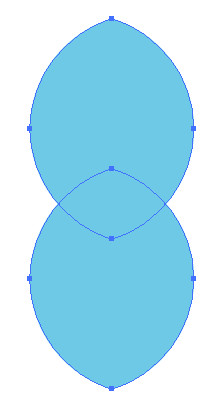
Duplicate the new shape vertically, leaving about 1/4 of the bottom overlapping the top of the original shape.
Picture
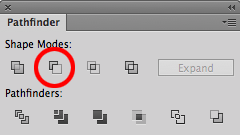
Select both shapes. Use the Minus Front Mode in the Pathfinder panel.
Picture
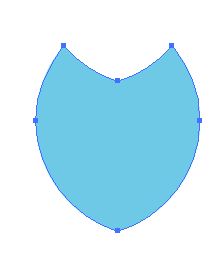
This will be the shield shape that we will build our stroke and fills on.
Picture
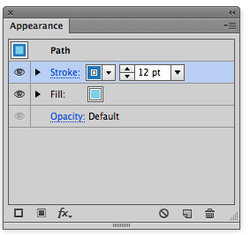
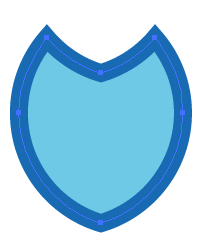
Open the Appearance Panel and apply a stroke to the shape. I chose a darker blue with a stroke weight of 12.
Picture

Picture
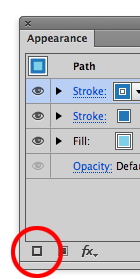
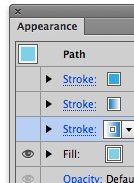
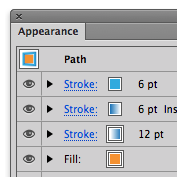
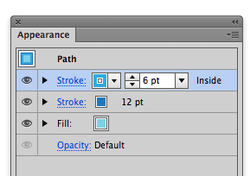
With the shield selected, create another stroke using the New Stroke Button at the bottom of the Appearance Panel. This will apply another stroke ON TOP of the existing stroke.
Picture
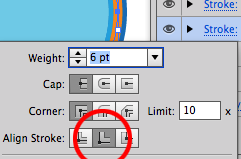
Choose a lighter color for the stroke and set it to 6 pt weight.
Also, set the stroke to the INSIDE of the shape by clicking on the word "Stroke" to call up the stroke options. 
Picture
Picture
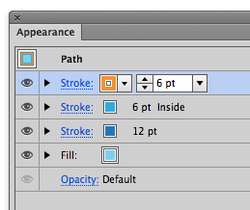
Apply a third stroke to the shield, on top of he other 2, set the weight to 6 pt and I set it to orange to show contrast, we will change it later.
Picture
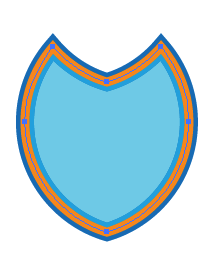
So far, this is the result of the 3 strokes applied to a single shape.

Picture
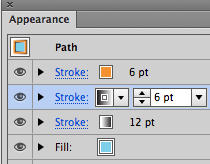
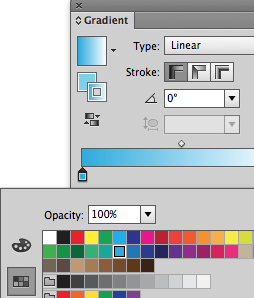
On the first stroke, apply a gradient from you swatch panel. A black to white gradient is the default. 
Picture
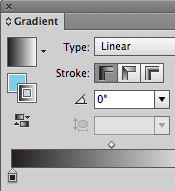
Do the same with the second stroke, then change the direction of the gradient in the Gradient Panel by clicking on the reverse direction button.
Picture
This is the result of the strokes being filled with a gradient. One going one direction, the other, he opposite direction.
Picture
Now change the color in the gradient by clicking on the stroke color box in the Appearance Panel. In the gradient panel, double click on the black color stop, and you can choose a replacement color from your swatch panel.

Picture
Here is the shield with the first and second gradient, done from blue to white, in the opposite directions. 
Picture
Now, set the top most stroke, (orange in this example) to be a blue. This will create the face edge of the shape.
Picture
Turn off all the strokes by clicking the eye icons in the Appearance Panel.
Picture
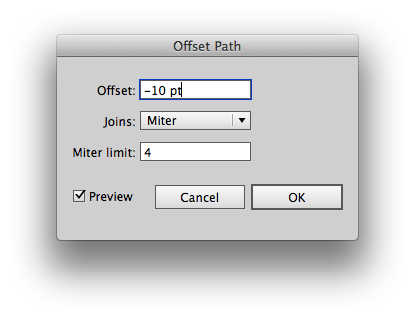
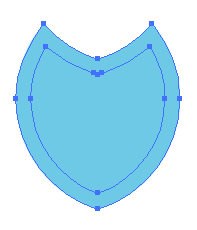
Select the shield and go to Object>Path>Offset path. Set the offset to -10 pts and this will create a smaller shape inside the shield. Click OK.

Picture
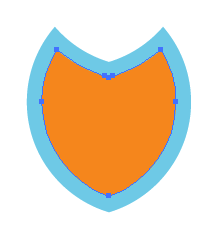
Set the inside shape to an orange fill. No stroke.
Picture
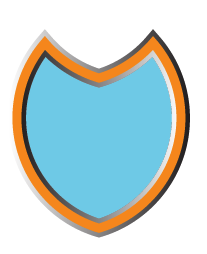
This is the result. 
Picture
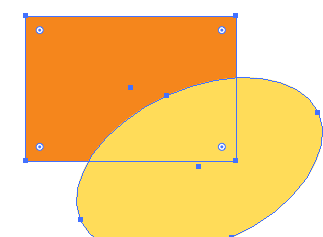
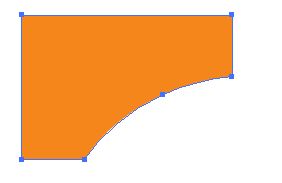
Create a rectangle and an oval. position the oval over the rectangle at an angle to create a knockout shape using the Minus Front Pathfinder Mode.
Picture
This is what will be the highlight for the shield, once it is filled with white instead of orange.

Picture
Position the arc of the shield and set the opacity to 30%.
​Now cut the object (COMMAND + X)
Picture
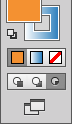
Select the Shield and enter into Draw Inside Mode. This is at the bottom of the Tool Bar.
Picture
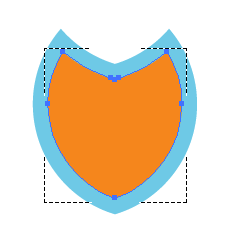
Once Draw Inside is activated you will see a "clipping" edge around the shape. Draw Inside is creating a Clipping Mask while drawing!
Picture
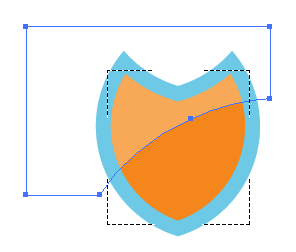
Choose Edit>Paste In Place to paste the copied white overlay INTO the shield. This happens because anything you do with Draw Inside Mode active, everything will be INSIDE the shape. Once you click back to Normal Drawing Mode, you will not be able to enter back into Draw Inside mode.

Picture
This is the result of the highlight. 
Picture
Select the shield behind the orange and turn on all three strokes in the Appearance Panel
Picture
Set the fill to orange on the back shape as well. 
Picture
Duplicate (don't copy) the back shield and turn off the fill and the lower two stroke, laving ONLY the top, 6 pt solid stroke active. 

Picture
With the stroke active, go to Object>Expand Appearance. The Object>Path>Outline Stroke. You have to Expand the Appearance first or else the resulting outlined stroke will have a "path" in the middle of the outlined stroke. Doesn't make sense but that is what you have to do!
Picture
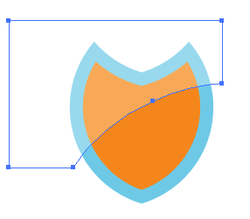
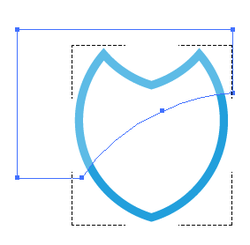
Select the outlined shield, the enter into Draw Inside mode and Paste the same highlight shape (the one used inside the center part of the shield).

Picture
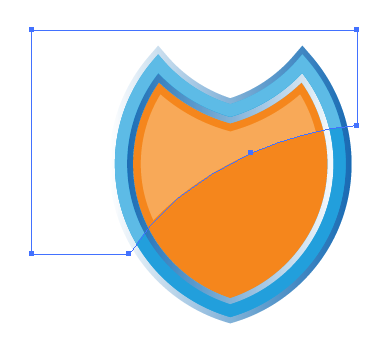
Position the highlight "stroke" over the shield.

Picture
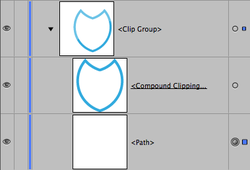
To get the highlight to line up with the original highlight on the shield, you may need to go into your Layers Panel and select the highlight that is "clipped" inside you clipping mask.

Picture
This allows you to select and move the white overlay into the correct position inside the clipping mask without taking everything apart.
Picture
And this is the final results. Several steps but sure looks cool when it's all done!
Forward>>

    RSS Feed

    Archives

    March 2021
    February 2021
    December 2020
    September 2020
    August 2020
    July 2020
    June 2020
    May 2020
    April 2020
    March 2020
    February 2020
    January 2020
    December 2019
    November 2019
    October 2019
    September 2019
    August 2019
    July 2019
    June 2019
    May 2019
    April 2019
    March 2019
    February 2019
    January 2019
    December 2018
    November 2018
    October 2018
    September 2018
    August 2018
    July 2018
    June 2018
    May 2018
    April 2018
    March 2018
    February 2018
    January 2018
    December 2017
    November 2017
    October 2017
    September 2017
    August 2017
    July 2017
    June 2017
    May 2017
    April 2017
    March 2017
    February 2017
    January 2017
    December 2016
    November 2016
    October 2016
    September 2016
    August 2016
    July 2016
    June 2016
    May 2016
    April 2016
    March 2016
    February 2016
    January 2016
    December 2015
    November 2015
    October 2015
    September 2015

    RSS Feed

Proudly powered by Weebly
  • Home
  • Contact
  • Blog
  • Blog Index
  • Portfolio