Jason Hoppe Adobe Certified Expert & Adobe Certified Trainer
  • Home
  • Contact
  • Blog
  • Blog Index
  • Portfolio

Design Points n PixelS


INFOGRAPHIC SERIES - CREATING TIMELINES • PART 3 OF 3

5/9/2016

 
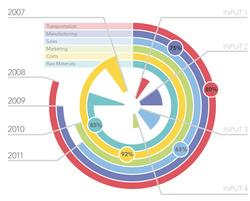
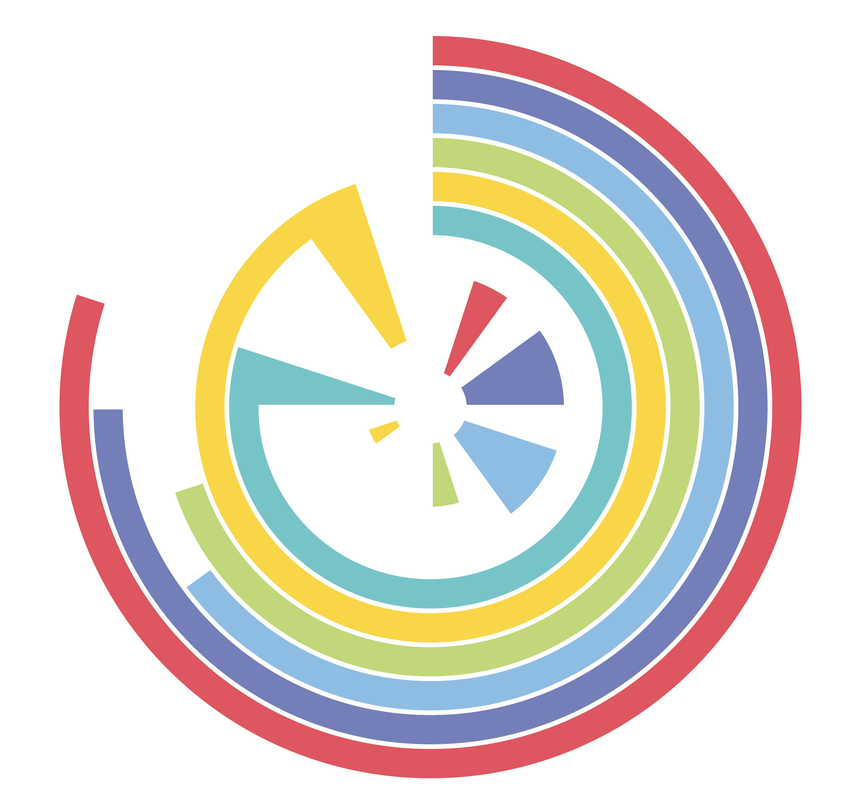
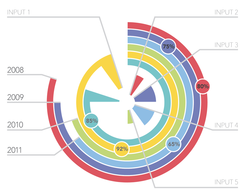
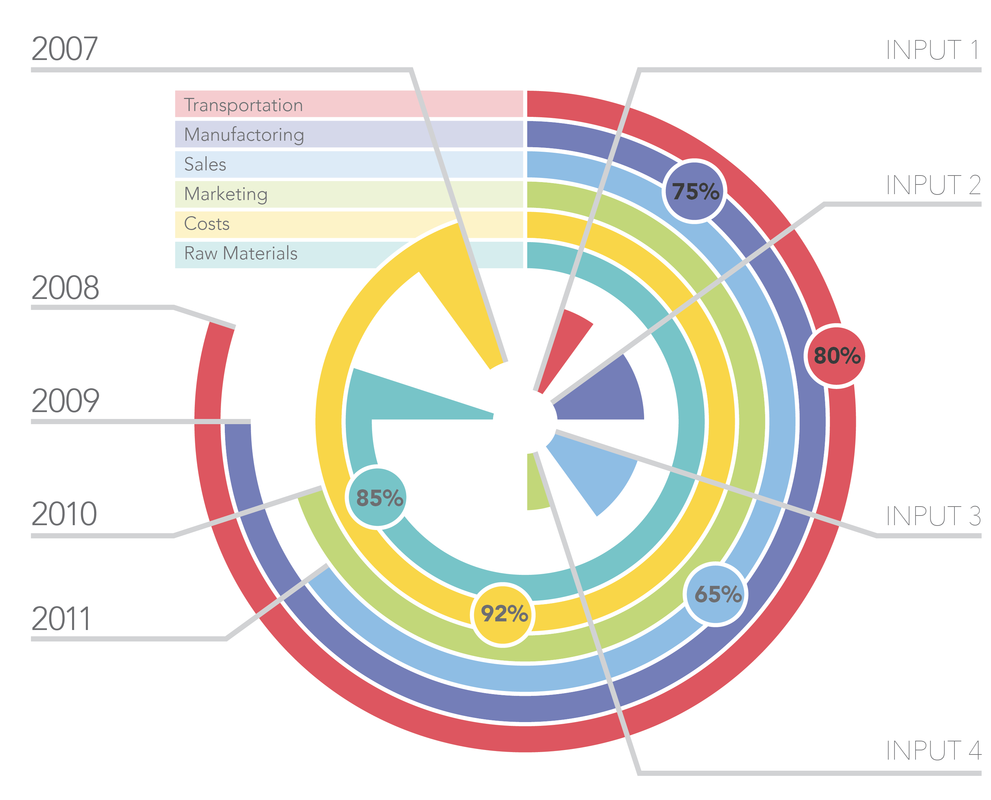
Part 3 of 3 for creating an infographic time line. This one is a bit more complicated but the end result can be quite stunning. This is a radial timeline, create using the Polar Grid Tool and the creative possibilities for this are nearly endless.
Picture

Picture
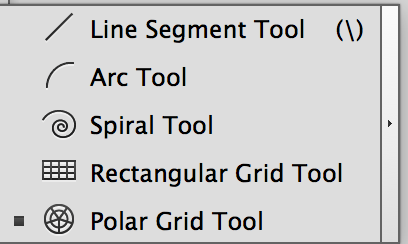
Start with the Polar Grid Tool, nested with the Line Tool
Picture
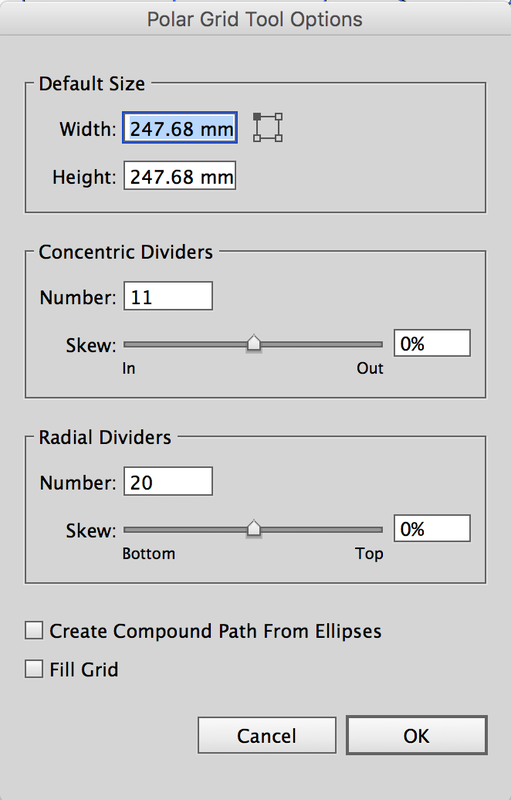
You can click on the document with the Polar Grid Tool to call up the dialog box to inout the dimensions and dividers.
Picture
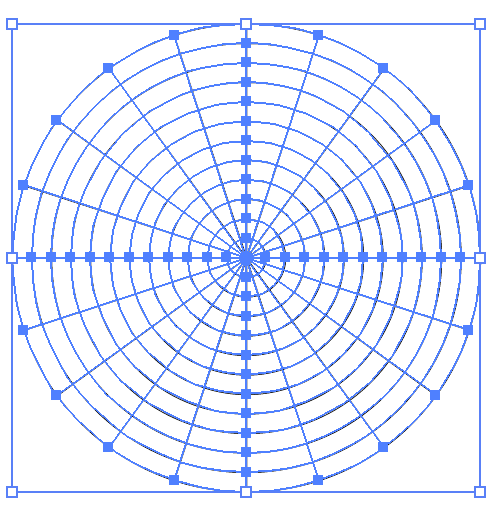
Or you can draw the Polar grid, hold SHIFT then (while still holding the mouse down) use the up, down, left, right arrows to create more/less concentric circles or more/less dividers.
UP creates more concentric rings, RIGHT creates more dividers. DOWN and LEFT take them away!
Picture
Select the Polar Grid and using the Pathfinder Panel, use the Divide Function then choose Object>Ungroup to break each segment apart. You may need to ungroup a few times to fully ungroup them all.

Picture
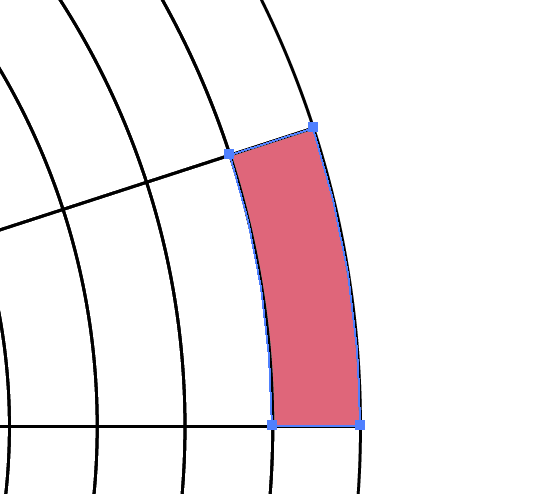
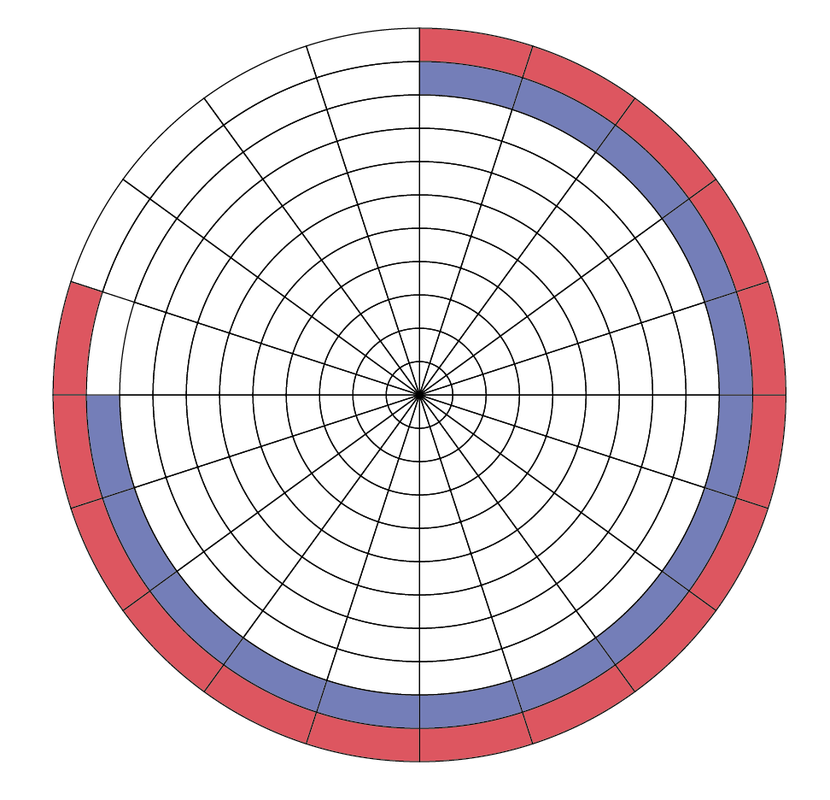
Start be selection the segments you want to create a ring from, add a fill to each. Using the Lasso Selection Tool may make things a bit easier to select. Or Use the Selection Tool and hold SHIFT to select multiple segments together.
Picture
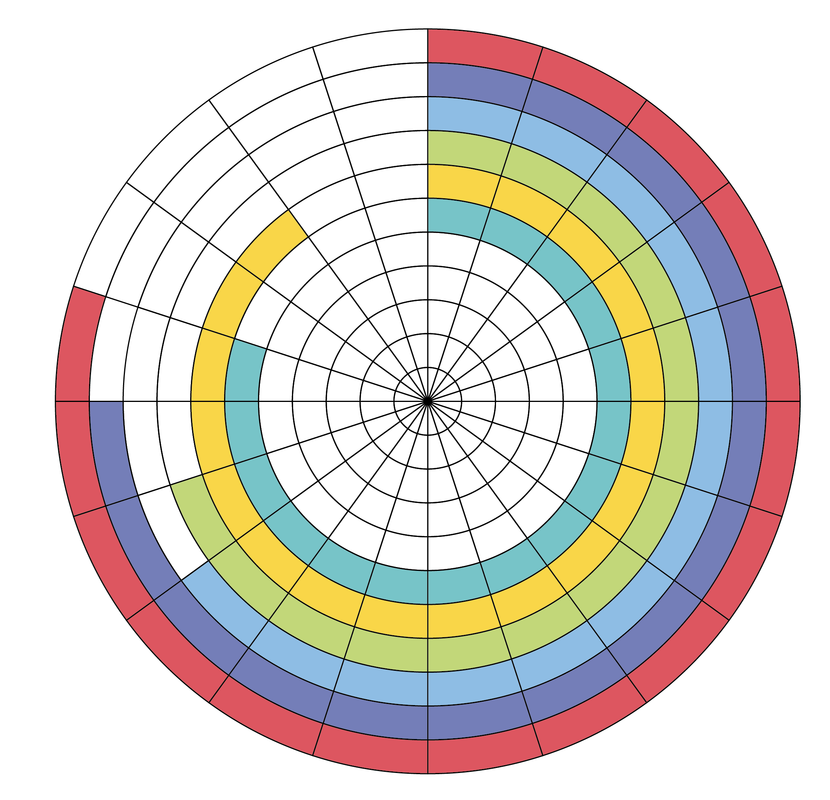
Fill each ring with color. I deleted the small center section from the core as it gets very busy visually.
Picture
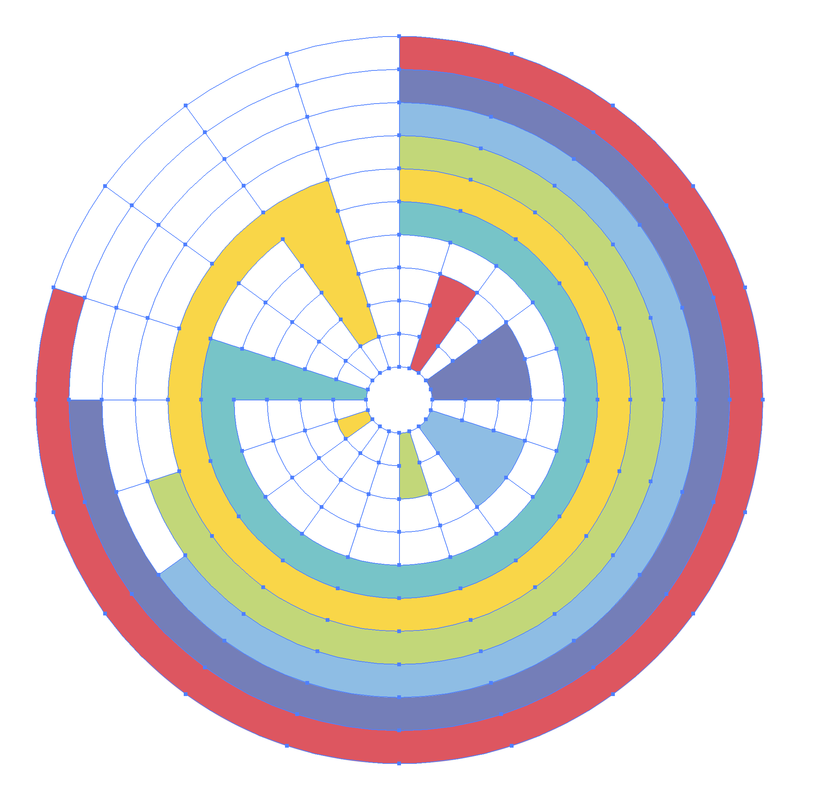
Select one segment of color and then choose Object > Select > Same > Fill color. This will select all the shapes with that fill color. Then use the Unite (Add) function in the Pathfinder Panel to create a solid ring of color. Repeat this with all the colors. The dividers will disappear from the rings as you add the shapes
Picture
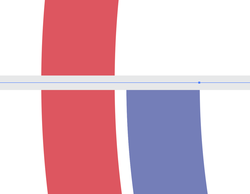
Select un unfilled shape. Choose Object > Select > Same > Stroke Weight. Then set the stroke weight to zero in the stroke panel and all the stroke will go away. Next, select just the color-filled section, add a 4 pt stroke in white to help separate the shapes from each other.

Picture
Draw a line from the exact center of the chart to beyond the edge. 
Picture
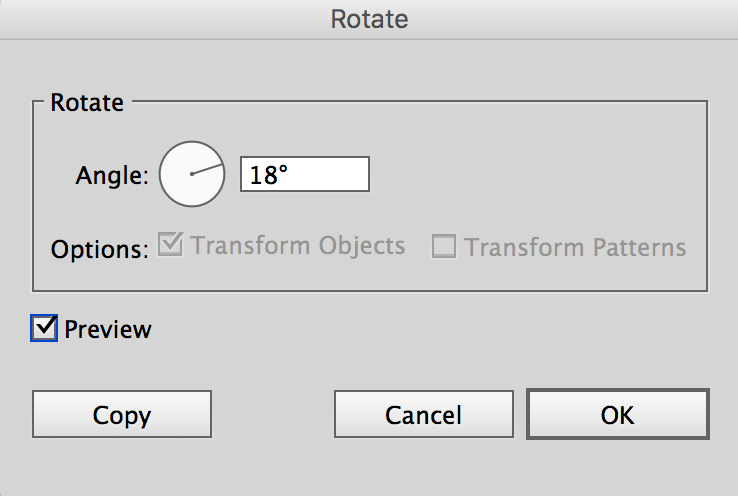
Using the Rotate Tool, hold OPTION and click at the base of the line in the exact center of the graph. This sets the point of rotation and also opens the Rotate dialog box.
I set my rotation to 18° to match the segments I create in the Polar Grid, then click COPY
Picture
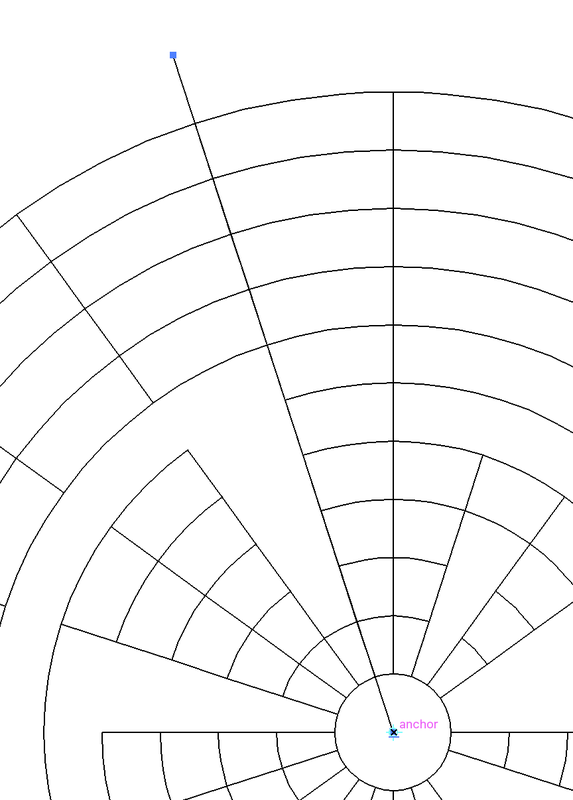
Here I used COMMAND + Y to show just the outlines of the shapes and why I chose 18° to line up with my segments perfectly.
Picture
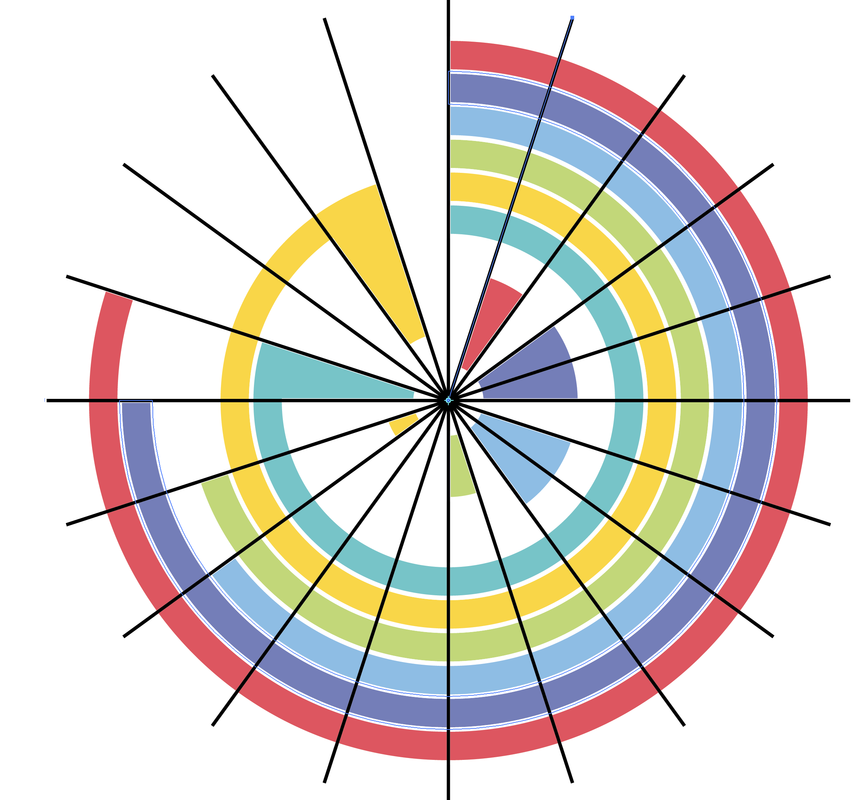
With the line copied at 18°, used COMMAND + D several times to copy the line each time around the shape until you come back to the beginning.

Picture
Using the Pen Tool, add a point to the lines where the line would stop on chart.
Picture
Use the Direct Selection Tool to select the other part of the line you do not want and delete it.
Picture
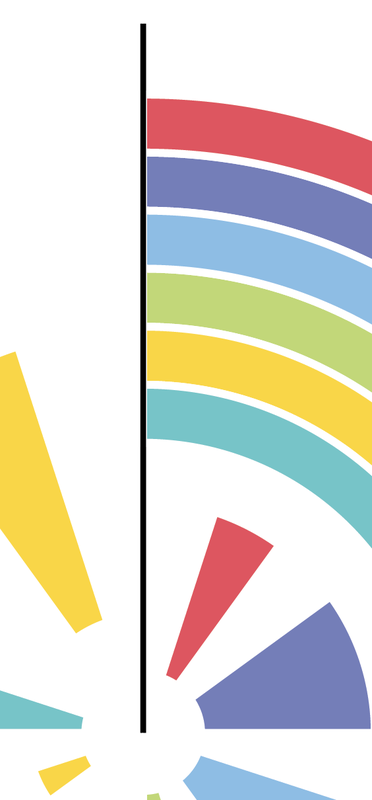
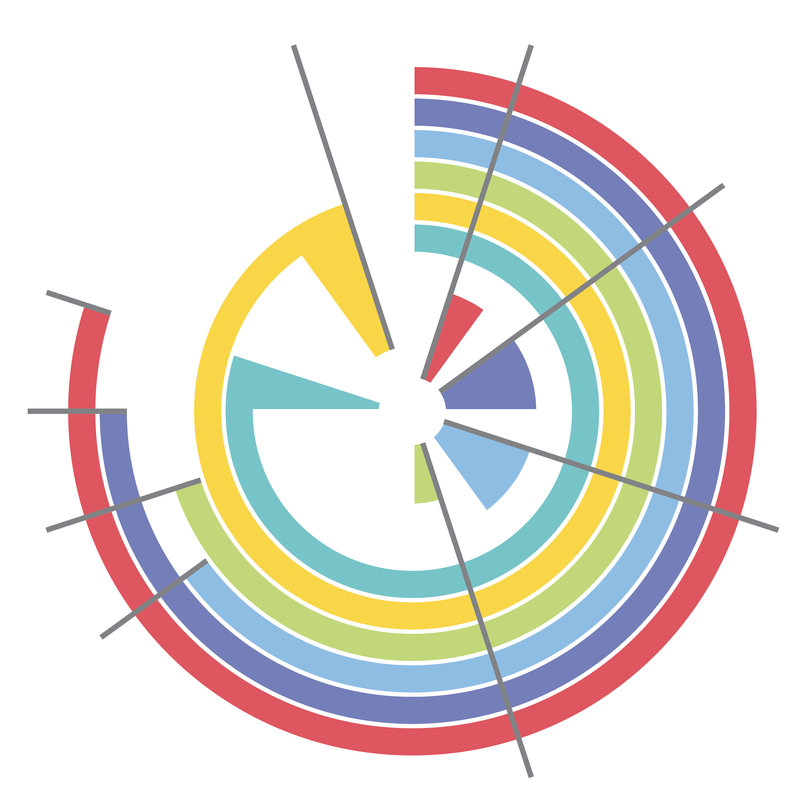
The end result is connector lines that start at the segments.
Picture
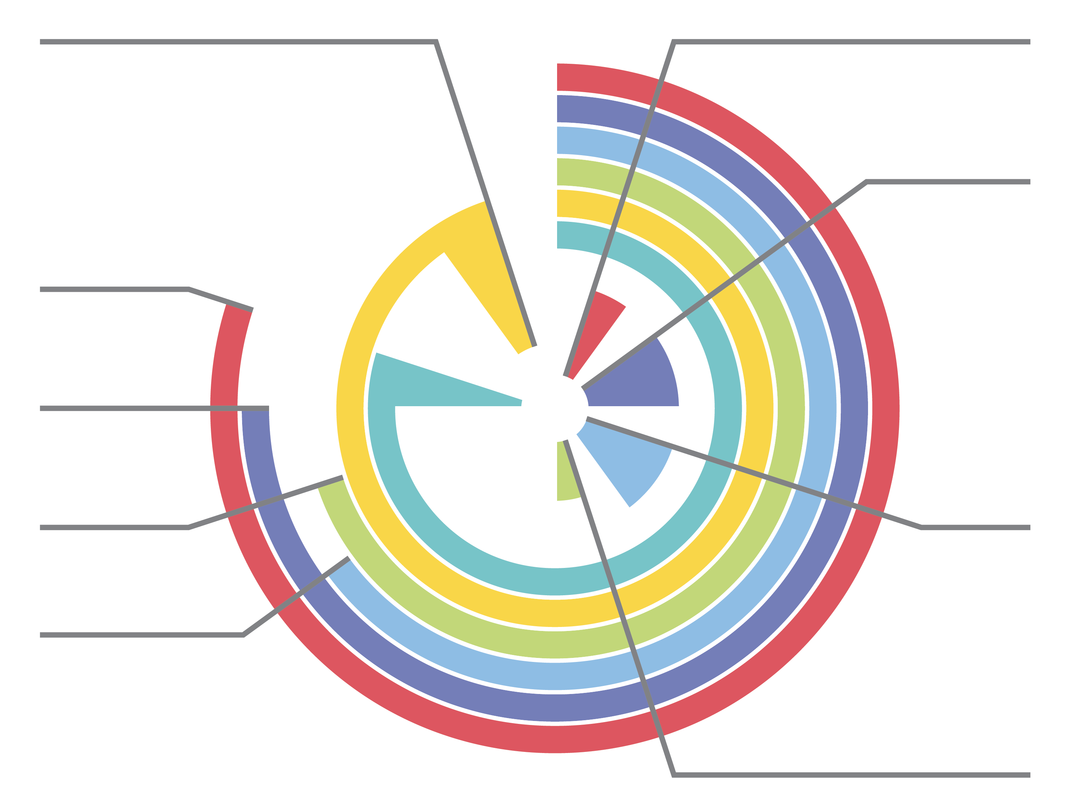
Using the Pen Tool, click on the end of each connector then hold SHIFT and draw a straight line away from the connector. Use the Smart Guides to line up the lines to the left and right sides.

Picture
Add test to the call-outs. I added circles with a matching color fill and a white stroke to add to the lines for more data.
Picture
Using the rectangle tool, draw rectangles from the start points. Use the Eyedropper tool to sample the colors and apply them to the corresponding rectangle to match the lines, I then used the opacity slider in the control bar to screen them back to 35%
Picture

INFOGRAPHIC SERIES - CREATING TIMELINES • PART 2 OF 3
5/2/2016

 
The question of building timelines came up today from a viewer and also in my teachings as well at Seattle Central College.

This is Part 2 of 3 in this series of creating timelines.
Picture

Picture
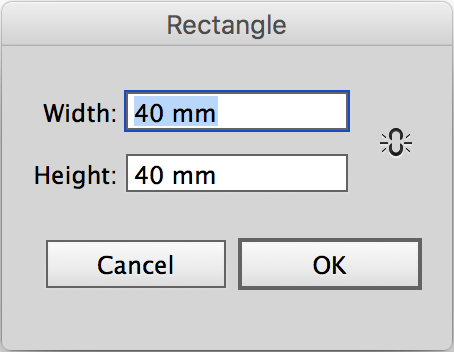
Start with a square. I use MM to create all my shapes so it is super easy to divide them into sections or line things up using math instead of trying to figure out fractions of an inch.
Picture
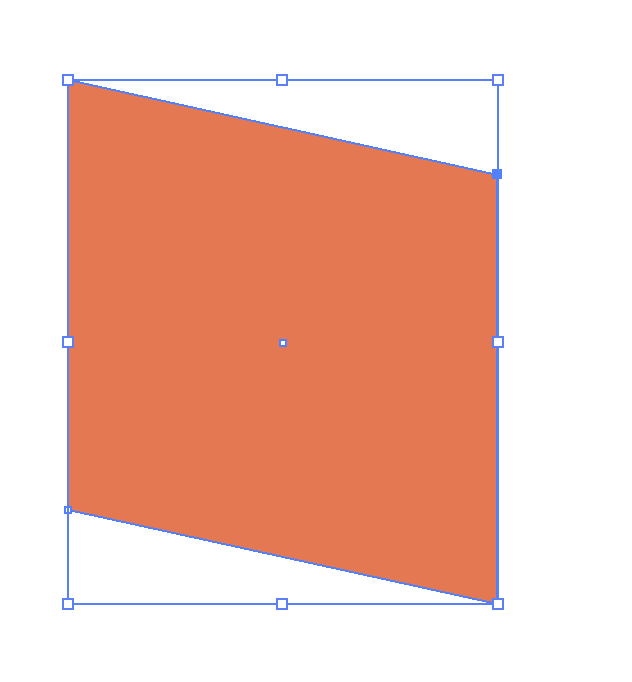
Use the Direct Selection Tool to select the two right point of the box, then use the SHIFT+DOWN ARROW 5 times to move it down.
Picture
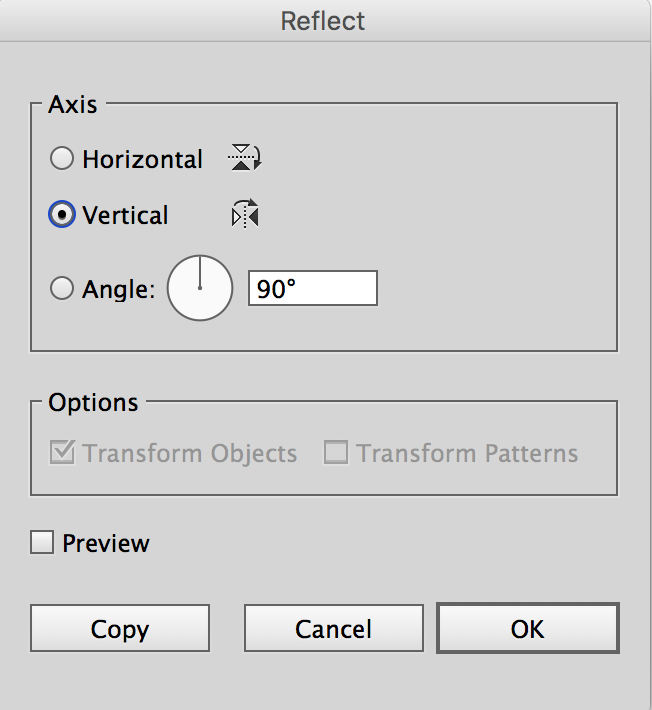
Select the Reflect tool, click on the newly transformed box and choose vertical reflect and then COPY.
Picture
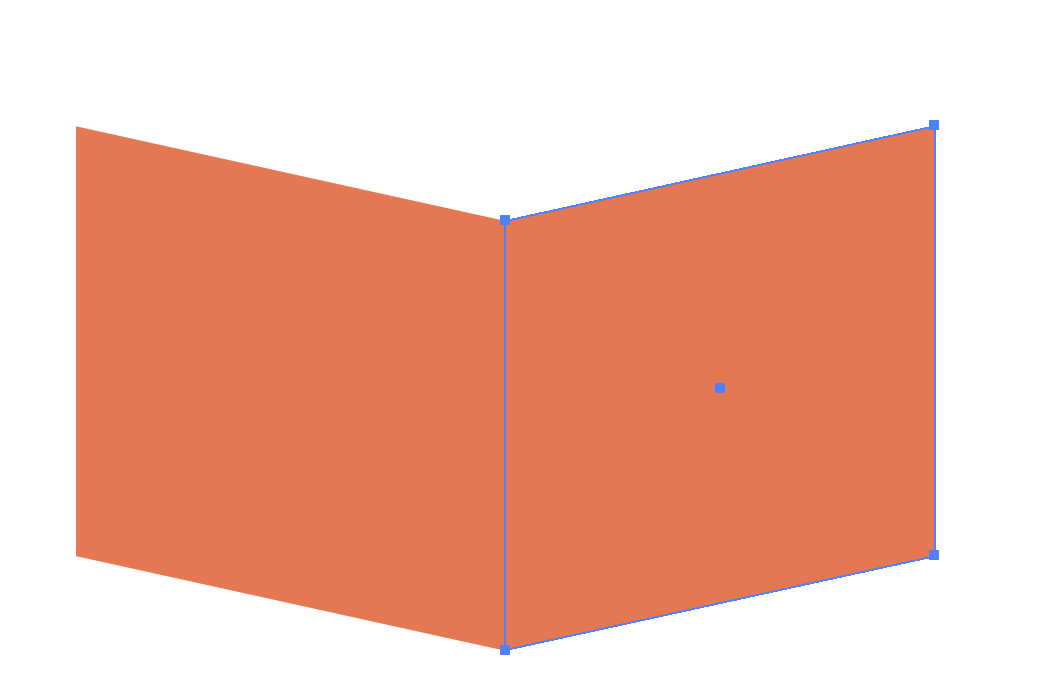
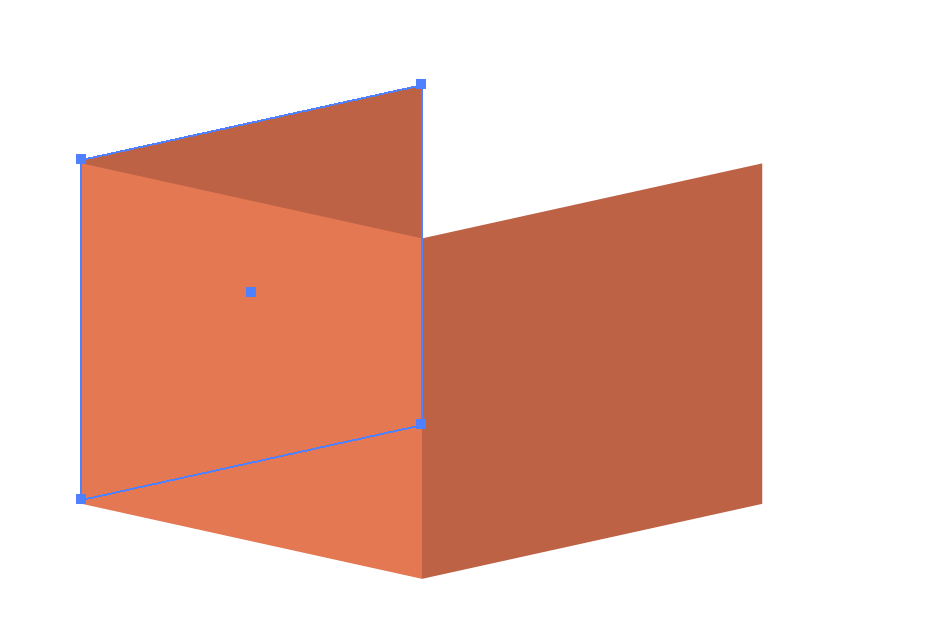
Line up the two shapes together.

Picture
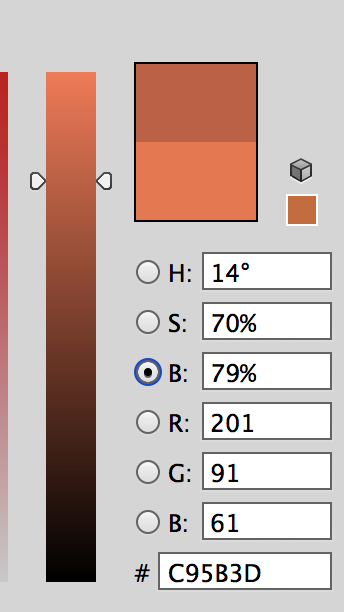
Change the color on the right hand box by double clicking on the color picker at the bottom of the tool bar. Then switch the color mode to "B" (brightness)... Hue, Saturation, Brightness... and this allows you to take the slider up and down to make the color lighter or darker without moving off that specific hue.
Picture
Duplicate the right box to line up with the left and send to the BACK.
Picture
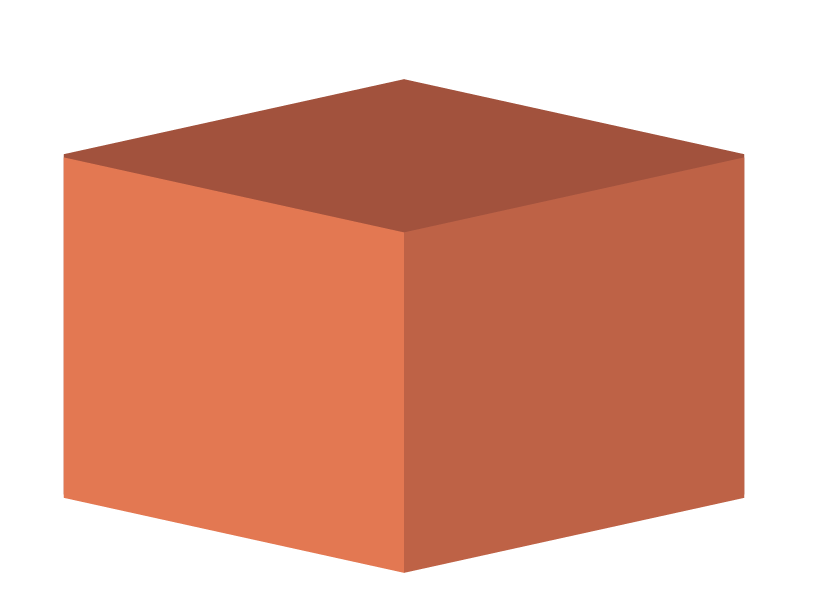
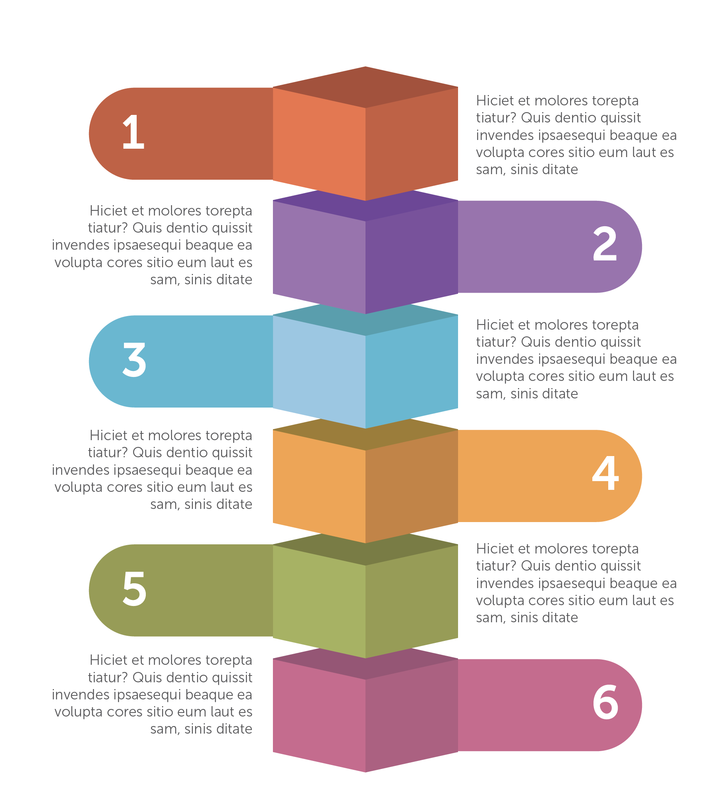
Copy the left box to line up with the right box and send it to the back, then darken both back shapes using the Color Picker Brightness (Darkness) Slider. Now you have a box.
Picture
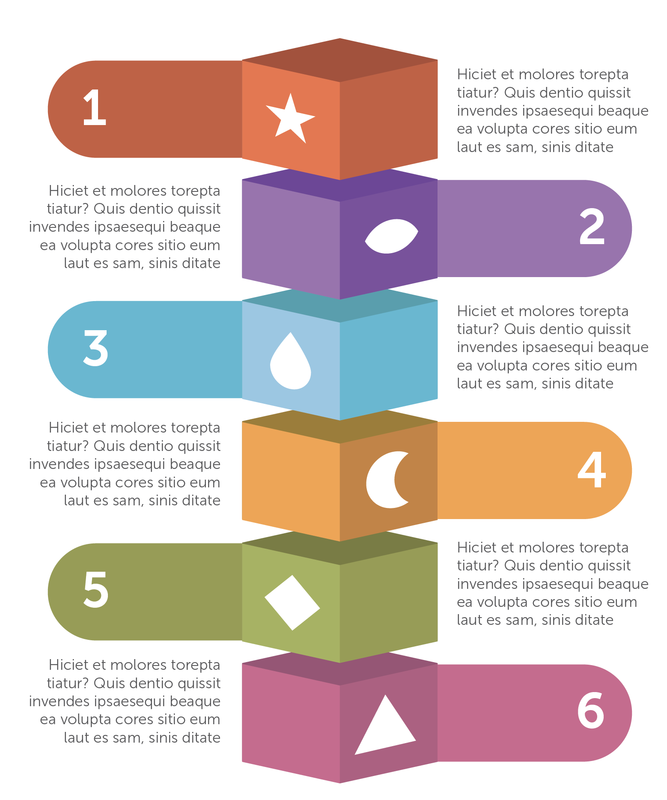
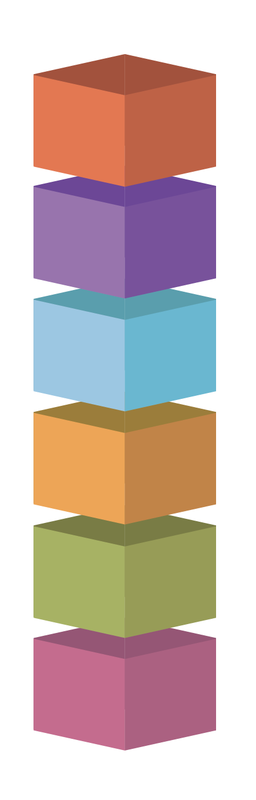
Duplicate the boxes, using the Smart guides to get the distance in between the consistent. Change the colors accordingly to get some nice hue changes.

Picture
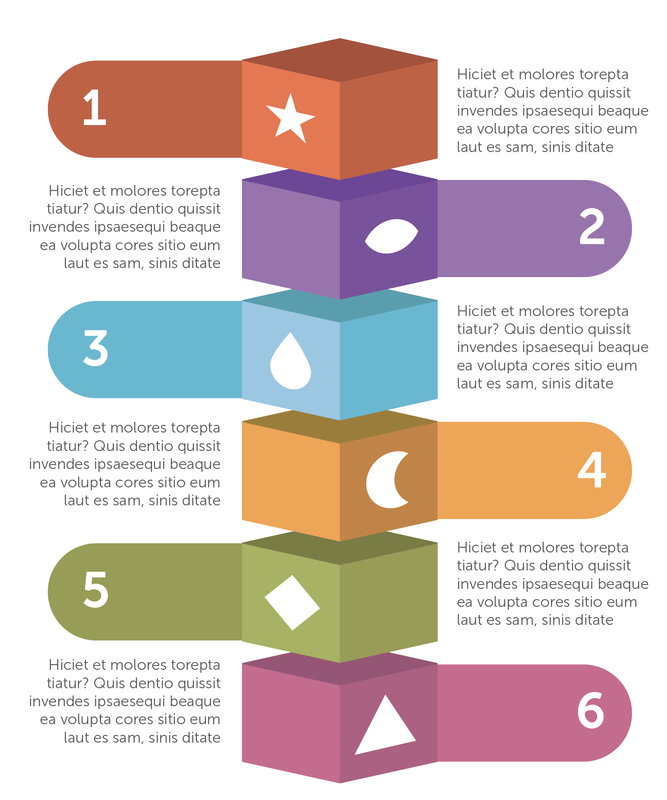
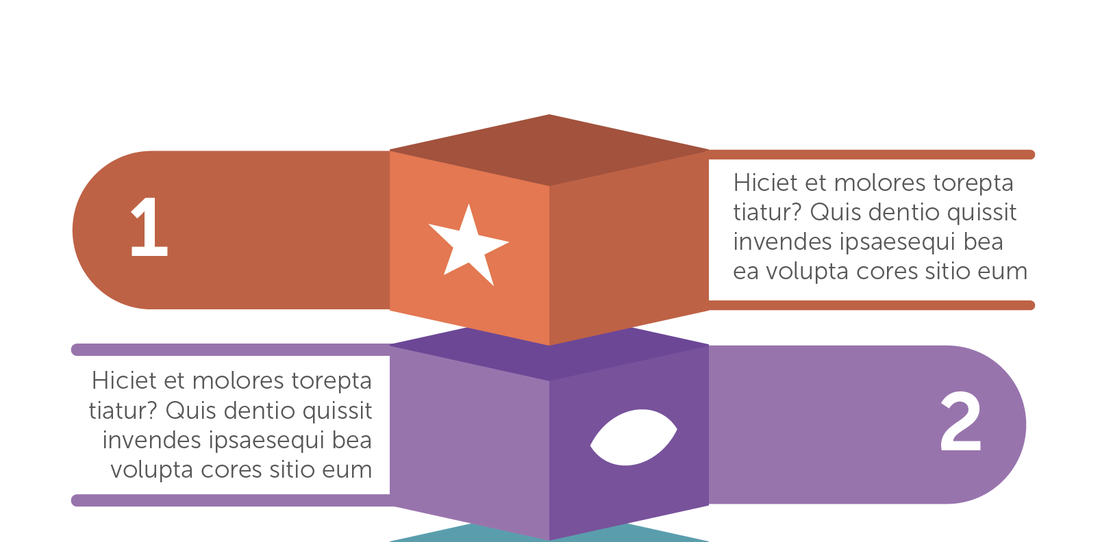
I added rectangles with rounded ends to staggered sides, using the opposite side color for the fill color of the rounded rectangle. Text is Museo Slab 700 for the numbers and 300 for the text, which is set in 75% gray.
Picture
Add icons to the faces. You will need to use the Shear Tool to get the angle just right to match the box face. 
Picture
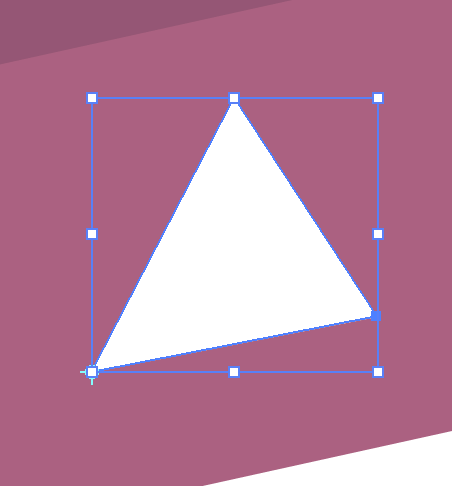
The easiest way to get the icons to match the angle is take an icon or type with a flat base. Then select and use the Shear Tool to set the angle.
Picture
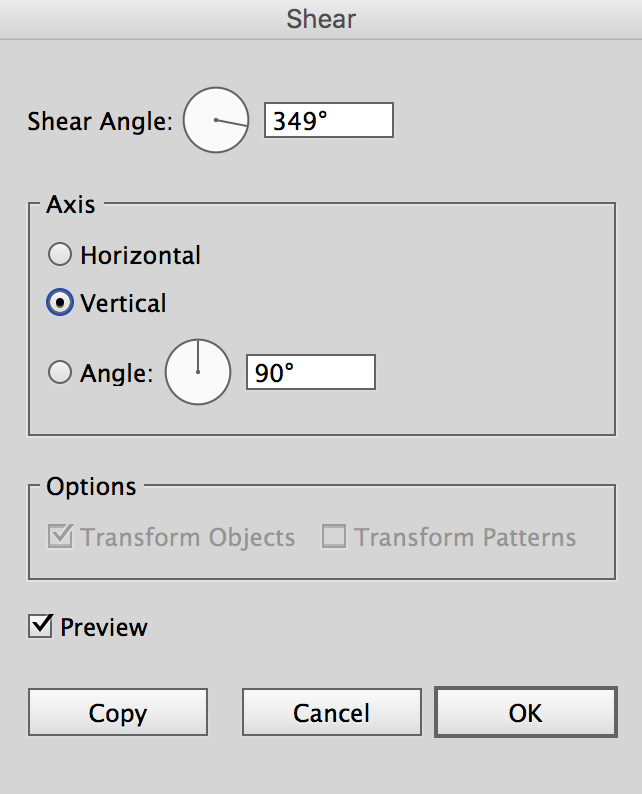
Select your object with the Selection Tool. Hold OPTION and (in this case) click on the lower left side to "anchor" that point and open the dialog box. If you don't hold OPTION the dialog box wont open, it only sets the point when you click.

Picture
Once the base of the icon becomes parallel with the cube face, then you have your shear angle. Remember that number so you can shear all the icons the same way.
Picture
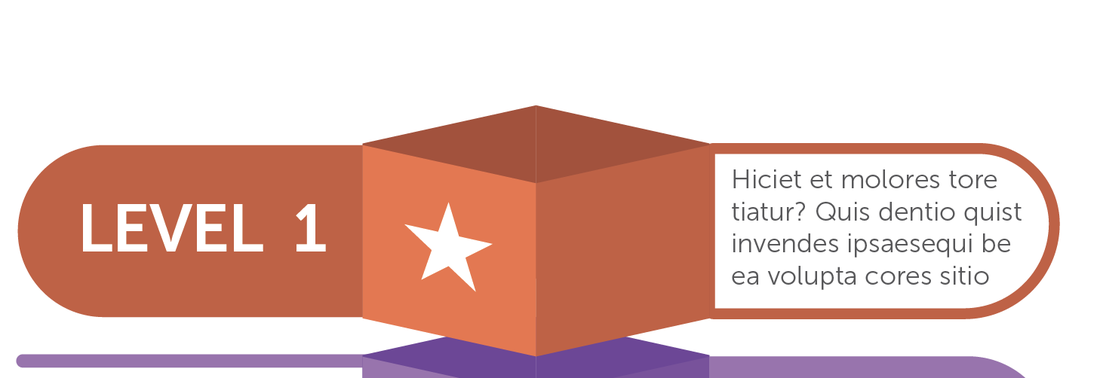
Here are some renditions on how to include type if necessary.
Picture
I copied the rounded rectangle from the left and put it on the right with a stroke to help create symmetry. These are simple ways to see what options work best.

INFOGRAPHIC SERIES - CREATING TIMELINES • Part 1 of 3

5/2/2016

 
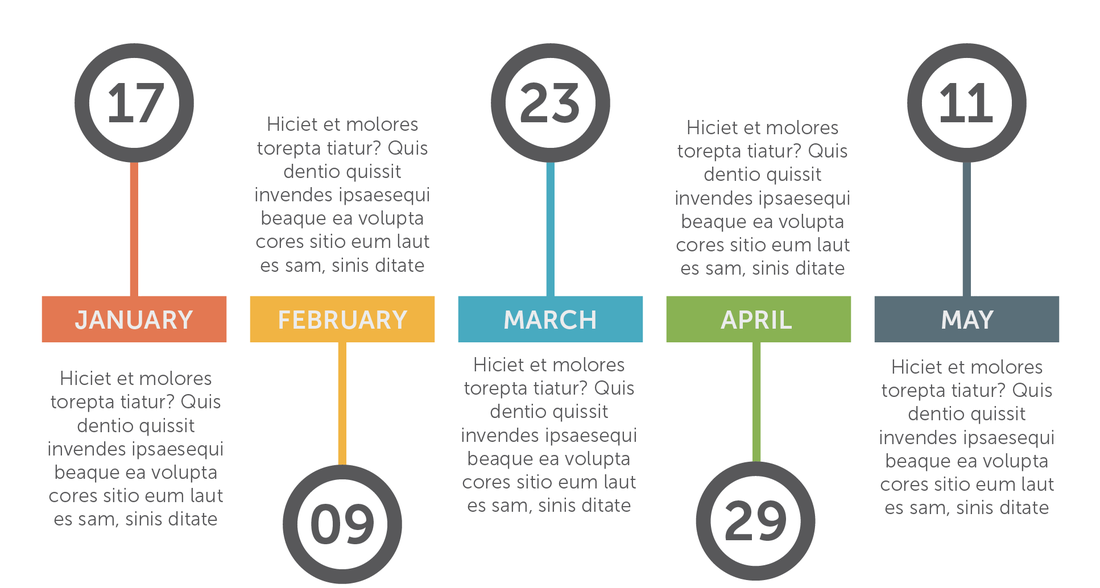
The question of building timelines came up today from a viewer and also in my teachings as well at Seattle Central College. Students are currently work on data visualization posters and using several way so show data, time, quantities, distance in charts, graphs and icons. This is just some of the ways I go about creating a time line. 
Picture

Picture
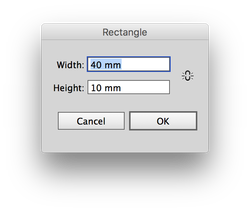
When starting a time line, I set my measurements to MM. This makes it really easy to break each segment out into an easy to divide size. In this case I am using months. If I need 1/2 a month, I just make it 20 MM wide instead of 40 MM. I never have to guess the size if I use a measurement I can easily work with.
Picture
I start with rectangles, spacing them apart at a fixed size, as in this case 5 MM. Then duplicate and color them.
Picture
I add type. This is Museo Slab 700, a nice slightly-serifed face that looks clean and works well for quick visual intake. 
Picture
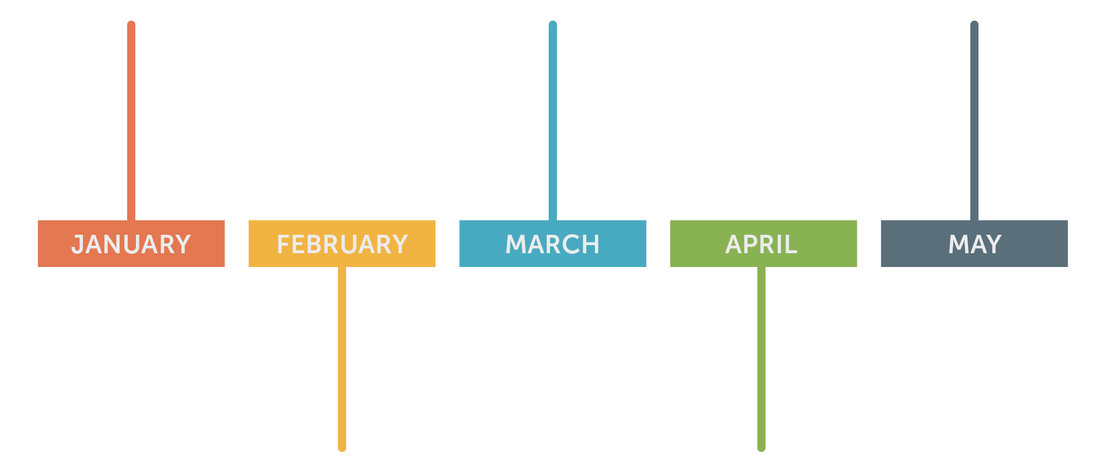
I add lines, 5pt, to the top and bottom alternating the lines up and down to create connectors. The lines are capped with a round cap in the Stroke Panel.

Picture
I add text to the lower part, using a dark gray color. I almost never use black as it creates too much contrast. This is 75% gray.
Picture
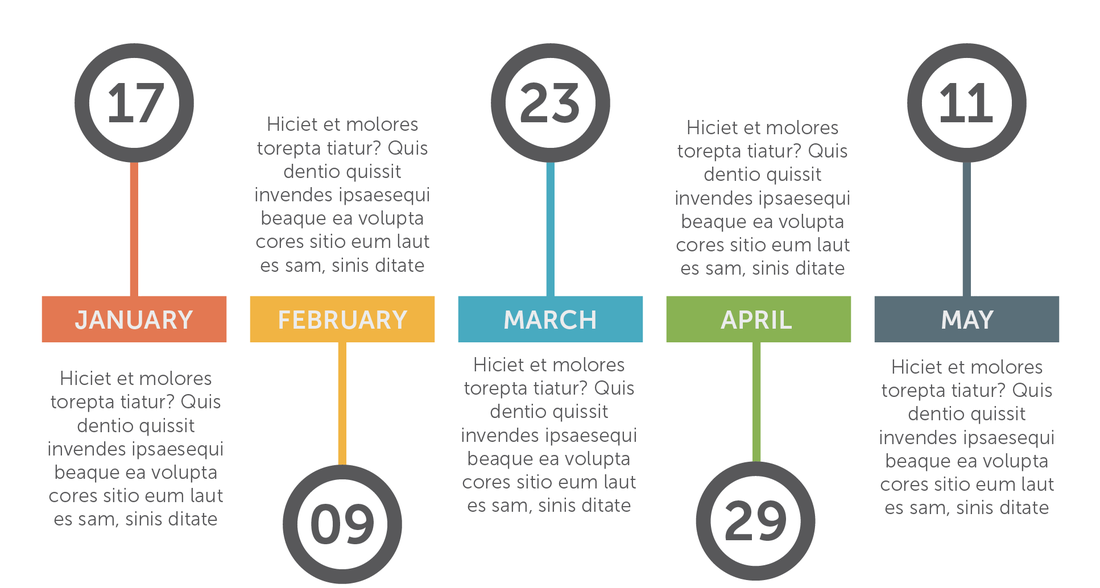
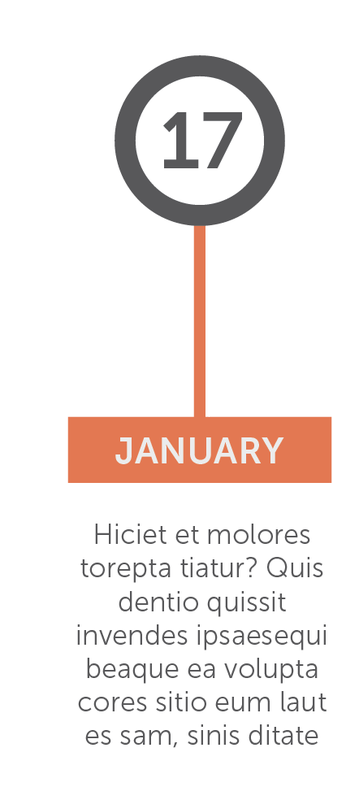
I add a circle the top or bottom of the line, centering the circle on the end of the line for perfect alignment on all the connectors. I stroke the circle with a 5 pt gray and fill the center with whit to cover up the connector. Then I add text to the inside of the circle to draw the reader into the specific date in this case.
Picture
The months are added in as a 10% gray to help keep the contrast a bit muted. Now each section can be easily duplicated for more months.

INFOGRAPHIC SERIES - RAIN AND CLOUDS

5/1/2016

 
Even though the sun is here, clouds and rain roll in from time to time. This is how you can create your own weather.
Picture

Picture
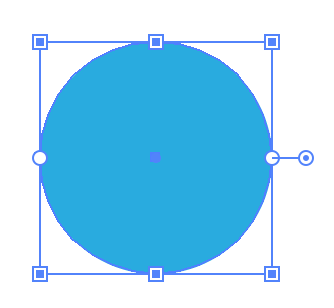
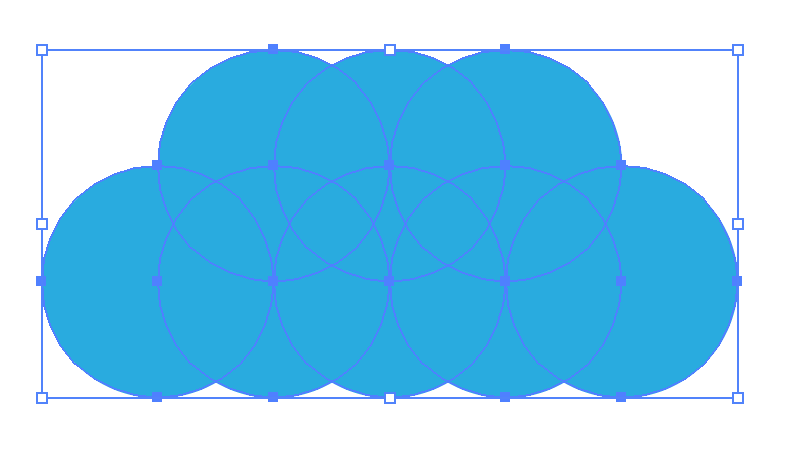
Start with creating a circle, fill it with blue.
Picture
Use OPTION click + DRAG to create duplicates of the circle half way over each of the existing circle. The center of the new circle should be on the right edge of the previous circle and your Smart Guides will let you know when you make contact with the circle center on the edge of the previous circle
Picture
Do this for a second row as well, shifting the top set so that is is halfway in line with the first set of circles.
Picture
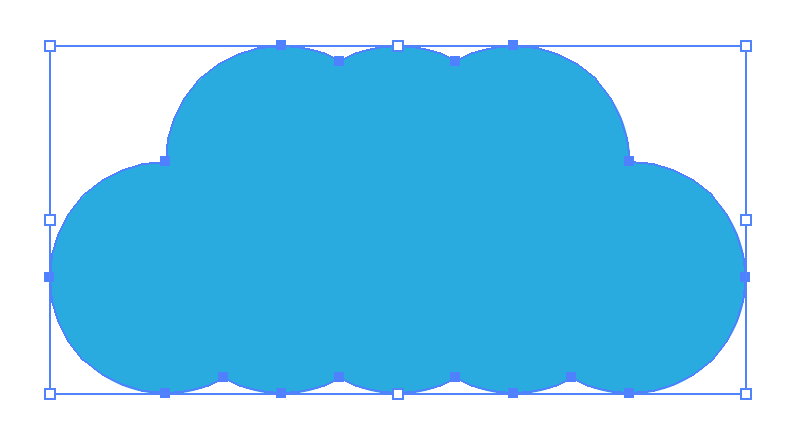
Select all the circles, the use the Pathfinder Panel to Unite them all together into one unit.

Picture
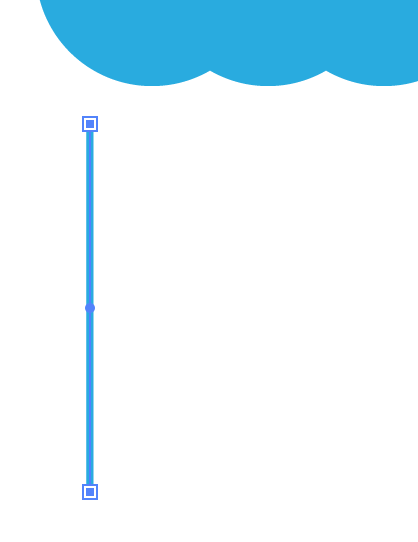
Draw a straight line under the clouds. 
Picture
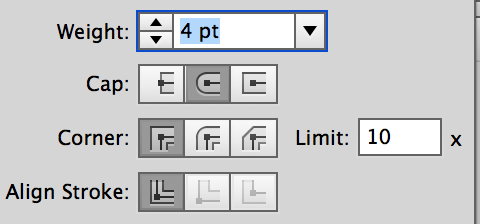
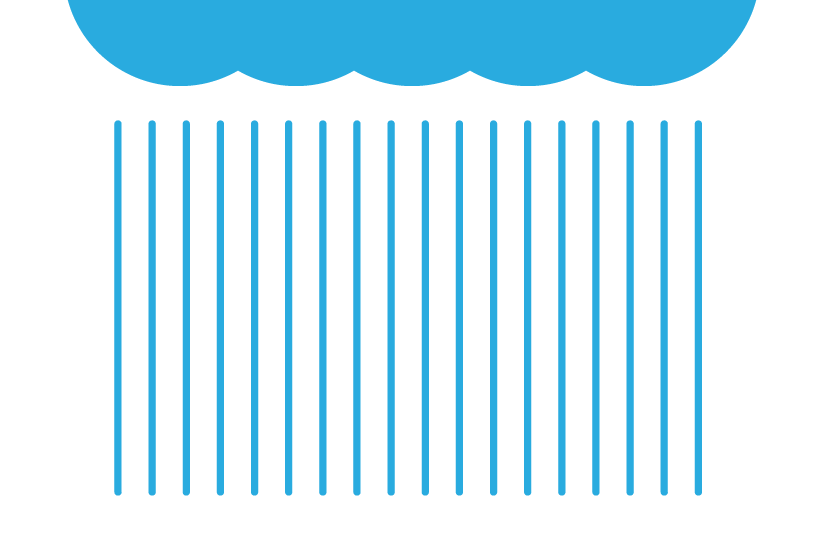
Round the ends of the line with the round cap end in the Stroke panel.
Picture
OPTION + CLICK & DRAG the line, then use COMMAND + D to duplicate the line several times.
Picture
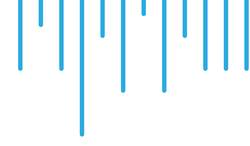
Using the Direct Selection Tool to select the bottom point of the first line, then use SHIFT + UP Arrow to move the line end up. Do this to the bottom point of each line, up and down to create a stagger effect. 
SHIFT + UP (or down) ARROW moves the line up or down 10 units, keeping the line lengths in a common distance.

Picture
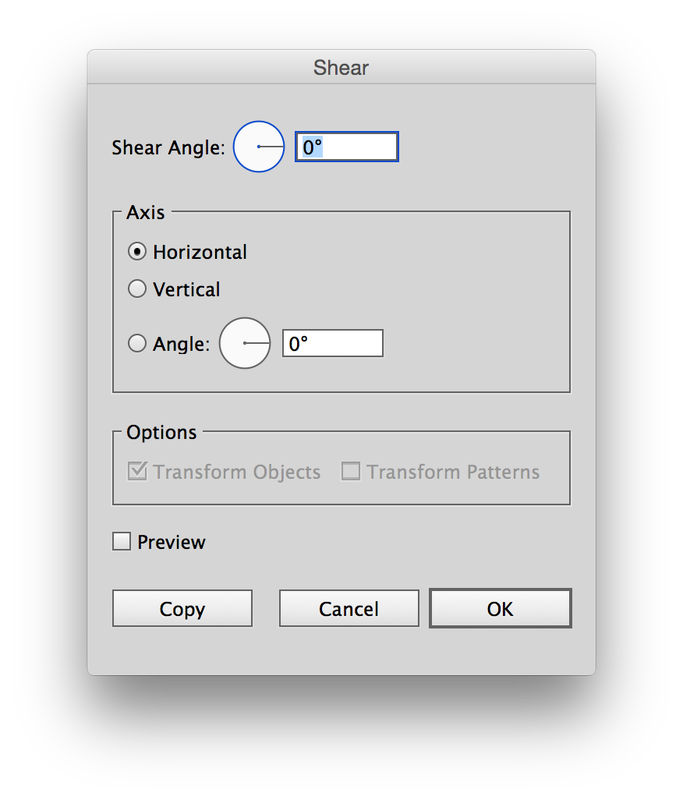
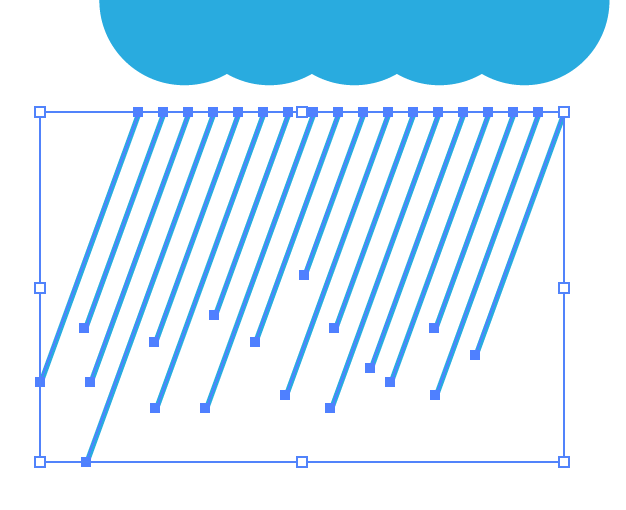
Select all the lines of rain, then select the Shear Tool and OPTION + CLICK on the upper left corner of the group of rain lines. This sets the shear point AND open he Shear dialog box. 
Picture
Then set the shear angle and click OK.
Picture
There is the final rain. 
Picture
You can also take the bottom side of the clouds off to make a flat cloud. 
Forward>>

    RSS Feed

    Archives

    March 2021
    February 2021
    December 2020
    September 2020
    August 2020
    July 2020
    June 2020
    May 2020
    April 2020
    March 2020
    February 2020
    January 2020
    December 2019
    November 2019
    October 2019
    September 2019
    August 2019
    July 2019
    June 2019
    May 2019
    April 2019
    March 2019
    February 2019
    January 2019
    December 2018
    November 2018
    October 2018
    September 2018
    August 2018
    July 2018
    June 2018
    May 2018
    April 2018
    March 2018
    February 2018
    January 2018
    December 2017
    November 2017
    October 2017
    September 2017
    August 2017
    July 2017
    June 2017
    May 2017
    April 2017
    March 2017
    February 2017
    January 2017
    December 2016
    November 2016
    October 2016
    September 2016
    August 2016
    July 2016
    June 2016
    May 2016
    April 2016
    March 2016
    February 2016
    January 2016
    December 2015
    November 2015
    October 2015
    September 2015

    RSS Feed

Proudly powered by Weebly
  • Home
  • Contact
  • Blog
  • Blog Index
  • Portfolio