Jason Hoppe Adobe Certified Expert & Adobe Certified Trainer
  • Home
  • Contact
  • Blog
  • Blog Index
  • Portfolio

Design Points n PixelS


Simple Celtic Knots

5/27/2020

 
Picture
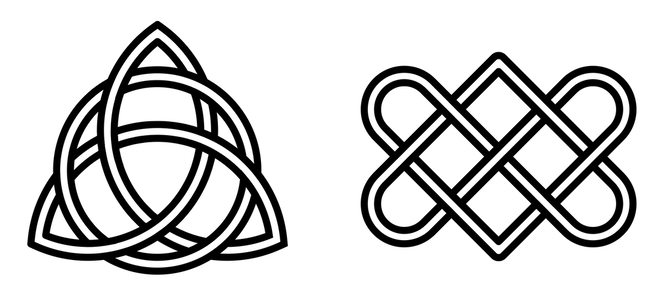
The simple fascination of things that weave in and out, under and around has always been captivating which is why celtic knots are so engaging. Yet trying to draw on is not so easy unless you use simple shapes and the Shape builder tool and make the magic happen.
Check out the video here.

Vintage Type Effect

5/18/2020

 
Picture
Create this vintage type effect in Illustrator using the Transform effect and the Draw Inside Mode. With a few added tricks, create the dot pattern inside and it completes the look. See the video here.
Paper Cutout Illustration Effect

5/11/2020

 
Picture
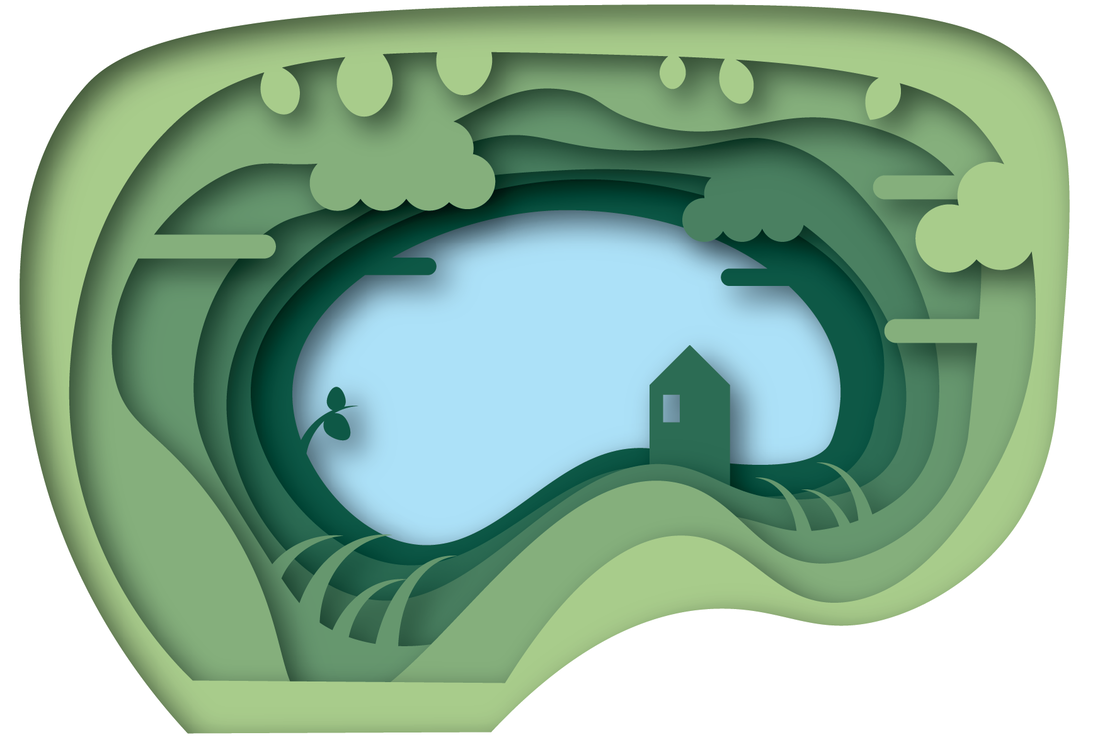
Create a cut paper illustration effect. This uses layers of cutouts with a soft shadow to create the look of paper. Call up your creativity and dive into this cool tutorial here. This has several steps to create this scene, yet it is simple and easy to follow and you can create many layers to add depth to the creation.
Wood Cut Effect

5/3/2020

 
Picture
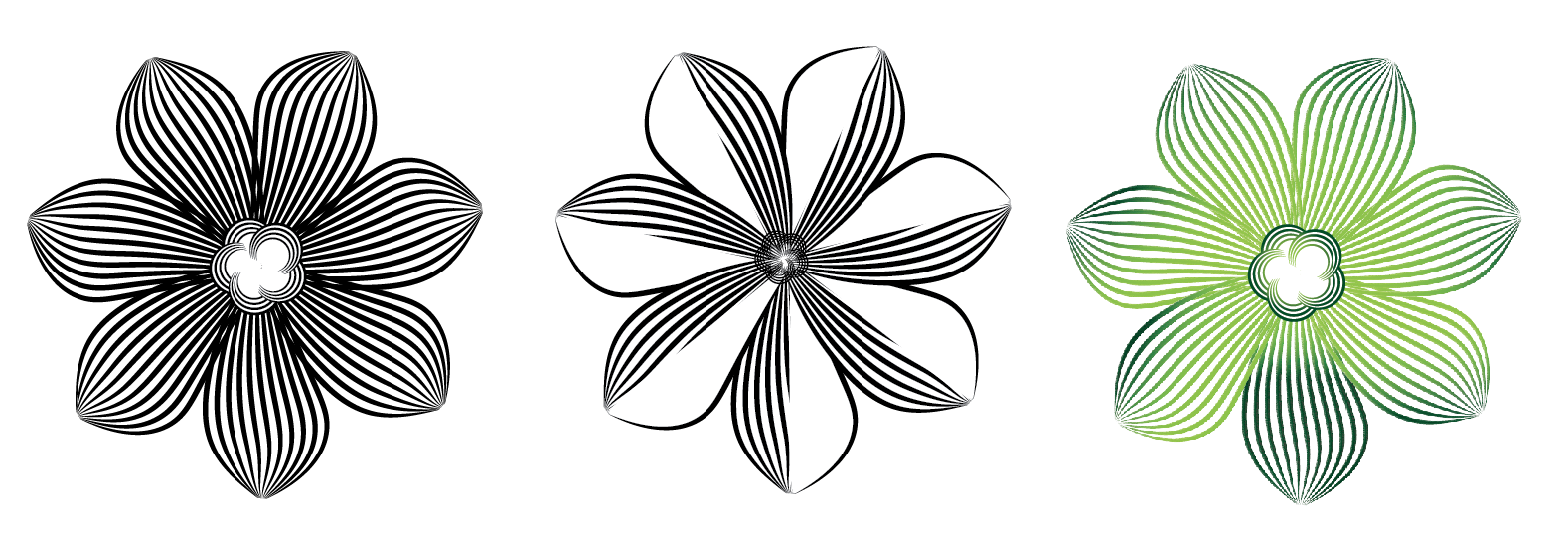
Create a wood cut effect using simple lines. Add some Blend magic and a gradient. The possibilities are endless. Check out the video here.

Picture
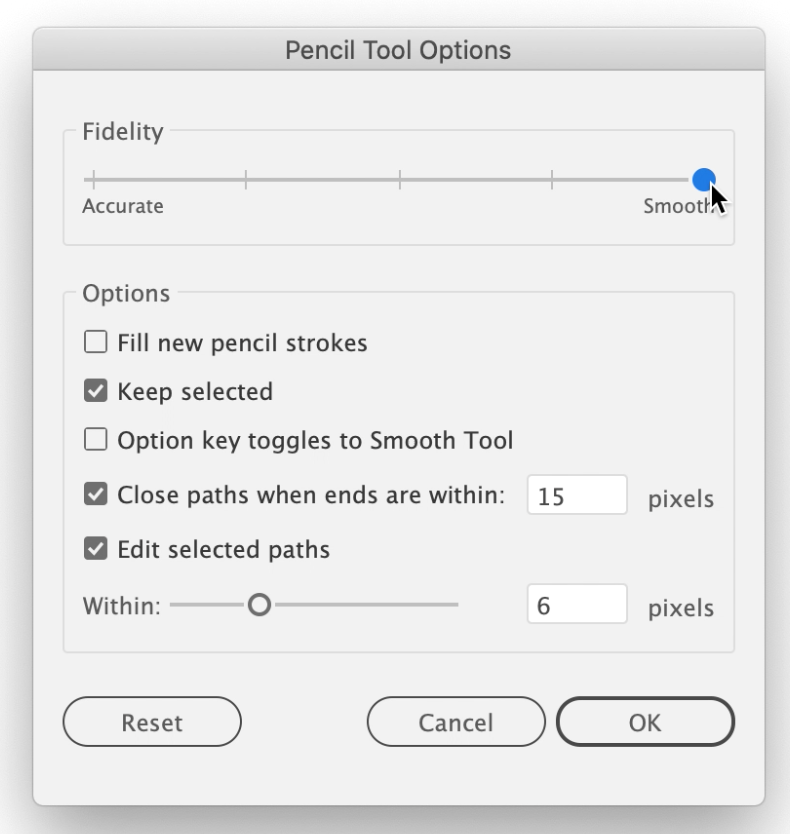
Select the Pencil Tool. Double click on the Pencil tool in the tool bar to open the preferences. Set the Fidelity to Smooth.
Picture
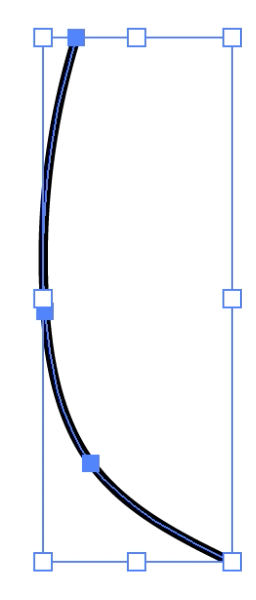
Draw a curve to mimic the curve of a leaf or a flower petal. Set the stroke weight to 5pts or greater.
Picture
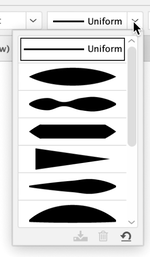
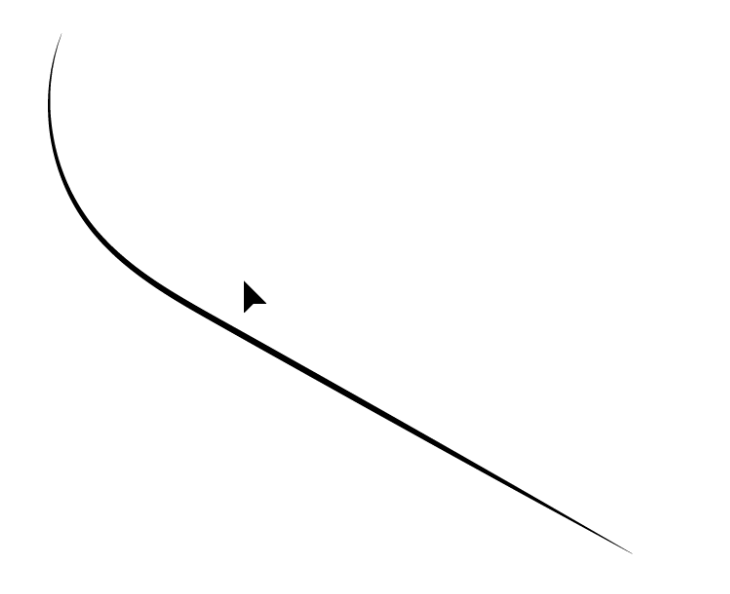
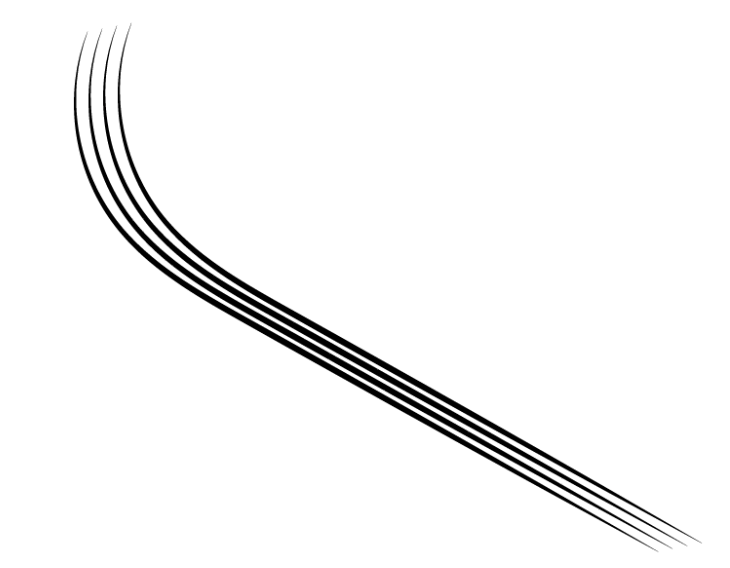
Apply a width profile from the drop down menu, choose the first one in the list; a dual taper. 

Picture
This is the result. 
Picture
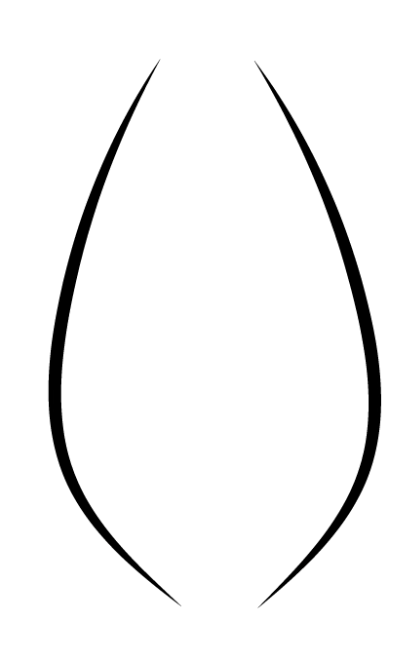
Duplicate and flip the line to create a leaf or petal shape. 
Picture
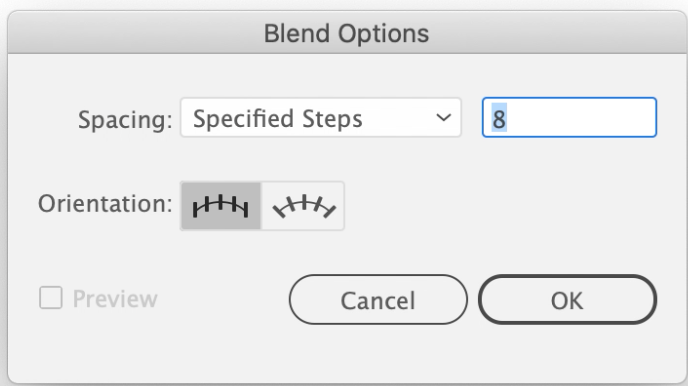
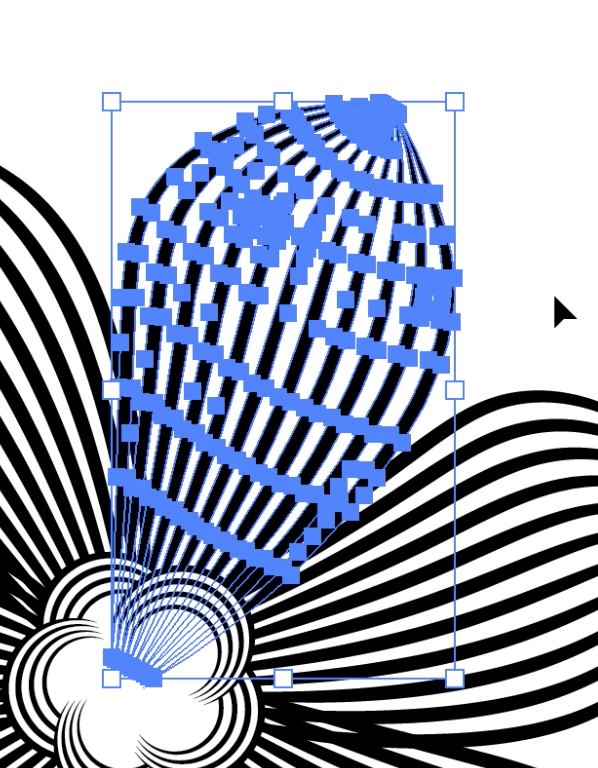
Select both paths and choose Object > Blend > Blend Options. Set the Spacing to Specified Steps and set the number to the number of lines you want in between the two that are selected. 

Picture
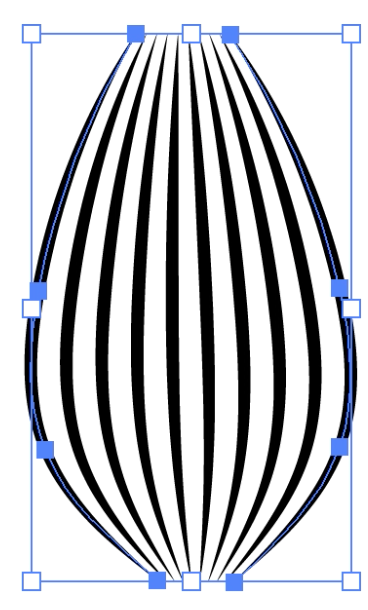
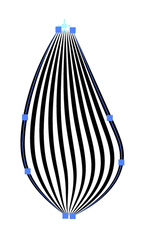
Choose Object > Blend > Make to render the lines. 
Picture
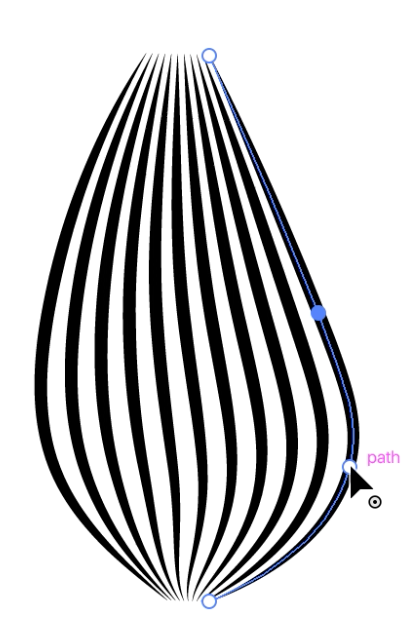
To curve or edit the start and stop lines, you can use the Direct Selection tool or the Curvature Tool. 
Picture
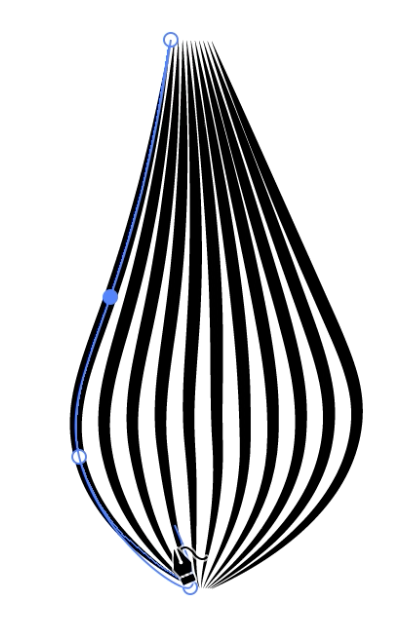
Change the shape of the start and stop lines to create different petals or leaves. 

Picture
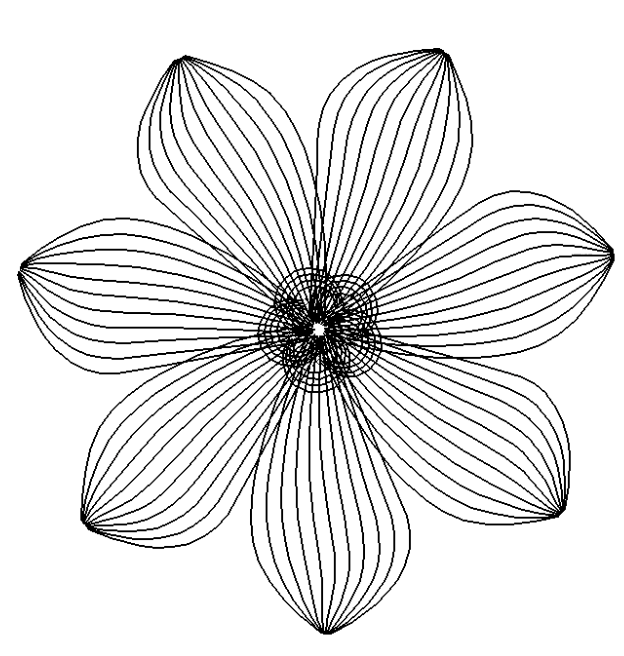
To create a set of petals, select the shape and then select the Rotate Tool. Hold Option/Alt and click on the end of the petal you want to rotate. 
Picture
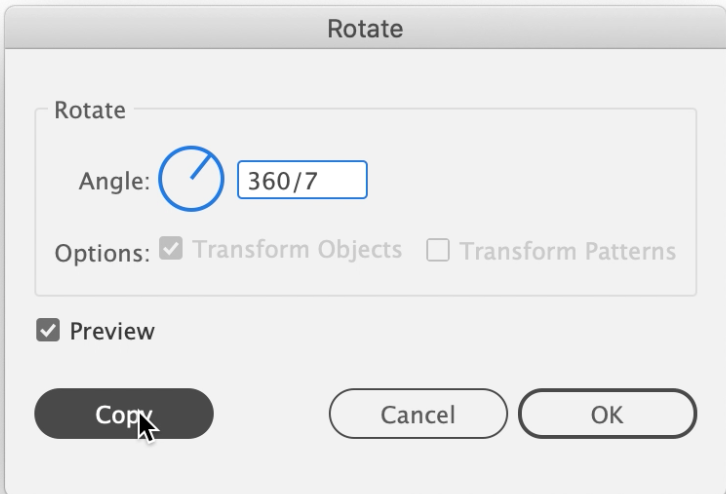
When the dialog box opens, type in 360 divided by the number of petals you want. Click COPY. 
Picture
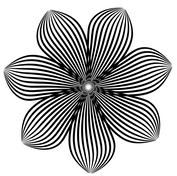
Once you get a duplicate petal, click COMMAND + D to keep copying the rotate around the center of the flower.

Picture
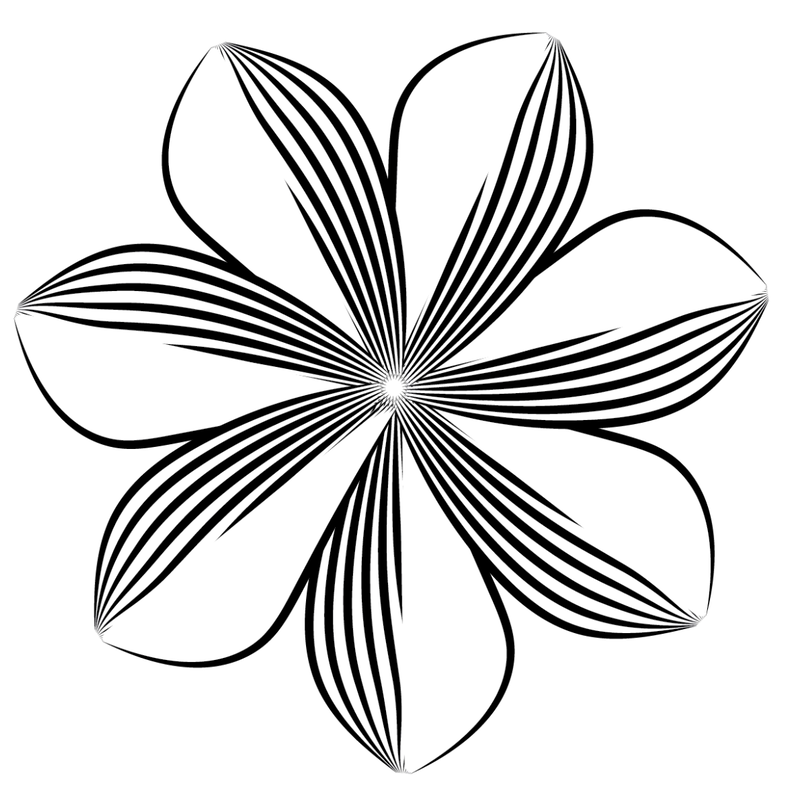
You can fill the petals with a white fill to create in interesting half shaded effect. 
Picture
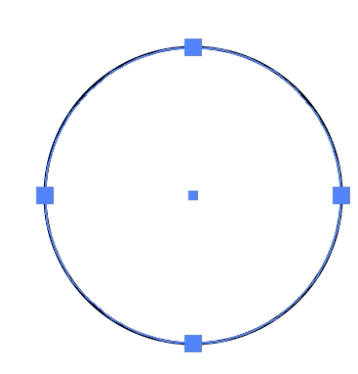
Draw a circle. 
Picture
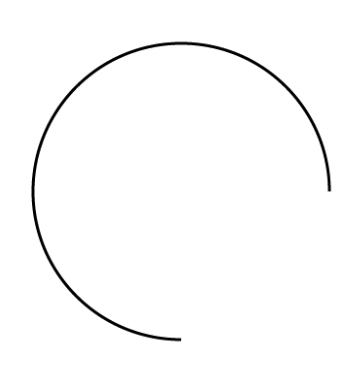
Use the Direct Selection tool to select and remove a section of the circle. 

Picture
Select the line and add a heavier stroke. Apply the same width profile as the petal.
Picture
Duplicate the path and make is smaller. 
Picture
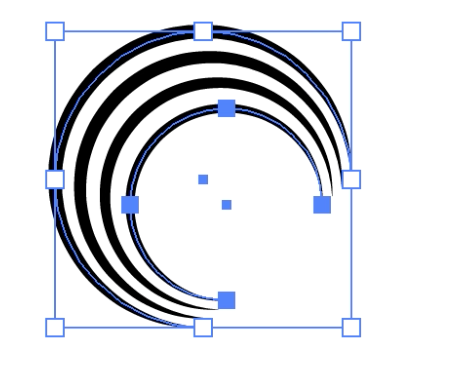
Select both paths and choose Object > Blend > Blend Options and set the steps to 2. Choose Object > Blend > Make.

Picture
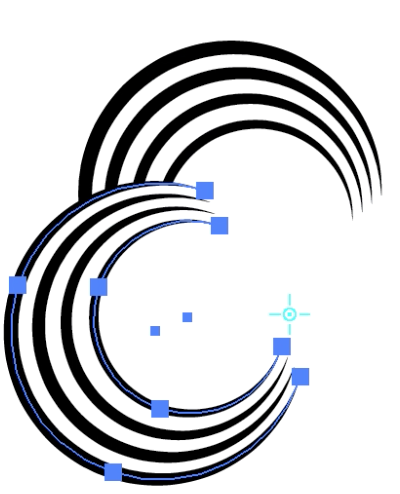
To create a set of arcs, select the shape and then select the Rotate Tool. Hold Option/Alt and click on the end of the petal you want to rotate. ​
Picture
To create a set of arcs, select the shape and then select the Rotate Tool. Hold Option/Alt and click on the end of the petal you want to rotate. I chose 360/5 then click COPY. 
​Once you get a duplicate arc, click COMMAND + D to keep copying the rotate around the center of the flower.
Picture
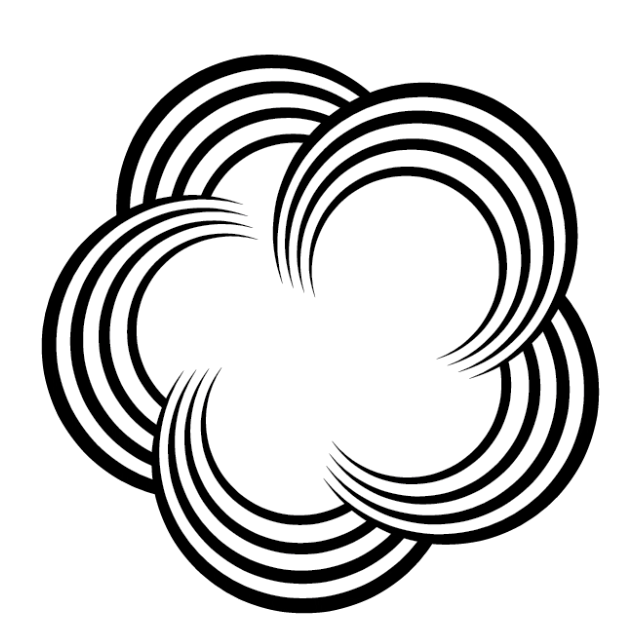
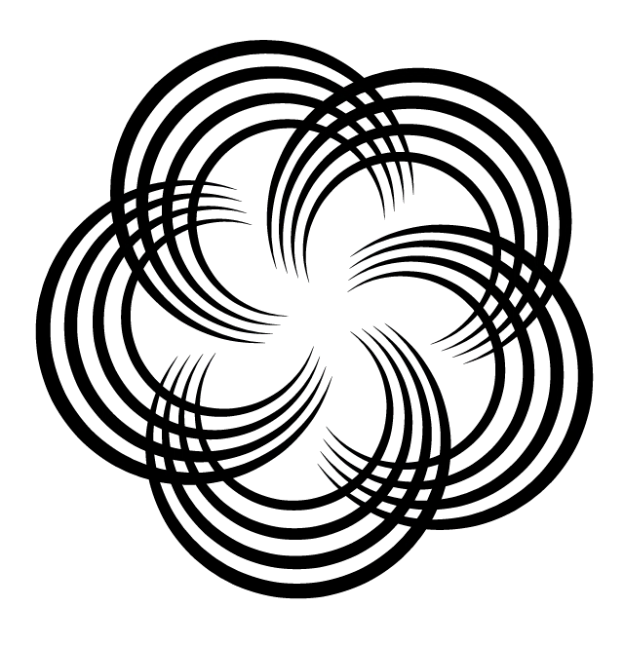
This set is not filled with white, creating an overlapped effect. The previous set shows the arcs filled with white. 

Picture
Move the arcs into the middle of the petals. 
Picture
To create the stem, draw a line with the pencil tool. Add a heavier stroke and apply the Width profile to it. 
Picture
Duplicate the path, then use the Blend command like in the previous steps to create several lines.

Picture
Repurpose some of the petals from the flower, changing the start and stop lines of the shapes to create flowing leaves. 
Picture
Select the paths and expand them by using the Object > Blend > Expand. This will convert the blend effect to paths. 
Picture
Select the paths and choose Object > Path > Outline Stroke to make all the paths shapes. 

Picture
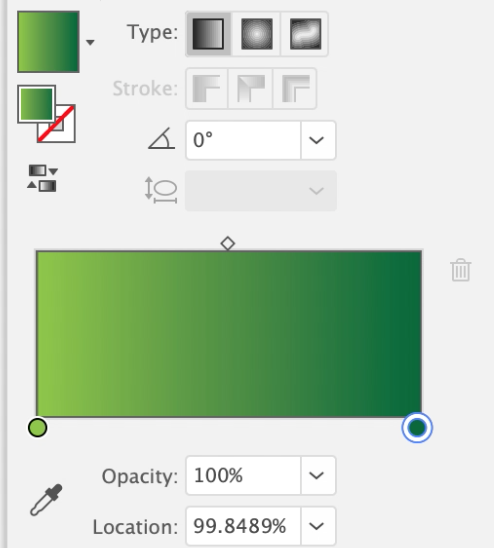
Open the gradient panel to fill the shapes with a gradient fill. Double click on the gradient stop dot to select the color. 
Picture
Apply the linear gradient fill to the shapes, adjusting the angle of the gradient fills to give some highlight and shadow effects.
Picture
Apply a radial gradient to the center seection. 

Picture
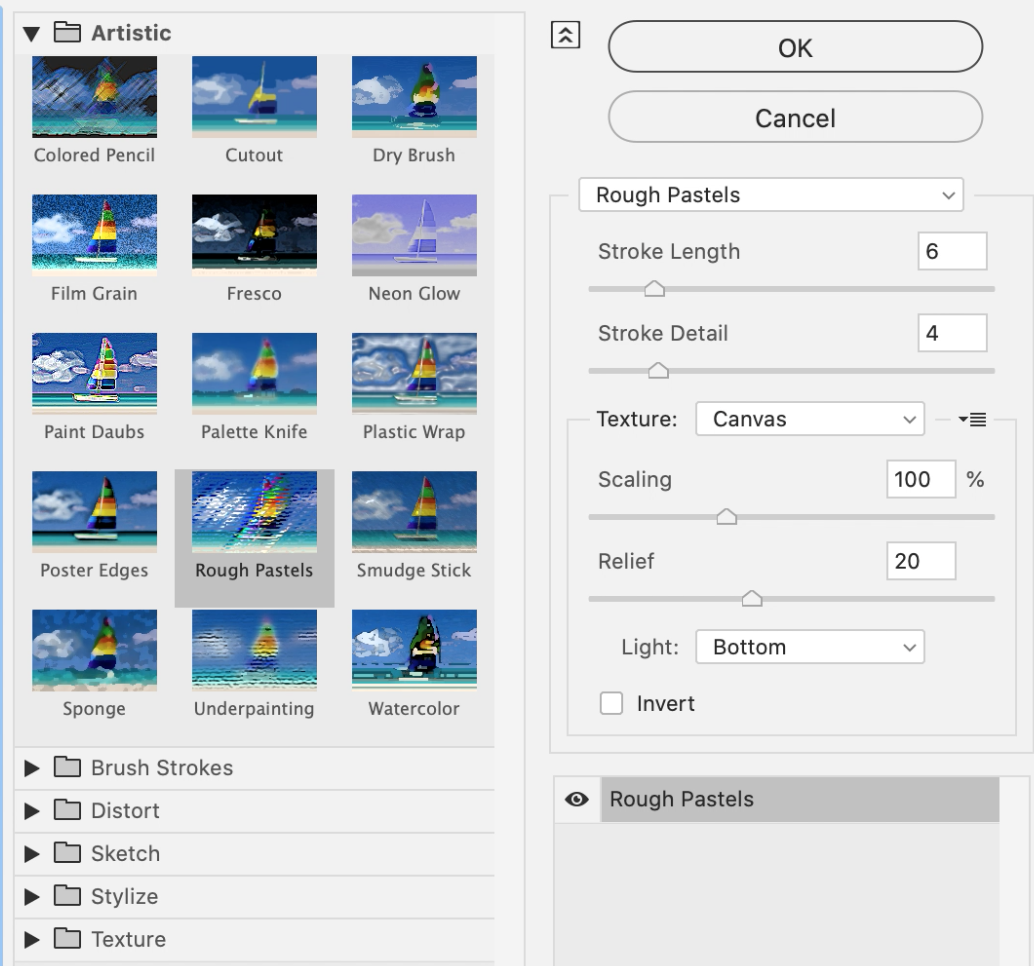
To create a more distress effect, select a section and choose Effect > Artistic > Rough pastels. This is a raster effect that is the same as Photoshop.
Picture
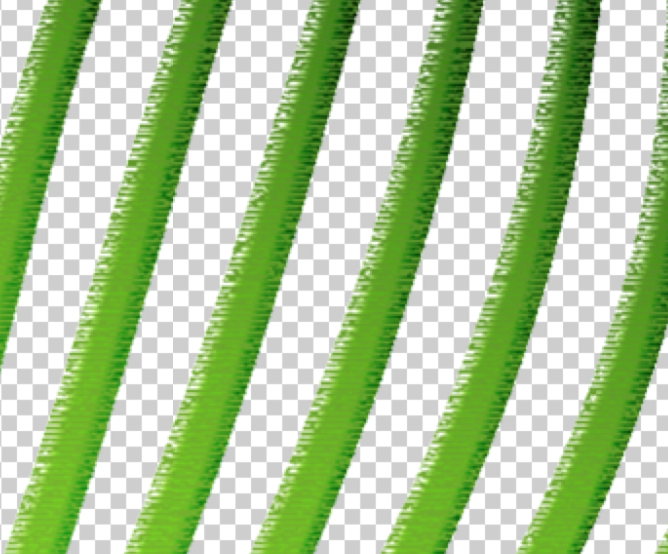
The Rough pastels effect gives a somewhat distressed look to the vector shapes. 

Picture
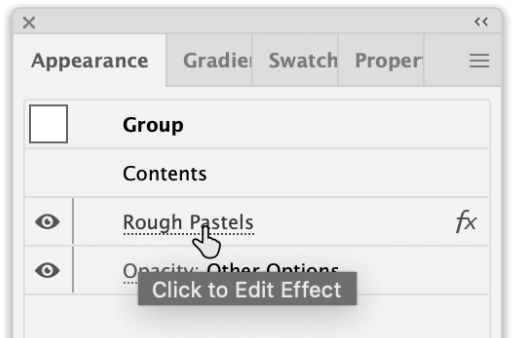
If there needs to be an adjustment to the Effect, go to the Appearance Panel and click on the Effect to make any edits. 
Picture
This is a close up of the Rough Pastels.

Picture
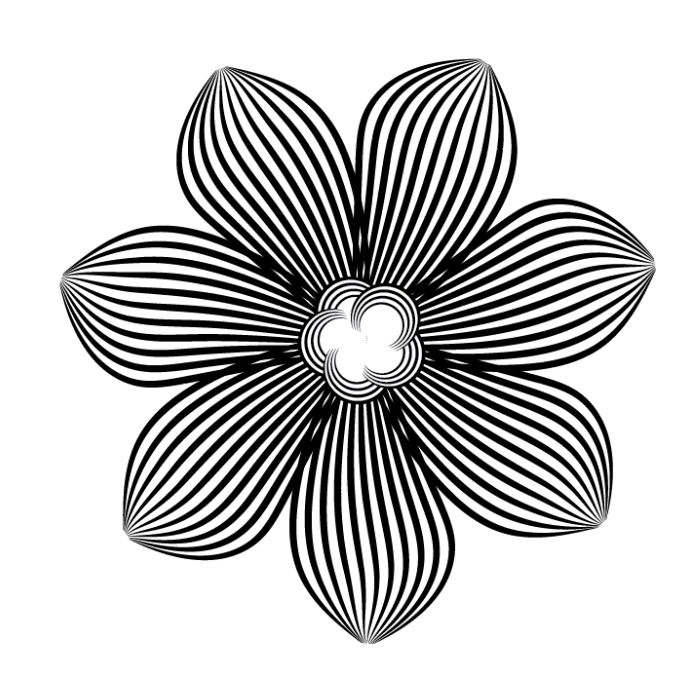
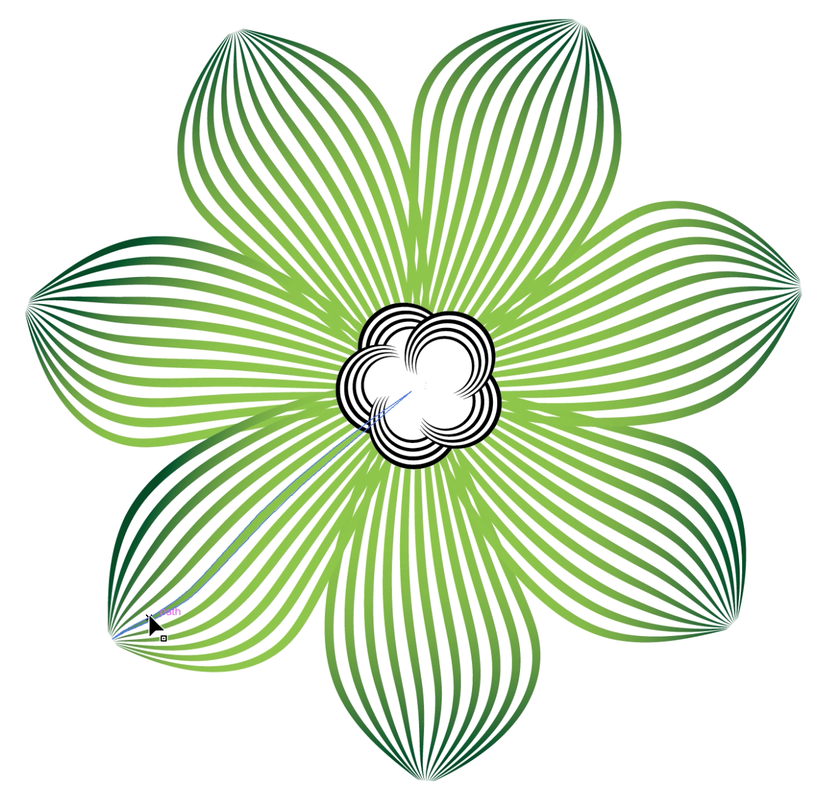
And here is the effect of all that work. Some seriously cool wood cut effects.

Pointers and Connectors

4/27/2020

 
Picture
Creating infographics or instructions are made better by good arrows, pointers and connectors. Some of the clip art out there is just not good. So make your own pointers, connectors and create your own flow. See the complete video here on YouTube.

Picture
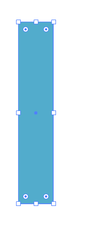
Start with a rectangle, add a fill, no stroke. 
Picture
Duplicate the rectangle, turn it 90° and fill it with a darker color.
Picture
Move the rectangles so the inner corners touch. Select the upper right corner of the rectangle with the Direct Selection Tool.

Picture
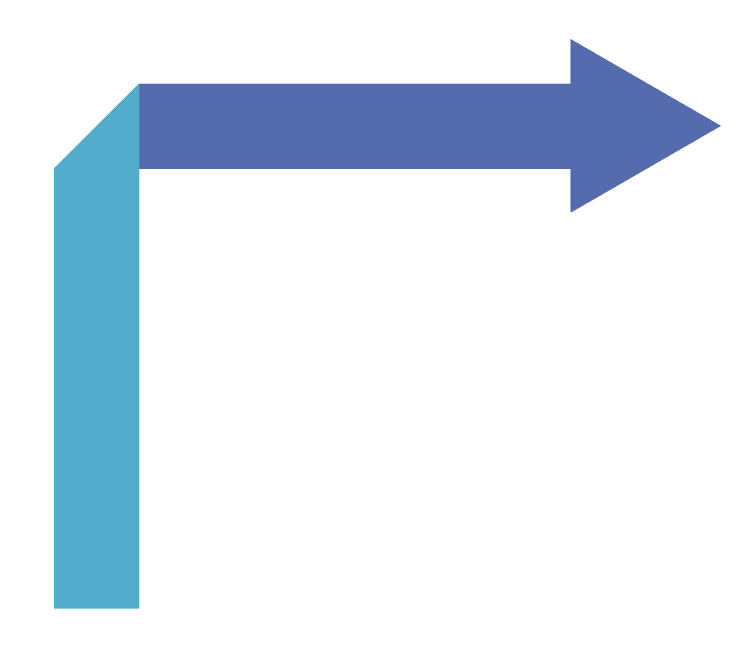
With the corner point selected, move the corner up to the top of the darker rectangle
Picture
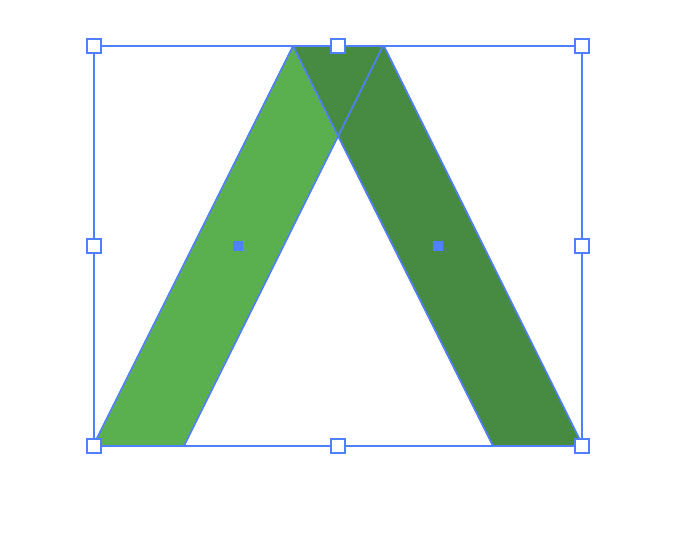
This creates a nice fold effect. Add a polygon for an arrow head.
Picture
For this flip direction, it uses the same basic shapes as the first set. 

Picture
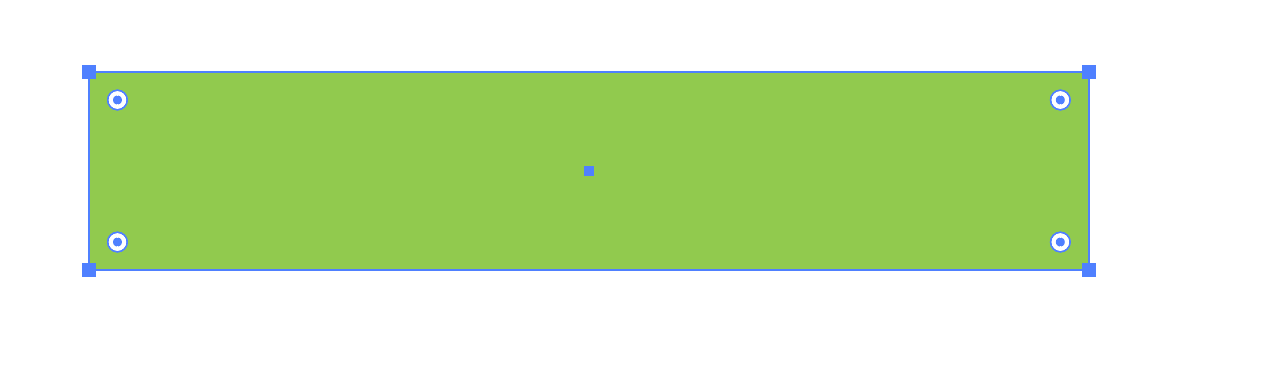
Start with a rectangle. 
Picture
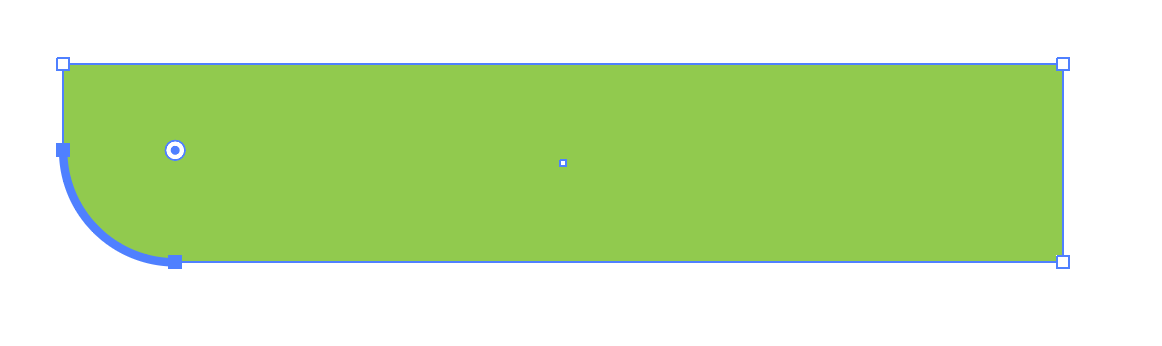
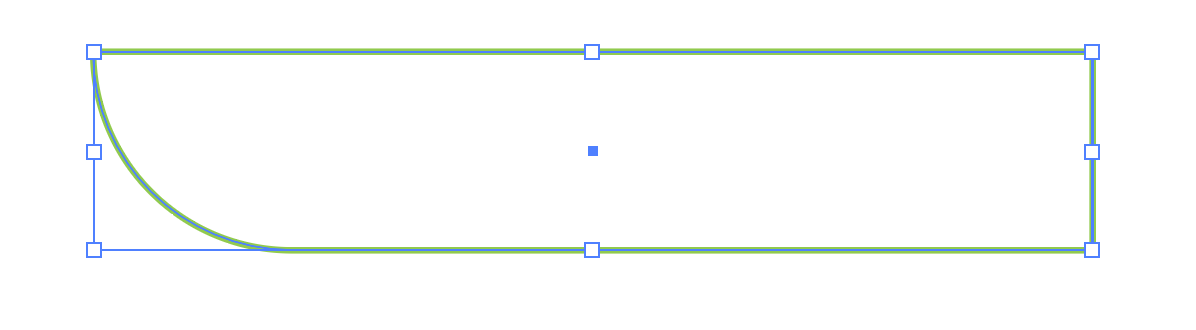
With the Direct Selection Tool, select the lower left point the pull the corner widget in toward the center to its max widgetness.
Picture
With the Direct Selection Tool, select the upper right point.

Picture
Delete the upper right corner and that will remove the horizontal and vertical lines. 
Picture
Duplicate the line. 
Picture
Select both of the lines and choose Object > Path > Join. Do this step twice. You can use COMMAD/CTRL + J as a shortcut. Remove the stroke and add a fill to the shape. 

Picture
Duplicate and flip the shape on the Properties panel. Add a darker fill to one of the shapes. 
Picture
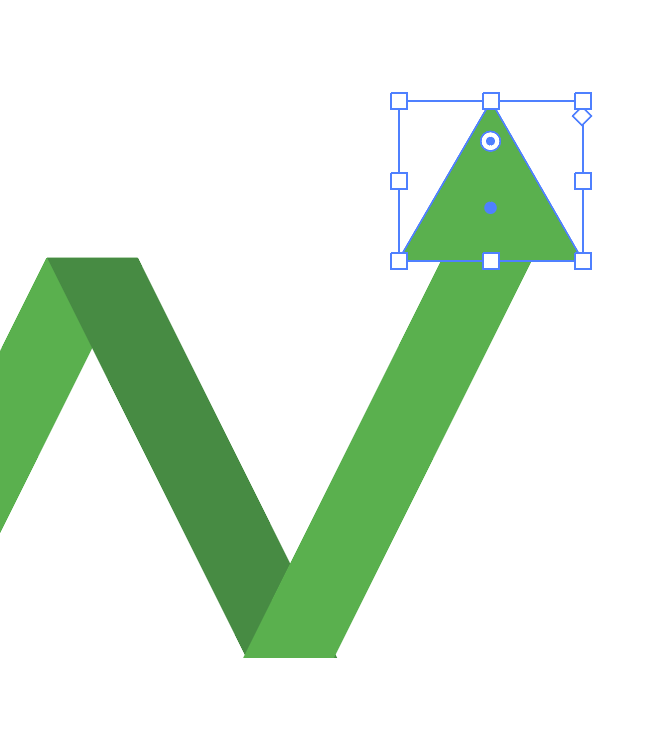
Move the shapes over each other at the tops to create this flip over effect. Add a polygon for the arrowhead. 
Picture
For the flip over effect, this is done with lines. 

Picture
Draw a lines, add a hefty stroke to it. 
Picture
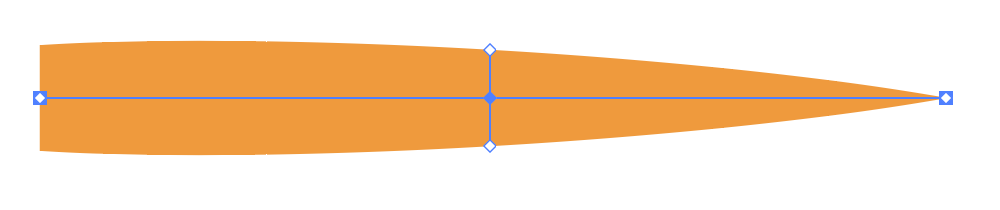
Select the Width Shape tool, click on the right end and pull the edges in to create a point. 
Picture
Click on the center of the line with the Width Shape Tool and pull out from the center of the line to create a bow in the line. Choose Object > Expand Appearance to outline the path. 

Picture
Draw a rectangle to match the widest part of the shape. 
Picture
Select both shapes and use the Pathfinder Unite mode to join them together. ​
Picture
Copy and flip the shape. Add a darker color fill

Picture
Put an arrow head on the end and you hace the twist pointer.
Picture
For the zig zag, this is made of rectangles. 
Picture
Draw a rectangle, add a fill, no stroke. 

Picture
Select the Free Transform Tool. 
Picture
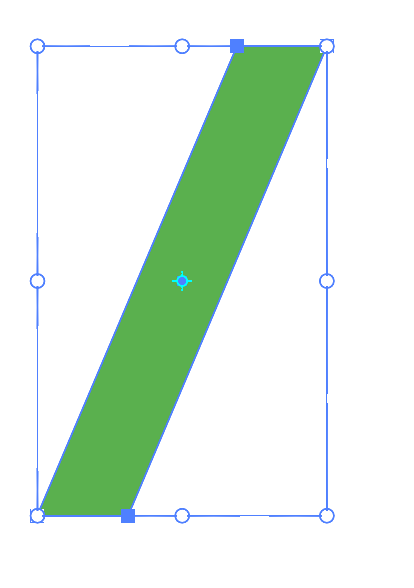
Select the top of the rectangle and shift it off to the side. 
Picture
Duplicate and flip the shape, add a darker fill color to the new shape. 

Picture
Repeat these sections.
Picture
At the end, draw a polygon for the arrow head. 
Picture
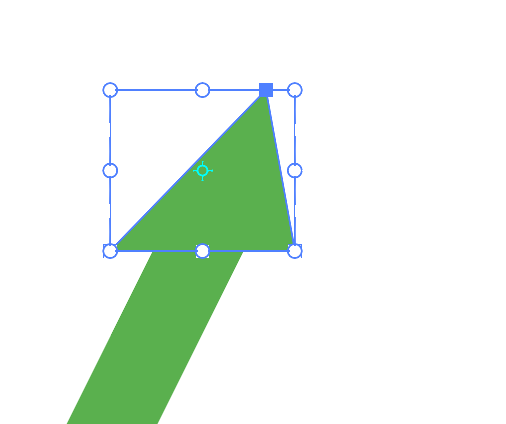
Select the Free Transform Tool and skew the top of the arrow to match the angle and direction of the lines. 

Picture
Send the darker lines to the back to make it look like they are behind the lighter lines. Choose Object > Arrange > Send to back on the dark ones. 
Picture
This is the paper roll. Looks complicated... there is some skill required for this. 
Picture
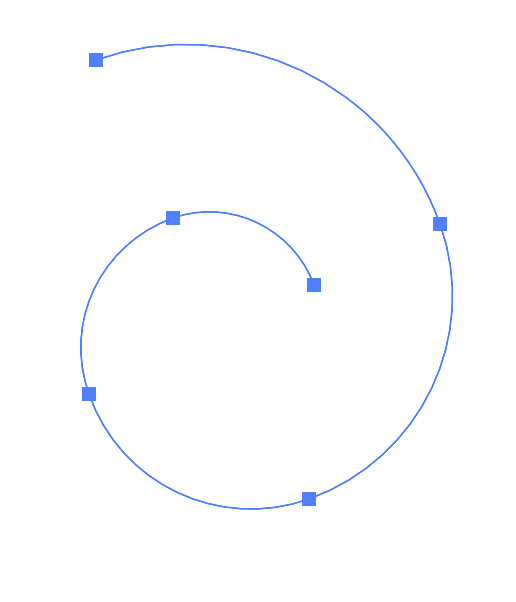
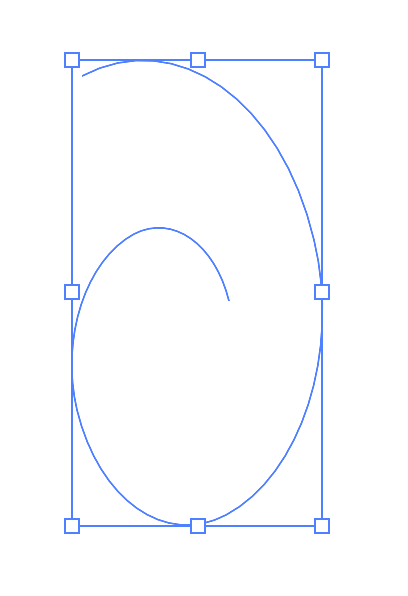
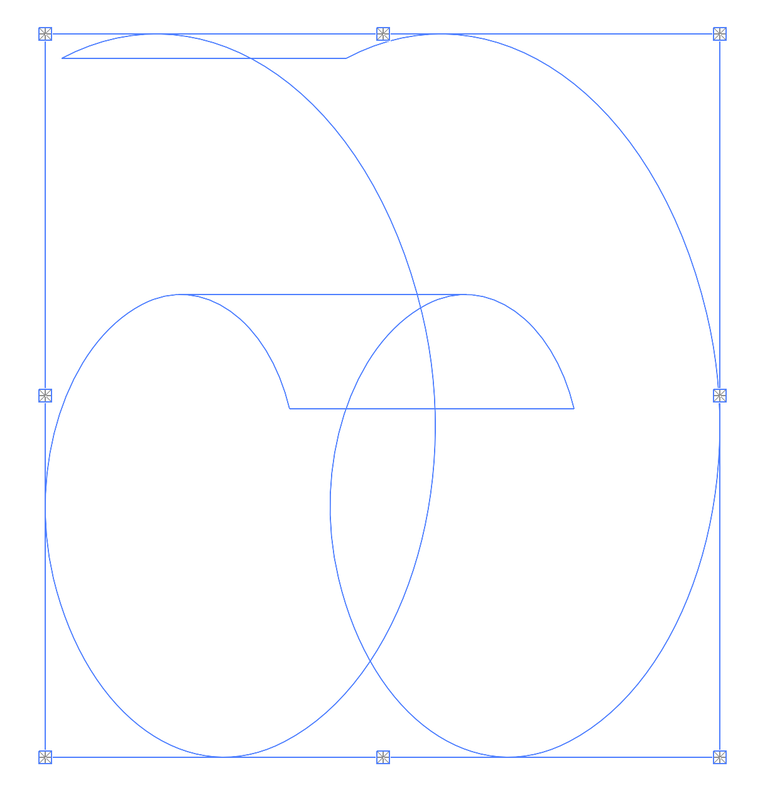
Select your Spiral tool and draw a spiral. Use the p/down arrow keys to make 5 segments. 

Picture
Or click on the document with the Spiral tool if you want to set the settings instead of using the shortcuts while drawing.
​
Picture
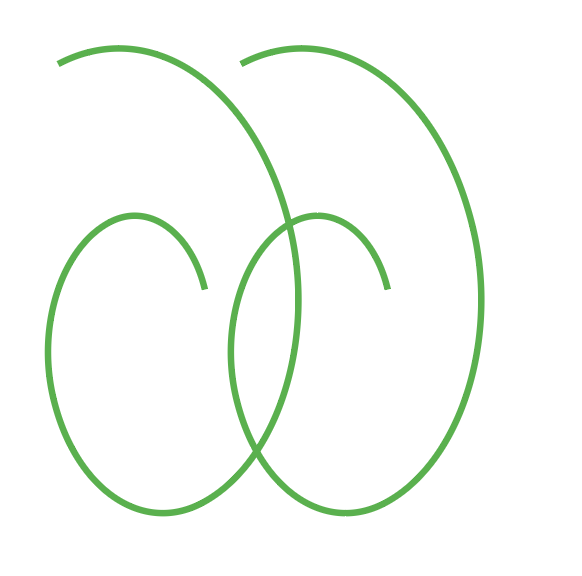
Select the spiral and reduce the width of the overall shape. 
Picture
Duplicate the spiral directly to the side. I added strokes to see the steps, in the end we will remove the stroke. 

Picture
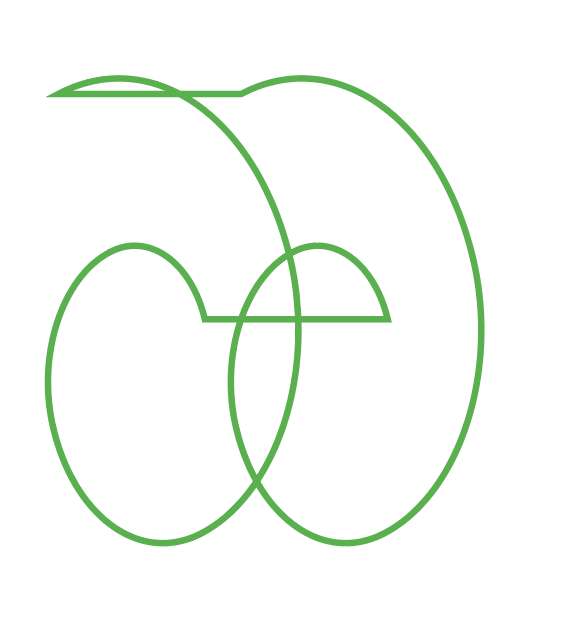
Select both shapes and choose Object > Path > Join. Do this twice to close the shapes. 
Picture
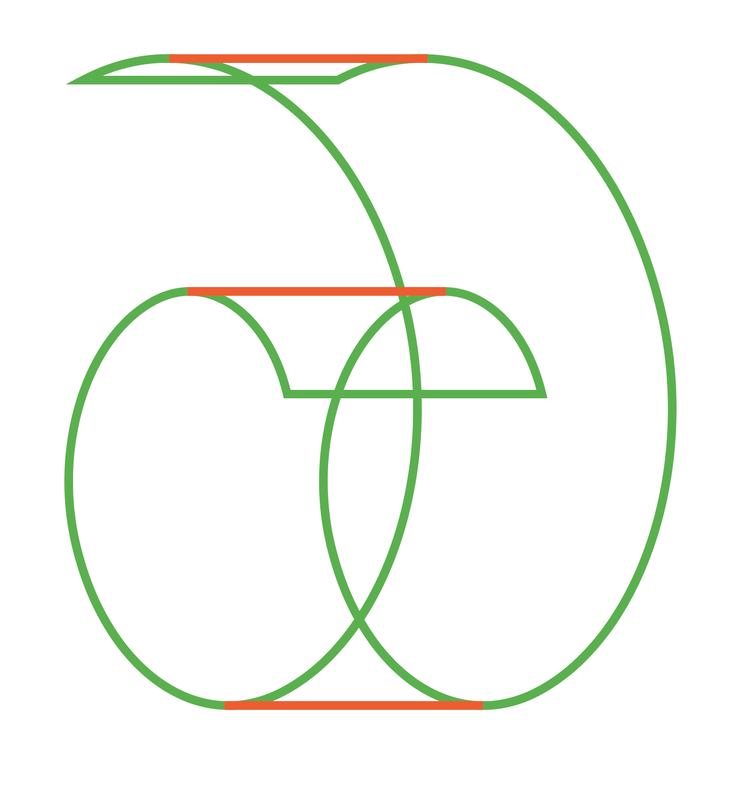
Draw lines and the top, bottom and center top. These will not join, these are just lines that will define the area once we get into the Live Paint Mode. 
Picture
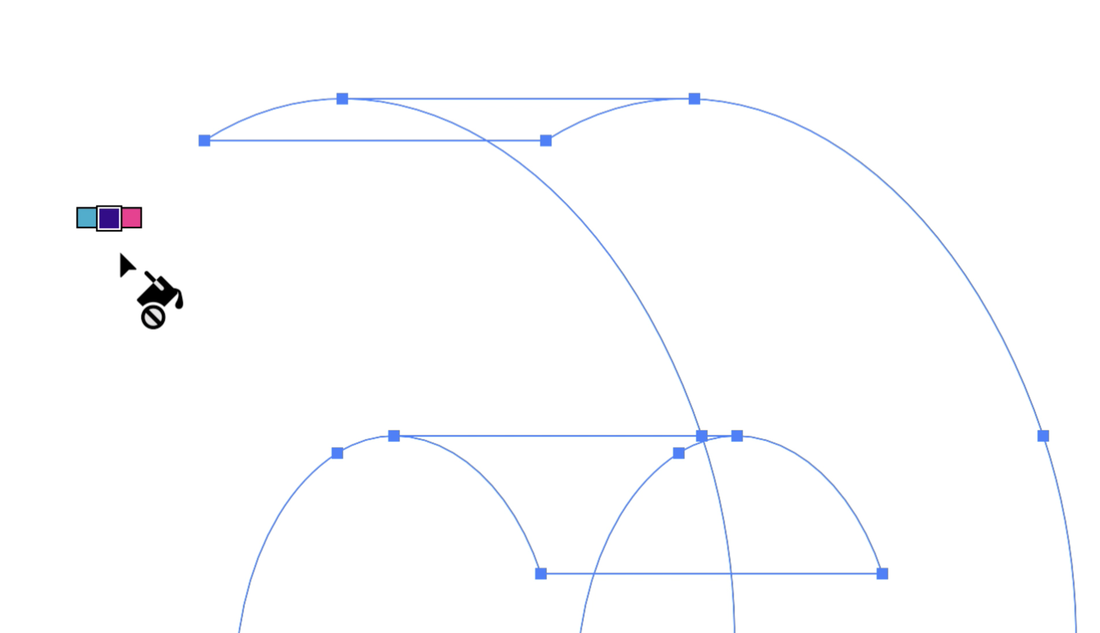
Select all the shapes and lines, remove the stroke on all. Choose Object >Live Paint > Make. The selection will now show the pull handles with snowflakes in them, this is LivePaint mode.

Picture
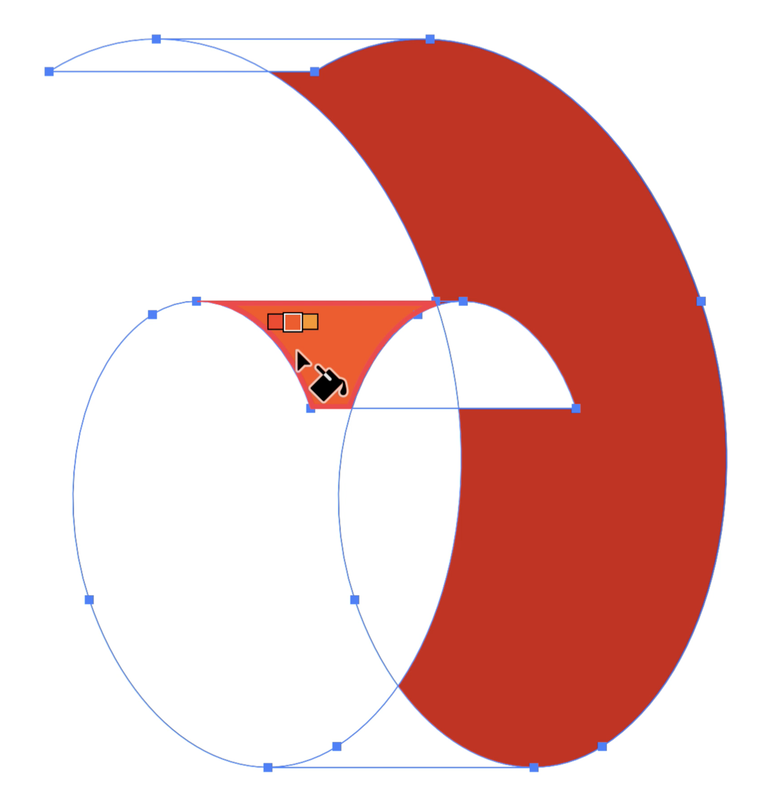
Choose the Live Paint Bucket Tool  (K). This is the only way to fill in these areas. in the upper left of the Paint Bucket icon is your swatches that mimic the swatches panel. Use you left/right arrows to scroll through the colors while the Live Paint Bucket Tool is active. 
Picture
Choose a color and begin to fill in the sections with color. Refer back the initial image in this section to see how this is to be filled, this can make your brain hurt, trying to figure out how this curves.
Picture
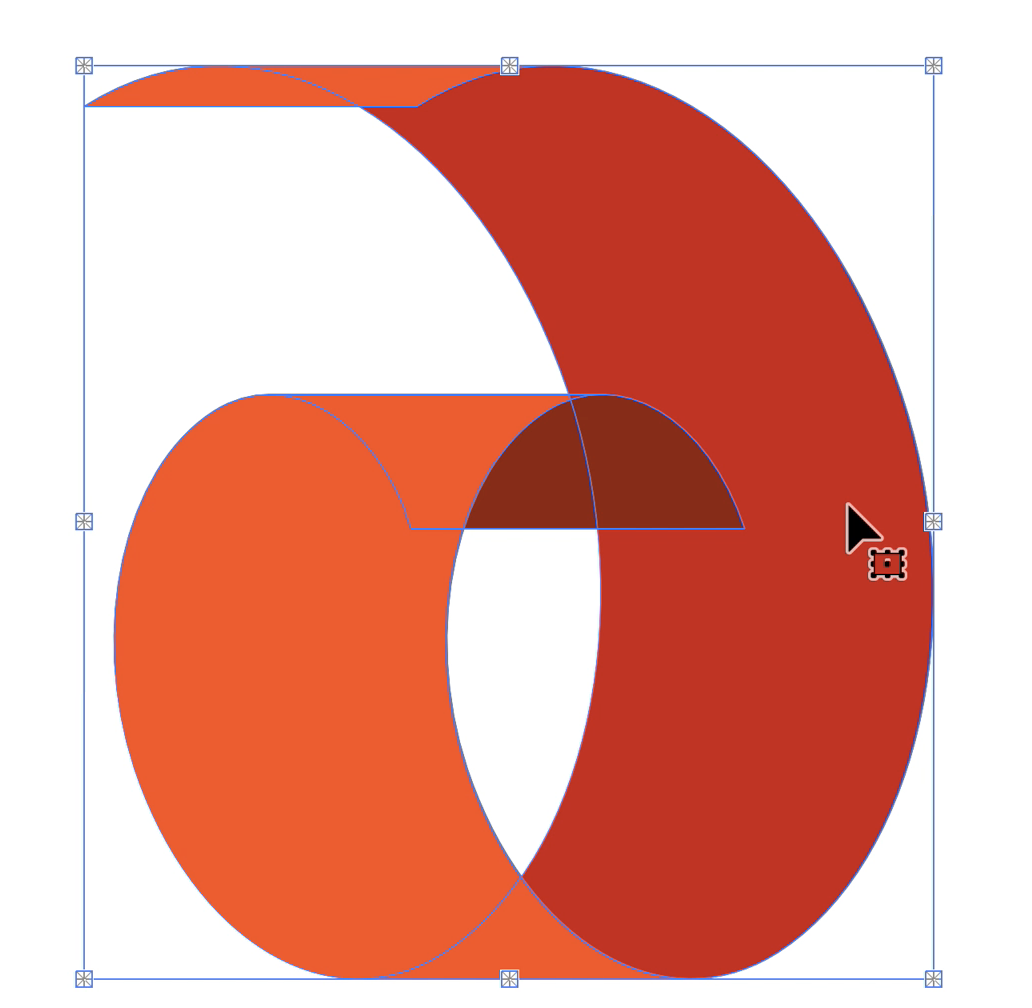
In the end, you will have the darker areas inside the curl, lighter on the outside. This can remain in Live Paint mode or can be converted back to shapes by choosing Object > Live Paint > Expand. 

Picture
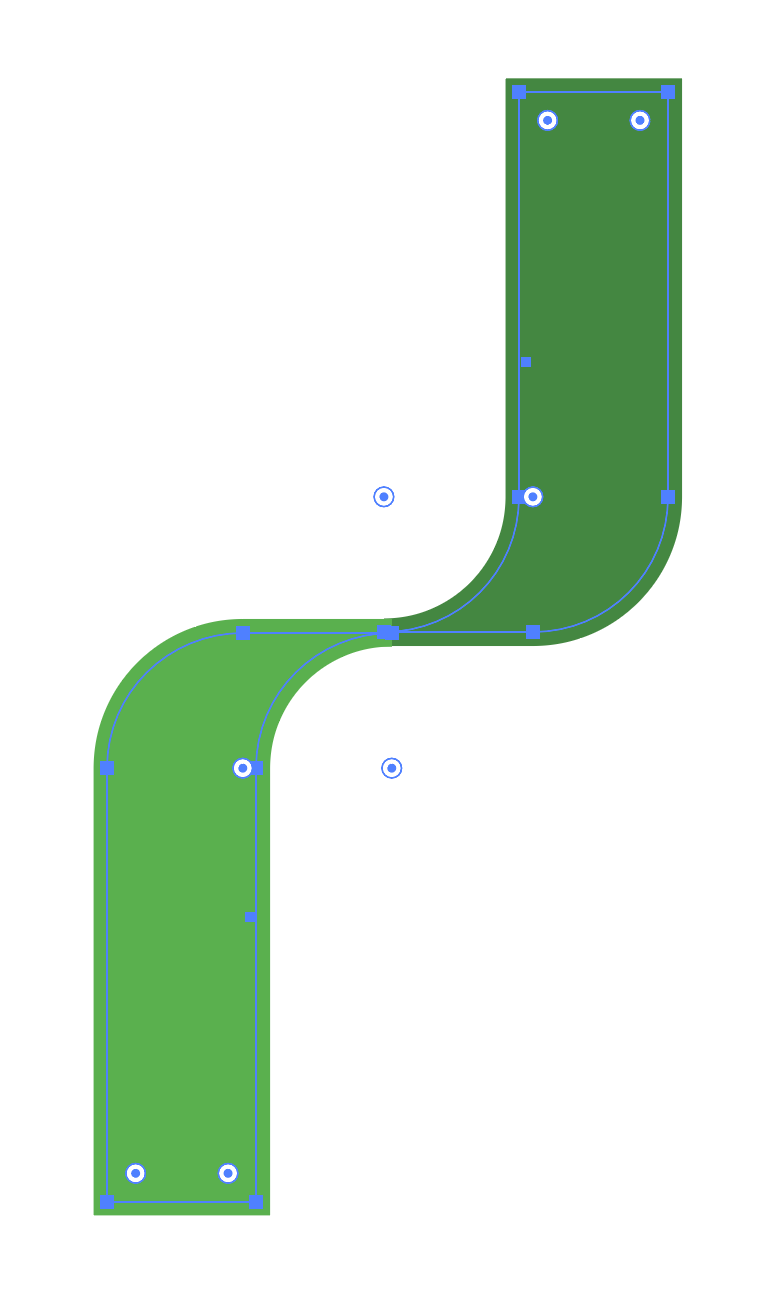
For the cross over, we are using the components of the flip. 
Picture
With the two legs of the flips, we can make this crossover effect. 
Picture
Flip the darker color shape. 

Picture
Line up the shapes at the tips. 
Picture
Add a stoke to each shape with the corresponding fill color. I made this a 5 pt stroke. 
Picture
Move the shapes apart.

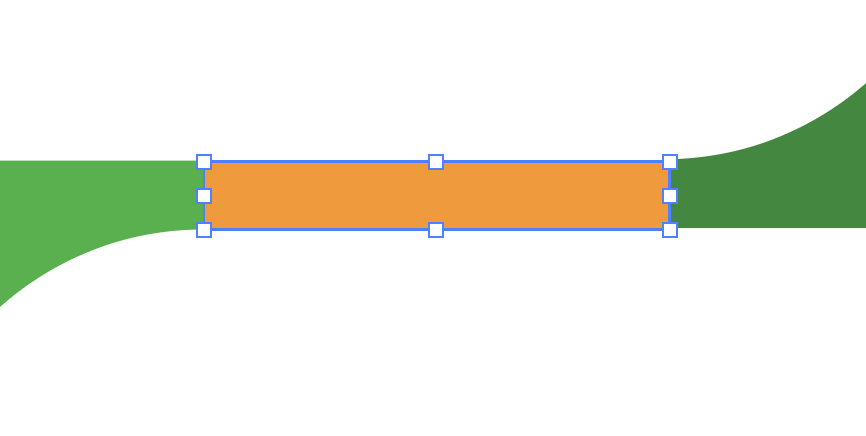
Picture
Draw a line in between the tips. Make the weight the same as the outline of the shapes. 
Picture
Choose Object > Expand to outline the line. 
Picture
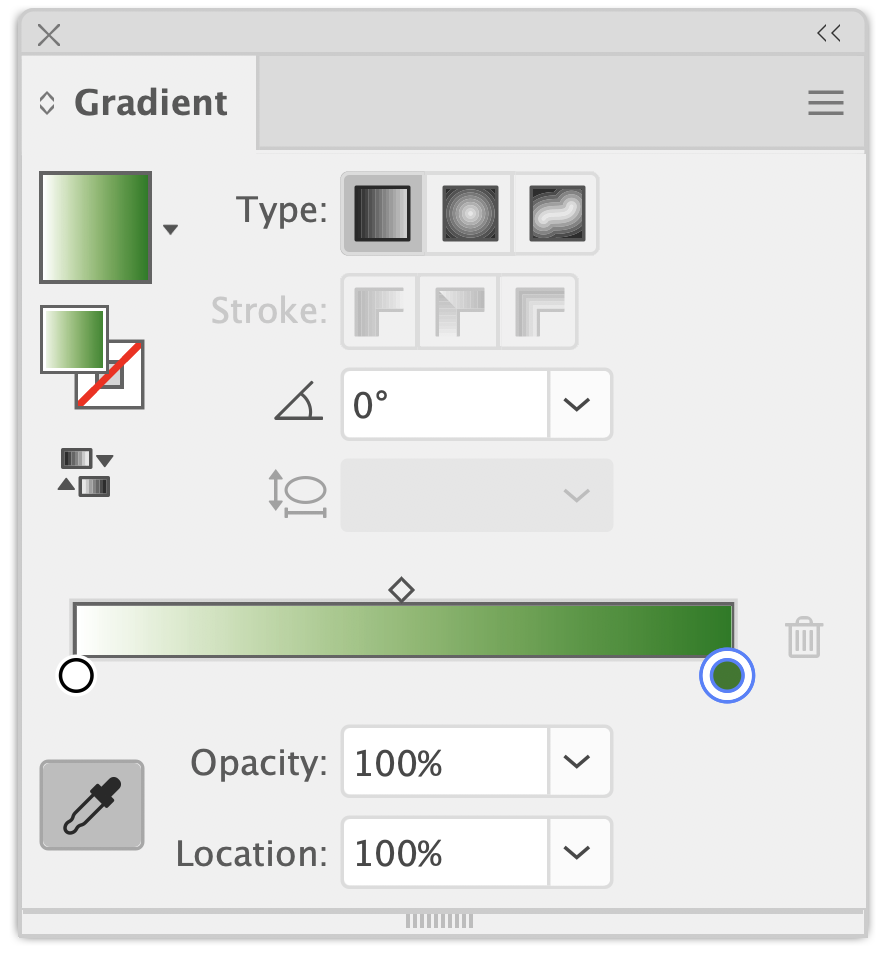
Open the Gradient Panel. Double click on the black gradient stop (dot). Click on the Eyedropper tool in the lower left of the Gradient Panel, then click on the right leg of the shape to sample the color. 
Picture
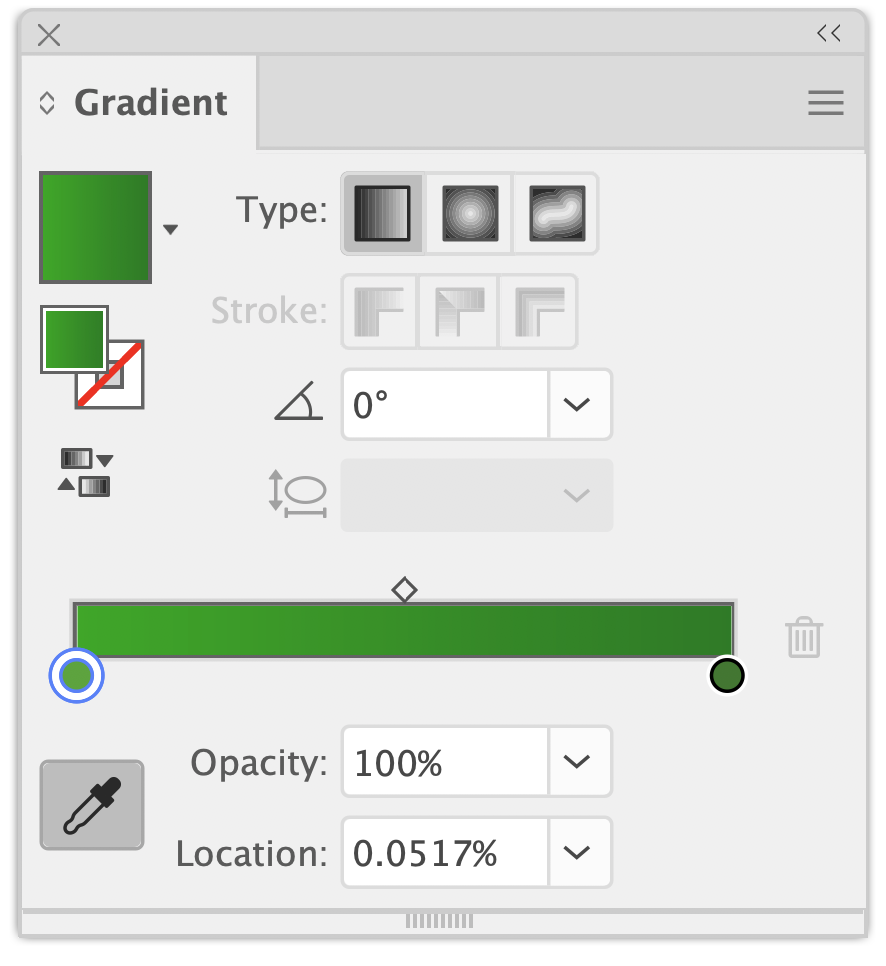
Repeat this process with the left color stop dot. Select the color from the lighter green leg.
Picture
The result is a gradient bridge that can be adjusted in with how ever far apart or close together you want the legs. 
Picture
And your cross over is done. 
<<Previous
Forward>>

    RSS Feed

    Archives

    March 2021
    February 2021
    December 2020
    September 2020
    August 2020
    July 2020
    June 2020
    May 2020
    April 2020
    March 2020
    February 2020
    January 2020
    December 2019
    November 2019
    October 2019
    September 2019
    August 2019
    July 2019
    June 2019
    May 2019
    April 2019
    March 2019
    February 2019
    January 2019
    December 2018
    November 2018
    October 2018
    September 2018
    August 2018
    July 2018
    June 2018
    May 2018
    April 2018
    March 2018
    February 2018
    January 2018
    December 2017
    November 2017
    October 2017
    September 2017
    August 2017
    July 2017
    June 2017
    May 2017
    April 2017
    March 2017
    February 2017
    January 2017
    December 2016
    November 2016
    October 2016
    September 2016
    August 2016
    July 2016
    June 2016
    May 2016
    April 2016
    March 2016
    February 2016
    January 2016
    December 2015
    November 2015
    October 2015
    September 2015

    RSS Feed

Proudly powered by Weebly
  • Home
  • Contact
  • Blog
  • Blog Index
  • Portfolio